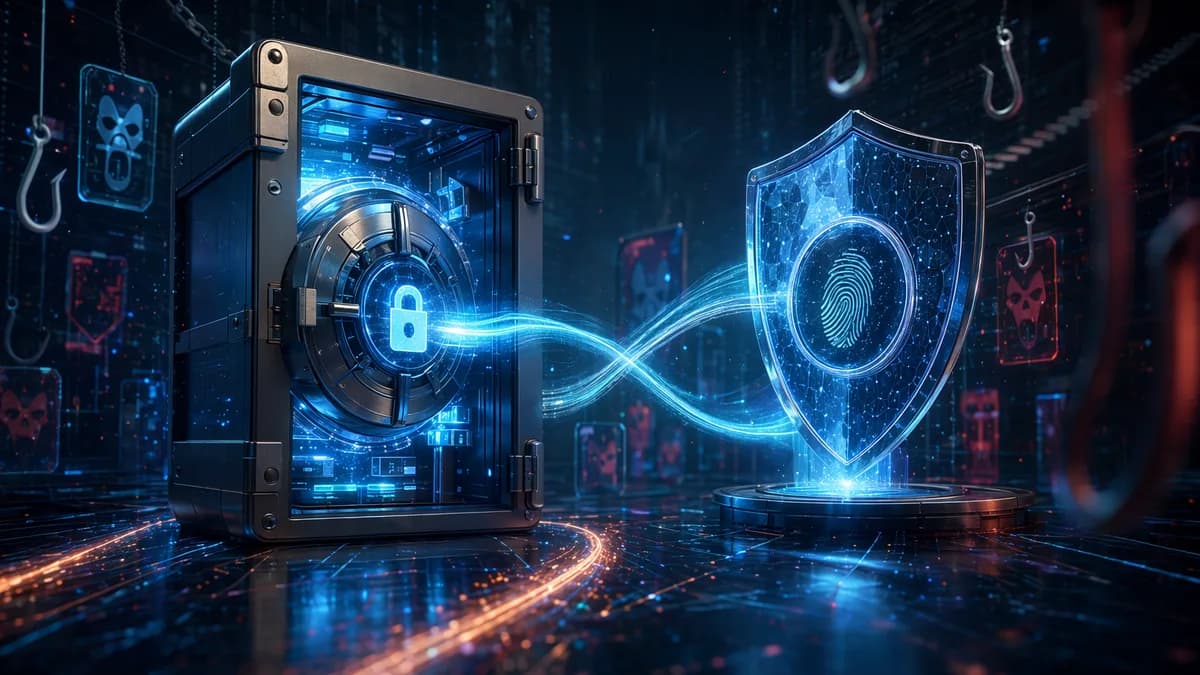
If you are comparing password manager vs passkeys, the practical answer in 2026 is not “choose one and delete the other.” Passkeys are a major security upgrade for accounts that support them, especially against phishing, but password managers still solve problems passkeys do not yet solve everywhere: legacy logins, account recovery, secure sharing, stored credentials, and cross-device consistency.
XOOMAR Intelligence
Analyst Take
The strongest setup for most people is a hybrid one: use passkeys for high-value accounts where available, and keep a password manager as the secure base layer for the rest of your digital life.
1. What Password Managers Do
A password manager is an encrypted vault for your login credentials. Instead of remembering dozens or hundreds of passwords, you remember one strong master password, and the manager stores unique passwords for individual websites and apps.
Sources describe password managers such as Bitwarden, 1Password, Proton Pass, NordPass, Dashlane, and Keeper as tools that improve the traditional password system rather than replace it entirely.
How password managers work
When you create an account, a password manager can generate a long, random, high-entropy password. One source gives an example like:
7f&9#kL2$mPz!xR
You do not need to memorize that string. The password manager saves it in your encrypted vault and can autofill it later when you return to the correct website or app.
Typical password manager functions from the source data include:
- Password Generation: Creates strong, unique passwords for each account.
- Encrypted Vault: Stores login credentials behind one master password.
- Autofill: Recognizes websites and fills in saved usernames and passwords.
- Cross-Device Sync: Makes passwords available on phones, tablets, laptops, and desktops.
- Secure Storage: Can store secure notes, credit card information, addresses, and other sensitive data.
- Secure Sharing: Lets families or teams share credentials without exposing the raw password in unsafe ways.
- Audits and Alerts: Can flag weak, reused, or compromised passwords.
Google Password Manager, for example, says it lets users manage saved passwords in Android or Chrome, stores them securely in a Google Account, makes them available across devices, and includes Password Checkup to check password strength, security, and compromise status.
Consumer Reports cited a nationally representative survey of 2,022 respondents showing that 85% of U.S. adults say they create strong and unique passwords, but only 34% use a password manager to create them.
That gap matters because password managers are especially useful against common password failures: reused passwords, weak passwords, and credential stuffing.
What password managers protect against
Password managers improve security in several concrete ways:
| Threat | How a Password Manager Helps |
|---|---|
| Weak passwords | Generates long, random passwords instead of predictable ones like “123456” or “Password123.” |
| Password reuse | Creates a different password for every account. |
| Credential stuffing | If one site leaks a password, attackers cannot reuse it elsewhere if every account has a unique password. |
| Fake websites | Good password managers may refuse to autofill on look-alike domains, such as a spoofed version of a legitimate site. |
| Forgotten credentials | Stores passwords securely so users do not need to memorize every login. |
But password managers still operate inside the password model. That means the website still depends on a password or password hash, and the password remains a “shared secret” between you and the service.
If an attacker tricks you into manually typing a password on a fake login page, the password can still be stolen.
2. What Passkeys Are and How They Work
Passkeys are passwordless login credentials based on public-key cryptography. They were developed through industry efforts involving companies such as Apple, Google, Microsoft, and others, and they are designed to replace typing passwords on supported services.
A passkey is not simply a stronger password. It changes the authentication model.
The public-key model
When you create a passkey for a service, your device creates a cryptographic key pair:
| Key Type | Where It Lives | What It Does |
|---|---|---|
| Private Key | Stored securely on your device, such as a phone, laptop, or hardware security key | Used to sign login challenges; it does not leave your device. |
| Public Key | Stored by the website or app | Used by the service to verify that the correct private key signed the challenge. |
When you log in, the website sends your device a mathematical challenge. Your device signs that challenge with the private key, often after you authenticate locally using a fingerprint, face scan, device PIN, or screen passcode.
The service then verifies the response using the public key.
No password is typed. No reusable secret is transmitted.
Local authentication matters
Passkeys still require you to prove that you are allowed to use the device. That may happen through:
- Biometrics: Fingerprint or face scan.
- Device PIN: The PIN used to unlock your phone or computer.
- Screen Passcode: The code used to unlock the device.
Consumer Reports notes that biometric data stays local on the device or in encrypted cloud storage. It is not shared with the services you log in to.
Why passkeys are considered phishing-resistant
A passkey is bound to a legitimate website or app domain. If you land on a fake website, your device should not sign the login challenge for that spoofed domain.
That is the core security advantage.
Passkeys help prevent users from accidentally entering login credentials on malicious websites because there is no password to type and no shared secret to hand over.
This is why passkeys are often described as a passwordless future. But “future” is the key word: adoption is growing, yet compatibility and availability are still uneven.
3. Password Manager vs Passkeys: Core Differences
The password manager vs passkeys debate is really a comparison between two different authentication models.
A password manager strengthens the password system. Passkeys replace the password for services that support them.
| Category | Password Manager | Passkeys |
|---|---|---|
| Core idea | Stores and autofills strong passwords | Uses cryptographic key pairs instead of passwords |
| Secret type | Password is still a shared secret | Private key stays on your device |
| Login experience | Autofill username and password | Unlock device with fingerprint, face scan, PIN, or passcode |
| Phishing resistance | Moderate; autofill may help detect wrong domains | Strong; passkey is bound to the legitimate domain |
| Server breach impact | Depends on password storage and hashing; leaked credentials can still matter | Public keys are not useful for logging in without the private key |
| Portability | Generally strong because passwords are text and sync through vaults | Improving, but ecosystem limitations remain |
| Recovery | Master password, emergency kit, vault recovery options depending on provider | Can be more complex; often depends on device sync, cloud backup, recovery keys, or service recovery |
| Current coverage | Works on nearly any password-based account | Only works where passkeys are supported |
A helpful way to think about it:
- Password managers are the best way to survive the password era.
- Passkeys are the best available path away from passwords for supported accounts.
The overlap is growing because some password managers now support storing passkeys. Source data mentions third-party managers such as 1Password and Bitwarden as supporting passkey storage, though the experience is still described as fragmented compared with text passwords.
4. Where Passkeys Are More Secure
Passkeys are more secure than passwords in several important scenarios, especially when attackers rely on tricking users rather than breaking encryption.
Stronger protection against phishing
Phishing is the clearest passkey advantage.
With a password, a fake website can trick you into typing the real password. Even a one-time code from an authentication app such as Authenticator or Authy can be phished if a user enters it into a fake login page.
With a passkey, there is no password to type. The device checks the domain and will not authenticate to a look-alike site.
| Attack Scenario | Password Manager | Passkey |
|---|---|---|
| User visits a fake login page | Manager may not autofill, but user could still manually type the password | Passkey should not work because the domain does not match |
| Attacker steals a one-time code | Possible if user enters code into fake site | Passkey does not rely on a typed one-time code |
| Attacker steals server-side data | Password hashes may still be targeted | Public keys alone are not useful for login |
Less damage from website breaches
Passwords are shared secrets. Even when websites store password hashes rather than plaintext passwords, attackers may still try to crack or abuse leaked credential data.
Passkeys avoid that shared-secret model. The website stores a public key, while the private key remains on your device.
If a server is breached, attackers may obtain public keys, but public keys cannot be used to log in by themselves.
Better login experience on supported accounts
Passkeys can also be more convenient. Instead of typing a password and then entering a second factor, you may only need to unlock your device.
Source data reports large-scale passkey usage:
- Over 15 billion online accounts can leverage passkeys, according to one source.
- 800 million Google accounts reportedly use passkeys.
- Google passkey usage was associated with over 2.5 billion passkey sign-ins, 30% improved success rates, and 20% faster sign-ins, according to the provided source data.
Those figures show why major platforms are investing in passkeys: they can improve both security and usability when the ecosystem works smoothly.
A Microsoft identity security leader cited 4,000+ password attacks blocked each second at Microsoft alone, arguing that people should switch to passkeys where available, use other MFA where passkeys are not available, and rely on password managers when passwords are unavoidable.
That statement captures the practical hierarchy: passkeys first where possible, MFA next, password managers wherever passwords remain.
5. Where Password Managers Are Still Necessary
Despite the security advantages of passkeys, password managers remain necessary for most users in 2026.
The reason is simple: not every website, app, browser, device, or operating system supports passkeys in a seamless way.
Many accounts still require passwords
One source describes the current period as a “bridge” era and says users cannot go fully passkey-only because much of the internet still does not support passkeys.
Even where major platforms support passkeys, many everyday accounts still use passwords:
- Shopping sites
- Forums
- Newsletters
- Legacy business systems
- Smaller apps and services
- Accounts that have not yet adopted passkeys
For those accounts, a password manager remains the safest practical option.
Password managers store more than logins
Passkeys only solve sign-in for supported services. Password managers can also store:
- Secure Notes: Recovery instructions, private account details, or sensitive references.
- Payment Details: Credit cards and billing information, depending on the manager.
- Addresses: Useful for form filling.
- Legacy Credentials: Passwords for accounts that do not yet support passkeys.
- Shared Credentials: Family or work logins that still rely on passwords.
That broader vault function is one reason password managers are not obsolete.
Account recovery still matters
Passkeys can create recovery questions of their own.
Consumer Reports notes that if you lose your phone, you should not necessarily lose access, as long as you have connected your passkeys across multiple devices. Some services continue to provide traditional account recovery through the email address tied to the account. Google also issues backup recovery keys as a last-resort option.
The recommendation from the source data is practical: print or physically write down backup recovery keys and store them somewhere safe at home.
Password managers also often provide recovery flows such as master-password-based access or emergency kits, depending on the product. The source data does not provide a detailed feature-by-feature recovery comparison for each password manager, so users should check their chosen provider’s documentation at the time of writing.
6. Compatibility Across Devices and Browsers
Compatibility is where the password manager vs passkeys choice becomes most practical.
Passwords are portable because they are text. You can type them, save them, sync them, or import them into another tool.
Passkeys are cryptographic credentials. They can sync, but the experience depends on your platform, browser, and device ecosystem.
Current platform details from the source data
| Platform or Tool | Passkey Compatibility Details from Sources |
|---|---|
| Apple devices | Passkeys can be shared across Apple devices using iCloud Keychain. Apple requires a traditional password for Apple ID login, but a passkey on an Apple device can be used on Apple devices running iOS 16 or macOS Ventura or newer, with iCloud Keychain. |
| Google accounts | Users can start using passkeys for personal Google accounts through Google’s passkey setup flow. Android devices may automatically create passkeys when logging in to a Google account. |
| Windows PCs | Sources state that Windows 10 or newer is needed to use passkeys on a PC, while Windows 11 version 22H2 or newer is needed for features such as synchronization. |
| Google Password Manager | Can create and share passkeys across Android, Chrome OS, macOS, Linux, and Windows devices, according to the source data. |
| Browsers | Some browsers may not support passkeys for every setup flow. On a MacBook, a user may need Chrome to set up a Google passkey, even though passkeys can be used with Safari in other contexts. |
| Cross-ecosystem use | Sources say there is not yet a seamless way to share passkeys across iPhone and Android devices or natively across Windows devices. |
Ecosystem lock-in and QR code flows
If you create a passkey on an iPhone and save it to iCloud Keychain, then try to log in from a Windows PC, you may need a cross-device authentication flow. One source describes scanning a QR code on the computer with your phone.
Consumer Reports also notes that Google allows users to scan a one-time QR code from a phone to access an account on a borrowed or shared device without storing the passkey on that device. The devices must be nearby, and Bluetooth range is used to help protect against remote attacks.
That is useful, but it is not as universal as typing or autofilling a password.
The major limitation is not the cryptography. It is the user experience: passkey setup, migration, and cross-device syncing can still feel inconsistent across ecosystems.
For people who live entirely in one ecosystem—such as iPhone, MacBook, and iPad—passkeys may feel smoother. Users who mix Android, Windows, iPad, macOS, Linux, Chrome, and Safari may encounter more friction.
7. Business and Family Use Cases
The best security setup depends on who needs access. A single person securing personal accounts has different needs from a family sharing streaming accounts or a business managing employee credentials.
Family use cases
Families often share accounts, even when security models are designed for individuals.
Password managers can help with:
- Shared Logins: Securely sharing credentials for accounts that still use passwords.
- Household Records: Storing secure notes, addresses, and payment details.
- Password Audits: Finding reused or compromised family passwords.
- Device Flexibility: Syncing across different phones, tablets, and computers.
Passkeys are more complicated for shared accounts, but not impossible.
Consumer Reports notes that Apple allows users to AirDrop a shared passkey to trusted individuals in physical proximity. That makes passkey sharing possible in some Apple-centered households.
Google’s QR code flow can also help when using a borrowed or shared computer, because it allows temporary access without storing the passkey on that device.
Business use cases
Businesses care about phishing resistance, breach impact, compliance, user experience, and support overhead.
The provided source data says a FIDO Alliance report found that 87% of surveyed organizations in the U.S. and U.K. are deploying or actively implementing passkey authentication, citing improved user experience, standards compliance, and reduced data breach risk as major drivers.
That does not mean every organization can abandon password managers. Businesses may still need them for:
- Legacy Applications: Internal or vendor systems that still require passwords.
- Shared Administrative Credentials: Where passkeys are not yet supported.
- Onboarding and Offboarding: Managing access across many services.
- Secure Notes: Storing sensitive operational information.
- Password Health Monitoring: Identifying weak, reused, or compromised passwords.
| Use Case | Better Fit Today | Why |
|---|---|---|
| High-value employee account that supports passkeys | Passkeys | Strong phishing resistance and no shared password secret |
| Legacy SaaS login | Password manager | Passkeys may not be supported |
| Family account sharing | Password manager, with passkeys where supported | Password sharing is broadly supported; passkey sharing depends on ecosystem |
| Temporary login on borrowed device | Passkey QR flow where supported | Can avoid storing credentials on the borrowed device |
| Secure notes and recovery codes | Password manager or physical safe | Passkeys do not replace general secure storage |
For businesses and families, the answer is usually not password manager or passkeys. It is a policy: use passkeys for the accounts that support them, and use a password manager for everything else.
8. Recommended Setup for Maximum Account Security
For maximum practical security in 2026, use a layered approach.
This setup reflects the strongest recommendations across the source data without assuming universal passkey support.
Step 1: Keep a password manager as your base layer
Use a password manager for all accounts that still require passwords.
- Generate Unique Passwords: Every account should get its own random password.
- Avoid Reuse: Do not reuse passwords between email, banking, shopping, or work services.
- Use Password Checkups: If your manager offers audits, use them to find weak or compromised passwords.
- Protect the Master Password: Your vault depends on that one credential, so make it strong and unique.
- Store Recovery Information Carefully: Keep emergency kits or recovery codes somewhere safe.
Google Password Manager users can use Password Checkup to check strength and security, find compromised passwords, and get personalized advice.
Step 2: Turn on passkeys for high-value accounts
Prioritize passkeys for accounts that would cause the most damage if compromised.
One source recommends activating passkeys for “Tier 1” accounts such as:
- Apple
- Microsoft
- Amazon
- Banking accounts, where supported
These accounts often protect email, identity, payments, cloud files, devices, and recovery flows for other services.
Step 3: Use MFA where passkeys are not available
If a service does not support passkeys, use multifactor authentication where available.
Consumer Reports notes that authentication apps are not foolproof against phishing if users are tricked into entering one-time passwords on fake pages. Still, MFA remains better than password-only login when passkeys are unavailable.
Step 4: Sync passkeys across more than one trusted device
Do not rely on a single phone if it is your only passkey device.
- Multiple Devices: Add passkeys to more than one device where supported.
- Cloud Sync: Use trusted sync systems such as iCloud Keychain or Google Password Manager if they fit your ecosystem.
- Recovery Keys: Write down backup recovery keys when services provide them.
- Device Loss Planning: Know how to revoke lost-device passkeys from account settings.
Consumer Reports specifically recommends physically writing down or printing Google backup recovery keys and storing them safely at home.
Step 5: Be careful on shared or borrowed devices
Passkeys can help reduce risk on untrusted devices, but only if used correctly.
- Temporary Access: Use QR-code-based login flows where available.
- Do Not Store Passkeys on Public Devices: Avoid saving passkeys on school, library, hotel, or borrowed computers.
- Bluetooth Proximity: Google’s flow checks that devices are nearby using Bluetooth range, which helps reduce remote attack risk.
- Revoke When Needed: Remove passkeys from lost or untrusted devices through account settings where supported.
Recommended hybrid model
| Account Type | Recommended Method |
|---|---|
| Email, cloud, financial, device-maker accounts | Passkey where supported, plus recovery planning |
| Accounts without passkey support | Password manager with unique random password |
| Accounts with high phishing risk | Passkey preferred |
| Shared family accounts | Password manager, or passkey sharing where supported |
| Work accounts | Organization policy: passkeys where available, password manager for legacy systems |
| Recovery keys and emergency information | Printed copy in a safe place, and/or secure vault where appropriate |
This hybrid approach is the most realistic answer to password manager vs passkeys today: use passkeys for the accounts that support them well, and use a password manager everywhere passwords still exist.
Bottom Line: Do You Still Need Both?
Yes, most users still need both.
Passkeys are more secure for supported accounts because they resist phishing, avoid shared secrets, and reduce the value of server-side credential theft. They are especially valuable for high-risk accounts such as Google, Apple, Microsoft, Amazon, and banking accounts where available.
Password managers remain necessary because many services still require passwords, passkey support is not universal, cross-platform syncing can be inconsistent, and password managers store more than logins. Until passkeys are seamless across websites, browsers, operating systems, and devices, the safest setup is a hybrid one.
The practical answer to password manager vs passkeys is: use passkeys wherever they work well, but do not abandon your password manager yet.
9. FAQs About Passkeys and Password Managers
1. Are passkeys safer than passwords stored in a password manager?
For phishing resistance, yes. Passkeys are tied to the legitimate website or app domain, so they should not authenticate on a fake look-alike site.
Password managers still improve password security by generating unique, strong passwords and reducing reuse, but they do not fully eliminate the risks of passwords as shared secrets.
2. Can passkeys completely replace my password manager?
Not for most users at the time of writing. Passkeys are available only on supported websites, apps, and services, and compatibility can vary by browser, device, and operating system.
A password manager is still needed for accounts that require passwords, plus secure notes, recovery information, and shared credentials.
3. What happens if I lose the device that stores my passkeys?
Consumer Reports says this should not be a problem if you have connected your passkeys across multiple devices. Some services also provide traditional account recovery through email, and Google may issue backup recovery keys as a last-resort option.
You should store recovery keys safely, ideally printed or written down and kept somewhere secure at home.
4. Can I use passkeys across iPhone, Android, Windows, and Mac?
Sometimes, but the experience is not yet seamless. Sources say passkeys can sync well within ecosystems such as Apple devices through iCloud Keychain, and Google Password Manager can create and share passkeys across Android, Chrome OS, macOS, Linux, and Windows.
However, there is not yet a fully seamless way to share passkeys across iPhone and Android devices or natively across Windows devices.
5. Should businesses use passkeys or password managers?
Businesses should consider both. Passkeys are strong for phishing-resistant authentication on supported systems, and source data says 87% of surveyed U.S. and U.K. organizations are deploying or actively implementing passkey authentication.
Password managers still help with legacy apps, shared credentials, secure notes, and password health monitoring.
6. What is the best setup for everyday users?
Use a password manager for all password-based accounts, enable passkeys for high-value accounts that support them, and use multifactor authentication where passkeys are not available.
For most people, that hybrid setup provides the best balance of security, compatibility, and convenience in 2026.
Sources & References
Content sourced and verified on June 9, 2026
- 1Should You Use Passkeys Instead of Passwords? - Consumer Reports
https://www.consumerreports.org/electronics/digital-security/should-you-use-passkeys-instead-of-passwords-a1201817243/
- 2Password Managers vs Passkeys : Which Security Method is Safer in 2026?
https://scorchingtech.com/password-managers-vs-passkeys-comparison/
- 3Password Manager vs. Passkey: What's the Best Way to Secure Your Digital Life?
https://www.acciyo.com/password-manager-vs-passkey-whats-the-best-way-to-secure-your-digital-life/
- 4Google Password Manager
https://passwords.google.com/
- 5Passkeys vs. Password Managers: What You Should Use
https://techreviewadvisor.com/passkeys-vs-password-managers/
- 6Passkeys vs. Password Managers: why you shouldn't ditch your ...
https://cyberguy.com/security/passkeys-vs-password-managers/

Written by
XOOMAR Insights Team
Research and Editorial Desk
The XOOMAR Insights Team pairs automated research with human editorial judgment. We track hundreds of sources across technology, fintech, trading, SaaS, and cybersecurity, cross-check the facts, and explain what happened, why it matters, and what to watch next. We do not just rewrite headlines. Every article is fact-checked and scored for reliability before it goes live, and we link back to the original sources so you can verify anything yourself.