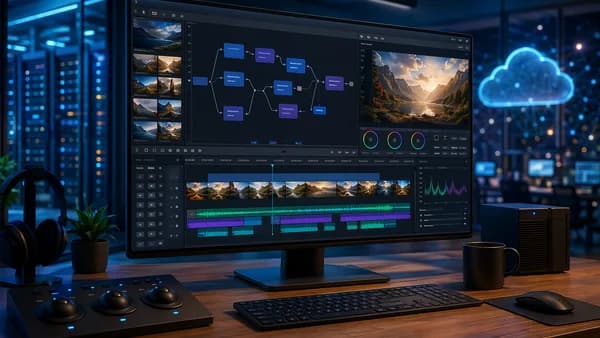
Navigating the world of video production requires choosing the right tools, and at the heart of that decision lies a fundamental choice: a traditional desktop video editor or a modern cloud-based platform. This desktop vs cloud video editor comparison isn't just about software; it's about aligning your entire workflow, from hardware demands to team collaboration, with the right technological foundation. Both paths offer distinct advantages and trade-offs, heavily influenced by your project's complexity, team structure, and available resources. As of 2026, the lines are blurring, but the core differences remain critical for efficient content creation.
Defining Desktop and Cloud-Based Video Editors
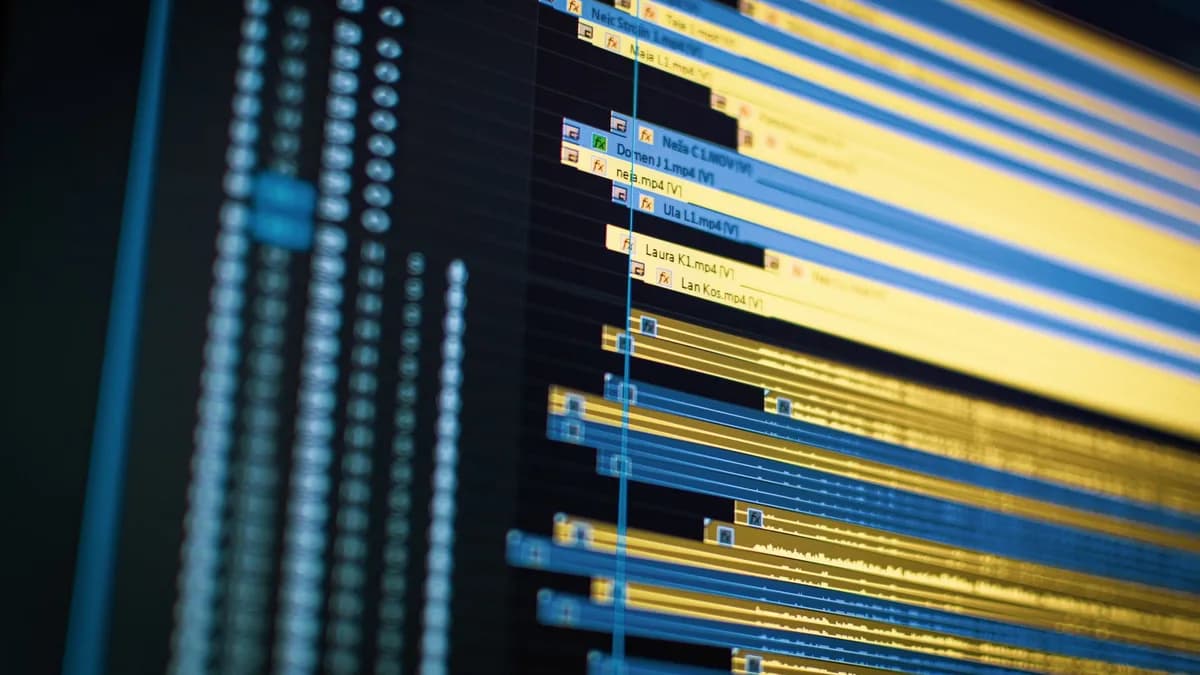
At their core, desktop and cloud-based video editors represent fundamentally different architectures. Desktop video editing software refers to non-linear editors (NLEs) installed directly on a local computer, such as Adobe Premiere Pro, DaVinci Resolve, and Final Cut Pro. These applications are designed to harness the full processing power of your workstation's CPU and GPU, handling everything from 8K footage and complex multi-layer timelines to advanced color grading and effects. Project files and media are typically stored on local drives or networked storage, offering full control but demanding significant hardware investment.
Conversely, cloud-based video editors like FlowVideo AI, Kapwing, and Flixier operate primarily through a web browser. The heavy computational lifting, rendering, applying effects, processing, is offloaded to remote servers. This means your projects and media are stored in the cloud, accessible from any device with an internet connection.
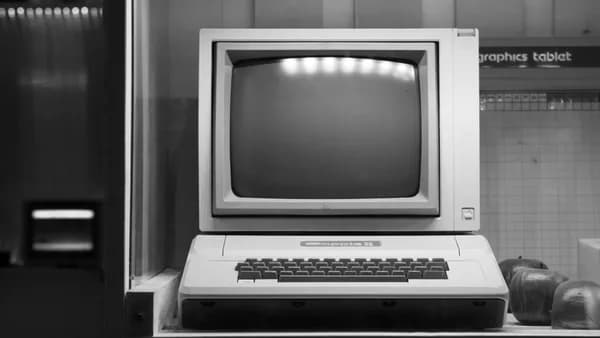
The evolution from bulky equipment to instant digital workflows reveals a fundamental shift. Early methods required specialized rooms; today’s landscape offers solutions that fit in your pocket while handling complex tasks.
The distinction shapes everything from where your files live to how your computer performs. Desktop solutions offer "uncompromised performance" by leveraging local hardware, while cloud platforms prioritize "accessibility and instant access" by removing installation barriers and enabling work from any browser.
Performance and Hardware Requirement Analysis
This is where the paths diverge most dramatically. Performance is deeply tied to your hardware, and the requirements are poles apart.
Desktop Editors: High Power, High Demand Desktop NLEs are notorious for their steep hardware requirements. They are engineered to utilize every ounce of your local system's capability.
- Processing Power: Applications like Premiere Pro and DaVinci Resolve can push a computer's CPU to its limits. Tests show Final Cut Pro causing CPU usage to fluctuate between 40% and 70%, and even spike to nearly 980% on a 6-core machine when under load. This intensive processing enables real-time playback of high-resolution footage and complex, multi-layered compositions.
- Storage: Editing locally means all media must reside on your machine. A single project file can occupy hundreds of gigabytes, with raw 4K or 8K footage demanding terabytes of fast SSD or RAID storage. One experiment noted a 7GB source file resulting in a project file of 270GB.
- System Requirements: Running these tools effectively often requires a $2,000+ hardware investment with a dedicated GPU, multi-core CPU, and ample RAM. Integrated graphics and less than 8GB of RAM will likely lead to an unresponsive system.
Cloud Editors: Offloaded Processing, Minimal Local Demand Cloud-based editors flip the script by using your computer primarily as a terminal to access remote servers.
- Processing Power: Since rendering occurs in the cloud, local CPU usage is drastically lower. The same test comparing browsers showed Chrome (running Kapwing) using only 33% to 37% of the CPU. This makes editing feasible on lower-end machines, Chromebooks, or older hardware.
- Storage: There is little to no local storage burden. Media and project files are hosted in the cloud, freeing up local drives. This eliminates the need for external SSDs or NAS systems for basic projects.
- System Requirements: The barrier to entry is vastly lower. A stable internet connection is the primary requirement, not a powerful GPU. This "reduces hardware dependency" and democratizes access to video editing.
| Performance Factor | Desktop Editors | Cloud-Based Editors |
|---|---|---|
| Local CPU/GPU Usage | Very High (40%-980% observed) | Low to Moderate (30%-40% observed) |
| Local Storage Need | Very High (GBs to TBs of fast storage) | Minimal to None |
| Ideal Hardware | High-end workstation with dedicated GPU | Any modern device with a stable internet connection |
| Render Location | Local machine | Cloud servers |
Collaboration and Teamwork Capabilities Compared
Collaboration is a major differentiator and a key driver behind the adoption of cloud-based platforms.
Cloud Editors: Built for "Multiplayer" Workflows Cloud platforms are inherently collaborative. Their architecture is designed for simultaneous, remote access.
- Real-Time Co-editing: Multiple team members can access the same project timeline and media simultaneously from different locations, with changes syncing in real time. This transforms production from a linear "relay race" into a simultaneous "scrum," which can reduce "Time to Ship by 40-50%."
- Streamlined Feedback: Integrated tools for timestamp-linked comments and annotations allow clients, managers, or other stakeholders to review and provide precise feedback directly on the project without exporting files. This eliminates the cumbersome cycle of exporting MP4s, uploading to drives, and deciphering emailed notes.
Desktop Editors: Collaboration as an Add-On While desktop giants have added collaboration features, they often feel bolted on and require additional steps or software.
- File Transfer Hurdle: Sharing projects with remote collaborators typically requires transferring massive media files, often via dedicated high-speed services or physical drives, creating a bottleneck.
- Project Sync Solutions: Features like Adobe Team Projects and DaVinci Resolve's shared databases allow concurrent work by syncing project files via the cloud, but each editor usually still needs local access to the media files (often via proxies). This setup is powerful but more complex to administer than a fully cloud-native solution.
For distributed teams, cloud architecture enables a 'Scrum' model where multiple stakeholders work simultaneously. Desktop applications treat this as a linear 'Relay Race', one person holds the baton.
File Storage, Security, and Accessibility Models
Where your data lives and how you access it defines daily workflow and long-term project management.
Desktop Editors: Local Control, Local Responsibility
- Storage Model: You have full control over your media assets, storing them on local hard drives, direct-attached storage, or a Network Attached Storage (NAS) system. This offers "robust local media management."
- Security: Security is your responsibility, managed through physical security, network firewalls, and internal protocols. This is crucial for sensitive projects requiring "air-gapped security."
- Accessibility: Projects are tied to the machine where the media resides. Working from another location requires moving files or setting up complex remote access solutions. However, it provides "full offline functionality."
Cloud Editors: Centralized Access, Provider-Managed Security
- Storage Model: All media and project files are stored on the provider's servers, offering Centralized Media Asset Management (MAM). This makes organizing, searching, and sharing assets across a team effortless.
- Security: You must trust the provider's security measures and data handling practices, which can be a concern for sensitive client footage. Data is typically stored with high redundancy across servers, reducing loss risk.
- Accessibility: The primary advantage is instant access from any device with a browser, laptop, tablet, or borrowed computer. Your "workspace" is wherever you have an internet connection. This comes with the core limitation of internet dependency.
Cost Structure: Upfront Purchase vs. Subscription
The financial models are as distinct as the software architectures.
Desktop Editors: High Upfront and Ongoing Costs
- Software Licensing: Options include recurring subscriptions (e.g., Adobe Premiere Pro at $22.99/month) or perpetual licenses (e.g., DaVinci Resolve Studio for $295). The "free version" of DaVinci Resolve is notably full-featured and watermark-free.
- Hardware Investment: The significant, often overlooked cost is the powerful workstation required to run the software effectively, a multi-thousand-dollar upfront investment that will need periodic upgrades.
- Hidden Costs: Add-ons like Adobe Stock assets, third-party plugins, and extensive local storage (NAS/SSDs) add to the total cost of ownership.
Cloud Editors: Lower Entry, Recurring Operational Costs
- Subscription Models: Most operate on a Freemium or tiered subscription model. This spreads cost over time and often includes processing power and cloud storage in the plan.
- Lower Hardware Bar: The reduced need for a high-end workstation significantly lowers the initial financial barrier.
- Predictable Scaling: Costs scale with team size and storage needs, which can be more predictable than unexpected hardware upgrades. However, these recurring subscriptions can accumulate over the long term.
Update Cycles and Access to New Features
The pace of innovation differs significantly between the two models.
Desktop Editors: Scheduled Major Updates Traditional desktop NLEs typically follow annual or bi-annual major release cycles (e.g., Adobe's yearly Creative Cloud updates). This means new features, bug fixes, and performance improvements are rolled out in large batches. Users must download and install these updates manually.
Cloud Editors: Continuous Deployment Cloud platforms can deploy updates daily. When a new AI model for background removal is published, engineers at a company like FlowVideo AI can integrate it within 24 hours.
Cloud applications deploy updates daily... When research publishes a superior 'Background Removal' model, FlowVideo engineers can integrate it within 24 hours. The user logs in the next morning and finds their tools have become smarter.
This "Continuous Integration" model gives cloud tools significantly higher innovation velocity, especially for AI-powered features like automatic subtitling, text-based editing, and smart trimming tools.
Real-World Use Cases: Solopreneurs vs. Agencies
The ideal choice often crystallizes when applied to specific user profiles.
For Solopreneurs & Individual Creators:
- Desktop Choice: Ideal for those producing long-form, high-value content like documentaries, indie films, or high-end commercial work where maximum quality and control are paramount. It suits those who have invested in a powerful workstation and work primarily alone.
- Cloud Choice: Perfect for content creators, YouTubers, and social media managers focused on speed, volume, and trending content. The low hardware requirement, fast "ingest to export" loop, built-in templates, and AI tools optimize for publishing velocity. As one source notes, it's a "publishing tool" for the 95% of web content not requiring cinema-grade finishing.
For Agencies, Marketing Teams, & Production Houses:
- Desktop Choice: Remains the standard for in-house teams working on broadcast, film, or high-end commercial projects. It excels in environments with dedicated edit bays, shared NAS storage, and a need for the deepest possible toolset in color grading (DaVinci Resolve) or VFX pipelines (Adobe with After Effects).
- Cloud Choice: Transformative for distributed teams, remote workflows, and client-heavy projects. The ability to have editors, colorists, directors, and clients all interacting with the same live project via a link dramatically streamlines review cycles and reduces project turnover time. It offers scalable resources for fluctuating workloads.
The Future of Editing: Will Hybrid Models Dominate 2026?
The trend is not toward one model obliterating the other, but toward convergence and hybrid solutions. As of 2026, we are seeing:
- Desktop Editors Adding Cloud Services: Desktop NLEs are increasingly integrating cloud-based collaboration (Frame.io for Adobe), cloud rendering, and cloud asset libraries.
- Cloud Editors Gaining Professional Features: Cloud platforms are rapidly expanding their feature depth, incorporating more advanced color tools and finer controls to appeal to professional users.
- The Rise of AI as a Unifying Force: AI-powered features are becoming a battleground, with cloud-native platforms holding an edge in deployment speed. Both models will leverage AI to automate tedious tasks.
- Performance Parity Improving: Technologies like WebAssembly (WASM) and WebGPU are making browser-based applications far more performant, narrowing the raw power gap for many common tasks.
The future likely belongs to flexible workflows that leverage the strengths of both: using a cloud platform for collaborative assembly, review, and quick-turn projects, while relying on a powerful desktop setup for final color grading, complex VFX, and offline work. The choice will be less about picking a side and more about strategically integrating both into a cohesive, modern post-production pipeline.
Frequently Asked Questions
Q: Can I open my Adobe Premiere Pro project file in a cloud editor?
A: Directly opening proprietary .prproj files is not possible. However, most desktop editors can export an industry-standard XML or EDL file. Some cloud editors, like FlowVideo AI, have "Conform" engines that can ingest these interchange formats to rebuild a timeline in the cloud.
Q: Do free versions of these editors include watermarks? A: It varies by vendor. DaVinci Resolve's free version is notably full-featured and watermark-free. Cloud platforms like FlowVideo AI often offer a free tier with a limited number of "Clean Export" credits. Some consumer-grade desktop software applies large watermarks on its free version, making the output unusable for professional work.
Q: Is my internet speed a deal-breaker for cloud editing? A: A fast, stable internet connection is critical. Weak or slow internet can cause latency, failed saves, and a frustrating experience. For editing high-bitrate 4K footage smoothly, a robust connection is a non-negotiable requirement for cloud workflows.
Q: Which is more cost-effective in the long run? A: It depends on your upgrade cycle. Desktop editing involves high upfront hardware and software costs but may feel like a one-time purchase. Cloud editing has minimal startup costs but involves ongoing subscriptions that can exceed the cost of periodic hardware upgrades over many years. Budget-conscious teams must model both scenarios.
Q: Are cloud-based editors secure enough for client work? A: This requires due diligence. Reputable cloud providers implement enterprise-grade security, but you are ultimately trusting a third party with your data. For highly sensitive projects, the local control of a desktop editor may be preferred. Always review a provider's security certifications and data policy.
Q: Can I edit completely offline with a cloud editor? A: Generally, no. Cloud editors require an internet connection for most core functions since the application, project files, and media reside on remote servers. Some may offer limited offline capabilities for very basic tasks, but full offline functionality is a key advantage of desktop software.
Bottom Line
Choosing between a desktop and a cloud-based video editor is a strategic decision that hinges on your specific needs. Desktop editors like Adobe Premiere Pro, DaVinci Resolve, and Final Cut Pro remain the undisputed champions for raw processing power, deep creative control, and offline work, making them essential for complex, high-fidelity projects, provided you have the hardware budget. Cloud-based platforms like FlowVideo AI, Kapwing, and Flixier revolutionize accessibility, real-time collaboration, and workflow speed, democratizing professional editing for distributed teams and content-focused creators while minimizing hardware costs.
Your project's destination, cinema screens versus social feeds, your team's geography, and your tolerance for upfront investment should guide your choice. In 2026, the most future-proof approach may be to understand the strengths of both paradigms, as the industry evolves toward hybrid models that borrow the best from each world.