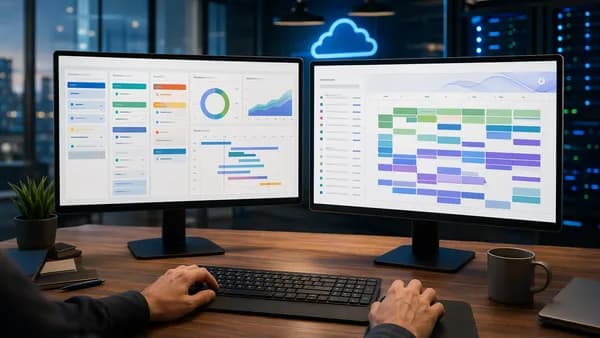
An AI status report workflow turns weekly reporting from a manual writing task into a repeatable system: collect project data, summarize progress and risks with AI, review the draft, and deliver it to stakeholders on schedule. The goal is not to remove manager judgment—it is to remove the repetitive work of gathering, formatting, and rewriting updates every week.
Based on the source data from Kuse, anly.ai, ServiceNow, Asana, and related project reporting references, the strongest workflow pattern is clear: standardize your project inputs first, connect the right systems, use AI for synthesis, then keep a human approval step before anything is sent.
1. Why Manual Status Reports Waste Team Time
Manual status reporting is often “work about the work.” Kuse describes the core problem directly: writing a status report typically takes 30 to 60 minutes that could otherwise go toward delivery. That time is usually spent gathering updates, formatting sections, and summarizing progress rather than making decisions.
For managers, project leads, and operations teams, the waste compounds across multiple workstreams. A weekly report for one project may be manageable; reporting across several teams, clients, or departments can become a recurring administrative bottleneck.
Status reports are valuable, but manually assembling them every week creates delay, inconsistency, and avoidable context-switching.
The main problems identified in the source data are:
- Time drain: Kuse reports that a status report can take 30 to 60 minutes to write manually.
- Inconsistent structure: Different contributors may use different levels of detail, headings, and formats, making week-over-week comparison harder.
- Late reporting: Kuse notes that reports are often late because writing them is not the priority.
- Manual data risk: anly.ai highlights that downloading, copying, and pasting data manually creates risk, takes time, and invites errors.
- Limited insight: Raw updates alone are not enough. anly.ai emphasizes that decision makers need context, trends, and actionable commentary—not just numbers.
An AI status report workflow addresses these problems by making reporting systematic. Instead of asking a manager to remember everything that happened, the workflow reads project boards, notes, spreadsheets, Slack updates, or other connected sources and drafts a report in a consistent structure.
The important point: AI should not be treated as a replacement for accountability. It should be treated as a reporting assistant that prepares the first draft for a manager to review, correct, and approve.
2. What Data Your AI Status Report Workflow Needs
Before choosing tools or writing prompts, define what your weekly status report should contain. Both Kuse and anly.ai stress that automation starts with a clear reporting blueprint: what information matters, where it lives, and how it should be structured.
Core status report sections
Kuse recommends that a weekly status report include:
| Report Section | What It Should Capture |
|---|---|
| Overall project health | Whether the project is on track, at risk, or blocked |
| Completed this week | Finished work with brief notes |
| In progress | Active work, including percentage completion where available |
| Blocked items | Specific blockers that are preventing progress |
| Planned for next week | Upcoming work and priorities |
| Decisions or questions | Items requiring leadership input or stakeholder response |
These sections work because they separate facts from asks. Stakeholders can quickly see what happened, what is happening now, what is stuck, and where decisions are needed.
Data sources to connect
Your AI workflow is only as useful as the data it can access. The source data mentions several categories of inputs:
- Project boards: Kuse specifically mentions Notion, Jira, and Linear as project board sources.
- Project management tools: Kuse also refers more broadly to connecting “your project tool.”
- Slack updates: Kuse supports sending reports to Slack, and anly.ai gives an example workflow that connects Jira, Slack, and Google Sheets.
- Spreadsheets and files: anly.ai mentions Google Sheets, Excel files, incoming CSVs, shared folders, databases, and business apps.
- CRM and analytics data: anly.ai references CRM systems, Google Analytics, and website traffic as possible weekly report inputs.
- Meeting notes and action items: Kuse references project data and notes, and also lists related workflows for taking meeting notes and tracking action items automatically.
What to define before automating
Before building the workflow, document the rules your AI should follow.
Use a short reporting specification like this:
Weekly Status Report Specification

Reporting period:
- Week ending: Friday

Sections:
- Overall health
- Completed this week
- In progress
- Blocked items
- Planned for next week
- Decisions needed

Health status criteria:
- On track: work is progressing as expected and no major blockers are present
- At risk: blockers, delays, or unresolved dependencies may affect delivery
- Blocked: work cannot continue without a specific decision, dependency, or fix

Sources:
- Project board
- Meeting notes
- Slack updates
- Spreadsheet or KPI tracker

Review:
- Project manager reviews before delivery
The health criteria are especially important. Kuse warns that not defining health status criteria is a common mistake because “at risk” can mean different things to different people.
3. Recommended SaaS Tools for the Workflow
The best tool depends on where your work data already lives and how much control you need over automation, templates, and delivery. The source data includes several SaaS platforms relevant to AI-assisted status reporting.
At the time of writing, the most detailed source information is available for Kuse and anly.ai, with additional feature references from ServiceNow, Asana, and ClickUp search snippets.
| Tool / Platform | Source-Confirmed Capabilities | Best Fit Based on Source Data |
|---|---|---|
| Kuse | Pulls from project boards such as Notion, Jira, and Linear; drafts weekly status reports; supports report templates; can schedule reports for Friday afternoon; can send to Slack; offers 1,800 free credits with no signup needed according to the source page | Teams that want project-board-driven status reports delivered in a consistent format |
| anly.ai | No-code AI workflow automation; connects business apps, databases, incoming CSVs, CRM, analytics, project tools, shared folders, Jira, Slack, and Google Sheets in the source examples; supports AI summaries, anomaly detection, templates, charts, PDFs, dashboards, emails, and live links | Teams that need broader weekly report automation across multiple data types |
| ServiceNow | Source snippet says its AI status reporting can analyze project data, generate complete status reports, include predicted health indicators using custom RAG calculations, executive summary, supporting rationale, and review/edit/submit flow | Organizations already using ServiceNow project or strategic portfolio workflows |
| Asana | Source snippet says Asana can generate AI status updates that highlight risks and milestones for stakeholders | Teams already managing projects in Asana |
| ClickUp | Source snippet describes automating weekly status reports with AI to support faster data-driven decisions | Teams already using ClickUp and exploring built-in status reporting automation |
Tool choice should follow your data, not the other way around. If project status lives in Jira, Notion, Linear, Asana, or ServiceNow, start with the platform that can read that source reliably.
How to choose between tools
Use these selection criteria:
- Data location: Choose a tool that connects to your current project boards, spreadsheets, notes, or dashboards.
- Output channel: Kuse confirms Slack delivery; anly.ai confirms scheduled emails, live links, PDF outputs, and dashboards.
- Template control: Kuse supports using an existing status report template through the workflow prompt.
- Analysis depth: anly.ai mentions anomaly detection, trend surfacing, and AI-generated commentary.
- Review workflow: ServiceNow’s snippet explicitly mentions reports being ready to review, edit, and submit.
- No-code setup: anly.ai emphasizes no-code workflows for business users.
The practical recommendation is to begin with the simplest workflow that reads your real project state and produces a draft your manager can trust.
4. Step 1: Standardize Project Updates and Task Fields
AI reporting fails when the underlying project data is inconsistent. Kuse identifies inconsistent formats as a major reason manual reports are hard to compare week over week. The fix is to standardize the fields your team uses before asking AI to summarize them.
Standardize the minimum fields
Your project board should capture the information needed for the report sections. Based on Kuse’s recommended weekly report content, the minimum structure should include:
| Field | Why It Matters |
|---|---|
| Project or workstream name | Allows the AI to group updates by project |
| Current status / health | Supports on track, at risk, or blocked summaries |
| Completed work | Feeds the “completed this week” section |
| In-progress work | Feeds the current progress section |
| Completion percentage | Kuse recommends including percentage completion where available |
| Blocker | Makes blocked items specific instead of vague |
| Next week’s plan | Supports forward-looking reporting |
| Decision needed | Ensures the report ends with clear asks |
This does not require a complex taxonomy. In fact, simpler is usually better for adoption. The goal is to make sure every task or update contains enough information for the AI to distinguish progress, risk, and required action.
Define health statuses clearly
Kuse calls out undefined health status criteria as a common mistake. Your team should agree on what each status means.
Use three simple categories:
- On track: Work is progressing and no major blocker is preventing delivery.
- At risk: There is a delay, dependency, unresolved issue, or trend that could affect delivery.
- Blocked: Work cannot move forward until a specific blocker is resolved.
Do not let every contributor interpret these labels differently. If “at risk” means schedule risk to one person and budget risk to another, the AI summary will be inconsistent.
Keep project boards current
Kuse also warns against pulling from stale project data. AI can summarize what exists, but it cannot reliably infer updates that were never captured.
A simple operating rule works well:
- Thursday or Friday morning: Contributors update tasks, blockers, and next steps.
- Friday afternoon: The AI workflow generates the draft.
- Before delivery: The manager reviews and approves.
That timing mirrors Kuse’s example of scheduling status reports for Friday afternoon so they are ready before the weekend.
5. Step 2: Pull Data From Project Management and Meeting Tools
Once your fields are standardized, connect the systems that contain the weekly evidence. Kuse describes the workflow as “project data in, status report out”: define the project boards, connect the apps, schedule the workflow, and receive the finished report in your workspace.
Connect your project sources
The source data specifically mentions these project and work data sources:
| Data Source | Mentioned In Source Data | Example Use in Workflow |
|---|---|---|
| Notion project boards | Kuse | Pull Friday project updates into a weekly report |
| Jira | Kuse and anly.ai | Summarize sprint progress, overdue work, and blockers |
| Linear | Kuse | Include engineering project status in a standard report |
| Slack | Kuse and anly.ai | Deliver reports or incorporate workstream updates in broader workflows |
| Google Sheets | anly.ai | Include KPI trackers or client reporting data |
| Excel / CSV files | anly.ai | Pull structured weekly metrics into the reporting flow |
| CRM and analytics tools | anly.ai | Add sales, pipeline, website traffic, or operational KPIs |
| Shared folders / databases | anly.ai | Store and organize reporting inputs by project or client |
If your reporting depends on meeting notes, make sure those notes are saved in a location the workflow can access. Kuse references project data and notes, and its related use cases include taking meeting notes and tracking action items automatically.
Organize inputs before analysis
anly.ai recommends routing inputs into organized folders per client or project. That matters because AI summaries become easier to audit when the source data is structured.
For example, a consultancy managing multiple client projects could organize reporting inputs like this:
Weekly Reporting Inputs
├── Client A
│   ├── Jira export or connected board
│   ├── Slack updates
│   └── Google Sheets KPI tracker
├── Client B
│   ├── Jira export or connected board
│   ├── Slack updates
│   └── Google Sheets KPI tracker
└── Internal Operations
    ├── Project board
    ├── Meeting notes
    └── KPI tracker
This structure reflects anly.ai’s guidance to organize data systematically for auditing and future scaling.
Schedule data pulls
anly.ai notes that no-code workflow tools can pull fresh data from business systems at scheduled intervals. Kuse similarly supports scheduling reports—such as Friday afternoon—or running them on demand for executive reviews.
A strong default schedule is:
- Data refresh: Friday morning or early afternoon.
- AI draft generation: Friday afternoon.
- Manager review: Before sending.
- Delivery: End of day Friday, Friday noon, or another stakeholder-approved time.
anly.ai gives Friday noon as an example report delivery time, while Kuse uses Friday afternoon as a status reporting schedule example. The exact time should match when stakeholders need the update.
6. Step 3: Use AI to Summarize Progress, Risks, and Blockers
This is where the workflow becomes useful. The AI should not simply list tasks. It should turn project activity into a concise narrative that helps stakeholders understand what changed, what matters, and what needs attention.
The Digital Project Manager search snippet defines AI in project status reporting as using technologies such as machine learning, generative AI / large language models, and robotic process automation to automate, personalize, and refine progress tracking. In practical terms, your workflow may use automation to collect data and generative AI to draft the narrative.
What the AI should produce
Based on Kuse’s recommended status report sections, prompt the AI to produce:
- Overall health: On track, at risk, or blocked.
- Executive summary: A short narrative of the week’s most important developments.
- Completed work: Finished tasks or milestones.
- In-progress work: Active items and percentage completion where available.
- Risks and blockers: Specific issues preventing progress.
- Next week’s plan: Forward-looking priorities.
- Decisions needed: Clear asks for leadership or stakeholders.
ServiceNow’s source snippet also references AI-generated complete status reports with predicted health indicators, executive summary, and supporting rationale, ready for review, edit, and submit. That reinforces the need for both summary and evidence—not just a polished paragraph.
Use a clear workflow prompt
Kuse recommends defining the report template in the workflow prompt and including status color coding, section headings, recurring context, project name, team, and reporting period.
Here is a practical prompt structure based on those recommendations:
Create a weekly project status report using the connected project board, notes, and KPI sources.

Reporting period:
- This week through Friday

Use this structure:
1. Overall Project Health
   - Label as On Track, At Risk, or Blocked
   - Include a brief rationale

2. Completed This Week
   - Summarize completed tasks or milestones
   - Include brief notes where available

3. In Progress
   - Summarize active work
   - Include percentage completion if present in the source data

4. Blockers and Risks
   - List blocked items
   - Name the specific blocker or dependency
   - Do not invent blockers not found in the source data

5. Planned for Next Week
   - Summarize planned work from the project board or notes

6. Decisions Needed
   - List questions or approvals required from leadership
   - If no decisions are found, state that no decisions were identified in the available source data

Style:
- Use concise, stakeholder-friendly language
- Keep the format consistent week over week
- Do not add unsupported claims
This prompt is intentionally strict. It tells the AI to use source data, preserve structure, and avoid inventing missing details.
Add analysis where your tool supports it
anly.ai describes AI analysis capabilities such as:
- Anomaly detection: Flagging outlier data before reports go out.
- Trend surfacing: Identifying emerging trends in project status.
- Natural language commentary: Generating clear, jargon-free summaries.
- Auto annotation: Adding context to shifts in metrics.
These features are especially useful when your weekly report includes KPIs such as sales figures, deliverables, website traffic, or operational metrics. If your workflow includes spreadsheets, analytics, or CRM data, ask the AI to highlight notable changes rather than merely restating numbers.
7. Step 4: Review, Edit, and Approve Reports Before Sending
AI-generated reports should be reviewed before they reach stakeholders. Kuse explicitly lists “sending without a quick review” as a common mistake and says a 2-minute scan before sending can prevent embarrassing errors.
This review step is not optional if the report affects decisions, client communication, or executive visibility.
What to check in the review
Use a short approval checklist:
| Review Item | What to Verify |
|---|---|
| Accuracy | Does the report match the project board, notes, and known status? |
| Health label | Is on track, at risk, or blocked applied correctly? |
| Blockers | Are blockers specific and current? |
| Completed work | Are only actually completed items listed? |
| Next steps | Are planned items realistic and source-backed? |
| Decisions needed | Are asks clear, actionable, and assigned to the right audience? |
| Tone | Is the report concise and stakeholder-appropriate? |
ServiceNow’s snippet describes AI-generated status reports as ready to review, edit, and submit. That sequence is the right operating model: AI drafts, humans approve.
Refine the first outputs
Kuse recommends reviewing the first two outputs and refining the prompt until the format matches what stakeholders expect. This is one of the most important implementation details.
The first draft may be too long, too vague, or too task-heavy. Rather than abandoning the workflow, adjust:
- Section headings
- Health criteria
- Level of detail
- Output format
- Recurring context
- Stakeholder language
- What to include or exclude
anly.ai also recommends treating AI-powered automation as a living system and regularly adjusting prompts, validation rules, and template layouts based on stakeholder feedback.
8. Step 5: Automate Delivery to Slack, Email, or Dashboards
Once the report is reliable, automate delivery. The key is to send the report where stakeholders already work.
Kuse supports sending formatted reports to Slack and saving them in the workspace. anly.ai describes delivery through scheduled emails, live links, PDF outputs, and dashboards.
Choose the right delivery channel
| Delivery Channel | Source-Confirmed Support | Best Use Case |
|---|---|---|
| Slack | Kuse confirms Slack output; anly.ai example includes Slack | Team-wide weekly updates and fast visibility |
| anly.ai confirms scheduled emails | Stakeholder, client, or executive distribution | |
| anly.ai confirms PDF outputs | Formal reports or external client updates | |
| Live links | anly.ai confirms live links | Reports that may be revisited or refreshed |
| Dashboards | anly.ai confirms live dashboards and dashboard refreshes | KPI-heavy reporting or ongoing operational visibility |
| Workspace save | Kuse says reports are saved in the workspace | Historical reference and week-over-week comparison |
Recommended delivery pattern
For most teams, use two outputs:
- Slack summary for quick visibility.
- Saved report or dashboard for reference and detail.
If you report to clients or executives, scheduled email or PDF may be more appropriate. anly.ai specifically notes that no-code reporting tools can tailor templates with branding and deliver updates as live links or static files.
Automate—but keep control
Avoid fully automated sending until the workflow has produced several accurate drafts. Kuse’s warning about reviewing before sending is important: even a good AI workflow can misread stale data, overemphasize a minor issue, or miss context that was never entered into the project system.
A safe rollout looks like this:
- Week 1–2: Generate drafts only; manager reviews and manually sends.
- Week 3–4: Generate drafts and route for approval.
- After validation: Schedule delivery, with a review checkpoint before sending.
This keeps the workflow efficient without sacrificing trust.
9. Best Practices for Accurate and Trustworthy AI Reports
A reliable AI status report workflow depends less on flashy AI features and more on disciplined inputs, clear rules, and human oversight.
1. Define health criteria before launch
Kuse identifies undefined health status criteria as a common mistake. Write down what “on track,” “at risk,” and “blocked” mean for your team.
If your organization uses more advanced health calculations, ServiceNow’s snippet references predicted health indicators using custom RAG calculations. At the time of writing, the source snippet does not provide implementation details, so teams should define their own criteria carefully within their chosen platform.
2. Keep project data current
Kuse warns against pulling from stale project data. If the board is outdated, the report will be outdated.
Make project updates part of the weekly operating rhythm. A Friday report should not depend on a manager chasing updates in chat five minutes before delivery.
3. Use templates for consistency
Kuse says teams can use an existing status report template by sharing it in the workflow prompt. This helps reports remain comparable week over week.
A consistent template also reduces stakeholder cognitive load. Readers know where to find health, blockers, progress, and decisions every time.
4. Include action items or decisions
Kuse warns that a status report without asks wastes the reader’s attention. Every report should end with a clear section for decisions, questions, or leadership input.
If there are no asks, say so. That is still useful information.
5. Add a feedback loop
anly.ai recommends treating AI automation as a living system. Gather stakeholder feedback regularly:
- Are the KPIs clear?
- Is the commentary useful?
- Are risks surfaced early enough?
- Are reports too long or too brief?
- Are templates helping or hiding important details?
Then adjust prompts, validation rules, and layouts.
6. Separate facts from interpretation
The AI should summarize source-backed facts and clearly state rationale for health or risk conclusions. ServiceNow’s snippet references supporting rationale, which is a useful standard for any AI-generated status report.
A trustworthy report should make it easy to answer: “Why did the AI call this project at risk?”
7. Start small before scaling
Do not automate every department’s reporting process on day one. Start with one project, one template, and one delivery channel.
After the report is accurate and useful, expand to multiple boards or client accounts. Kuse confirms that multiple project boards can be aggregated into one unified report with one section per project.
Bottom Line
An effective AI status report workflow has five parts: standardized project data, connected sources, AI-generated summaries, human review, and automated delivery. Kuse’s source data shows that manual status reports can take 30 to 60 minutes, while AI workflows can draft consistent reports from project boards such as Notion, Jira, and Linear, then deliver them to Slack on a schedule.
For broader reporting, anly.ai’s source data shows how no-code workflows can pull from business apps, databases, CSVs, CRM, analytics tools, shared folders, Jira, Slack, and Google Sheets, then generate summaries, dashboards, PDFs, emails, and live links. The most dependable approach is not “set it and forget it”; it is “automate the draft, review the output, refine the system, then scale.”
FAQ
What is an AI status report workflow?
An AI status report workflow is a repeatable process that collects project data, notes, and metrics, then uses AI to draft a weekly or periodic status report. Kuse defines an AI status report as a project update generated automatically by reading project tools, extracting what was completed, what is blocked, and what is planned, then formatting it into a standard report template.
What should a weekly AI status report include?
Based on Kuse’s recommended structure, it should include overall project health, completed work, in-progress work, blocked items, planned work for next week, and key decisions or questions for leadership. If completion percentages are available, Kuse recommends including them in the in-progress section.
Can AI pull status from multiple projects?
Yes, according to Kuse’s source data. Kuse says teams can connect multiple project boards and aggregate their status into a unified report with one section per project.
Can AI-generated reports be sent directly to Slack?
Yes. Kuse confirms that reports can be sent directly to Slack as an output channel and posted automatically at the scheduled time. The source also says formatted reports can be saved in the workspace.
Should AI status reports be reviewed before sending?
Yes. Kuse lists sending without a quick review as a common mistake and recommends a 2-minute scan before sending to prevent embarrassing errors. ServiceNow’s source snippet also frames AI-generated reports as ready to review, edit, and submit.
Which tools can help automate weekly status reports?
The source data mentions Kuse, anly.ai, ServiceNow, Asana, and ClickUp in the context of AI status reporting or weekly report automation. Kuse provides detailed support for project-board-based status reports and Slack delivery, while anly.ai provides broader no-code workflow automation for data gathering, AI analysis, templates, dashboards, emails, PDFs, and live links.