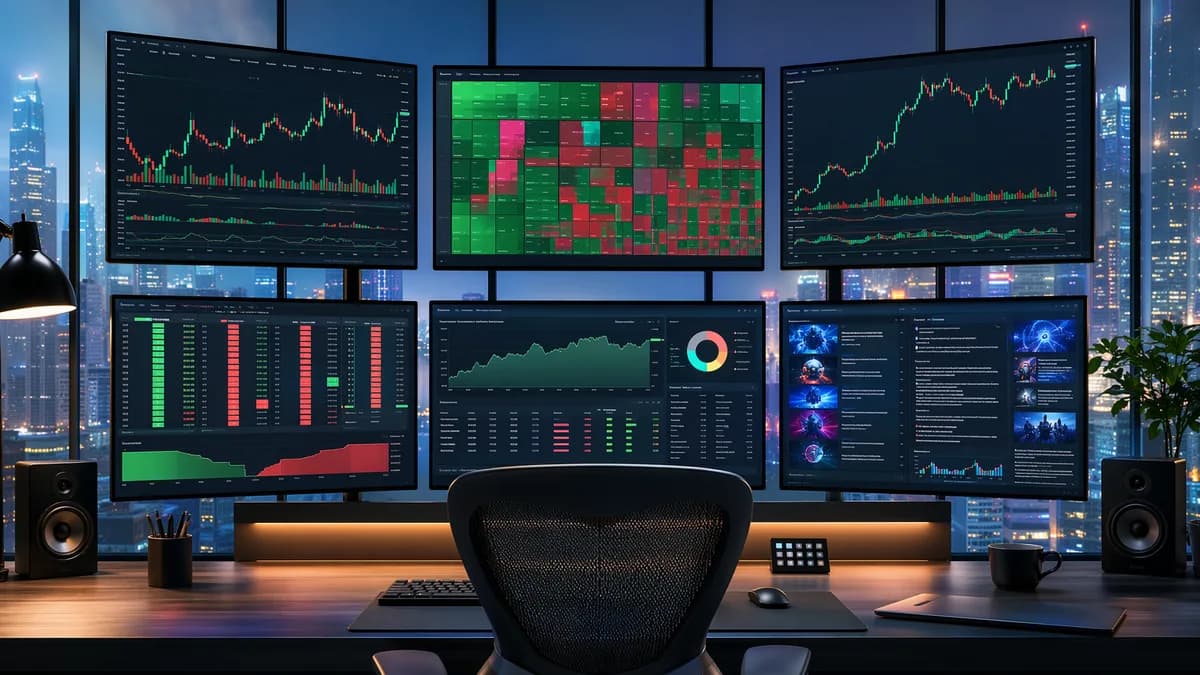
A good multi monitor trading software setup is not about filling every pixel with charts. It is about reducing friction: fewer tab switches, cleaner decision-making, faster access to orders, and less time staring at screens unnecessarily. The sources reviewed for this guide consistently point to the same lesson: multiple monitors help when each screen has a clear job, but they become counterproductive when traders add tools, feeds, and windows without a workflow.
Below is a practical, software-first tutorial for building a clean trading workspace using charting platforms, broker software, scanners, news feeds, alerts, and window-management tools—without turning your desk into a distraction machine.
1. What a Multi-Monitor Trading Setup Should Actually Solve
A multi-monitor setup should solve one core problem: too much market information competing for attention on too little screen space.
ChartsWatcher describes modern markets as a constant stream of data, including real-time charts, order books, watchlists, news feeds, and portfolio information. The value of multiple monitors is that they let traders separate those data streams instead of constantly switching between windows or browser tabs.
The goal is not “more screens.” The goal is less context switching, clearer data separation, and faster decisions.
A clean setup should help you:
- Reduce Window Switching: Keep charts, orders, scanners, and news visible without digging through tabs.
- Improve Situational Awareness: Monitor market context, active positions, and trade triggers at the same time.
- Separate Decision Zones: Put analysis, execution, alerts, and research in different visual areas.
- Avoid Information Overload: Display only the information your strategy actually uses.
- Support Your Trading Style: Scalpers, day traders, swing traders, and long-term investors need different software layouts.
ChartsWatcher’s research-based guidance suggests different monitor counts by trading style:
| Trading Style | Recommended Monitor Count | Typical Information Displayed | Main Benefit |
|---|---|---|---|
| Scalpers | 2–3 monitors | Real-time charts, order flow, news | Speed and quick decision-making |
| Day Traders | 3–4 monitors | Charts, market news, order entry, sector monitoring | Broader market overview and efficient order management |
| Swing / Long-Term Traders | 2–3 monitors | Long-term charts, fundamental data, news, portfolio tracking | In-depth analysis and portfolio oversight |
The important takeaway is that more monitors are not automatically better. ChartsWatcher notes that too many screens can overload cognitive capacity, making it harder to process information effectively.
For most traders building their first serious multi monitor trading software layout, a two- or three-screen setup is enough to start. Add screens only after you know exactly what information deserves its own dedicated space.
2. Core Software Components Every Setup Needs
A useful trading workspace usually has five software layers: charting, broker execution, scanning, news/research, and alerts. Not every trader needs every advanced feature, but every screen should connect to one of these functions.
Trading Platform and Broker Software
Stock Broker Review’s desktop platform comparison highlights that active traders often need advanced charting, fast order entry, custom strategy development, scanning, hotkeys, paper trading, and backtesting.
At the time of writing, the reviewed desktop platforms are described as free with the corresponding brokerage account.
| Platform | Broker | Best For | Learning Curve | Key Differentiator |
|---|---|---|---|---|
| thinkorswim | Charles Schwab | Active retail traders | Steep | 400+ studies, paper trading |
| Trader Workstation (TWS) | Interactive Brokers | Professionals | Very steep | Smart routing, API, global markets |
| TradeStation Desktop | TradeStation | Algo traders | Steep | EasyLanguage, backtesting |
| Active Trader Pro | Fidelity | Moderate traders | Moderate | Research integration |
| Power E*TRADE | E*TRADE | Options traders | Moderate | Options strategy builder |
| Webull Desktop | Webull | Free tools, charting | Moderate | Commission-free, screeners |
These platforms serve different users. For example, Stock Broker Review identifies thinkorswim as strong for retail active traders because of its charting package with 400+ studies, options analysis tools, and paper trading with real-time data. Trader Workstation (TWS) is described as powerful for professionals because of smart order routing, API access in Python, Java, and C++, algorithmic trading support, and access to global markets, though with a very steep learning curve.
TradeStation Desktop is positioned as a starting point for traders who want automation, thanks to EasyLanguage, RadarScreen, backtesting, and Portfolio Maestro.
Charting Software
Charting is often the center of the workspace. The sources mention several charting approaches:
| Charting Option | Setup Style | Source-Noted Strength |
|---|---|---|
| Broker-integrated TradingView through Dhan or Fyers | Browser-based | Lightweight, web-native, supports multi-chart layouts and saved templates |
| TradingView Desktop App | Standalone desktop app | Native multi-monitor support with tear-off synced windows |
| GoCharting | Web-based | Volume Profile, Market Profile, and Order Flow analysis for Indian F&O traders |
| thinkorswim | Desktop platform | Comprehensive charting with 400+ studies |
TradingGyaan emphasizes that lightweight charting matters because resource-heavy software can lag when stretched across multiple displays. It specifically calls out browser-native platforms and optimized desktop apps as ways to reduce memory load compared with heavier terminals.
Scanners and Watchlists
Stock Broker Review lists scanning as a core active-trader need. A scanner should filter markets by technical patterns, unusual volume, options flow, or fundamental criteria. The source also notes that pre-built scans save time while custom scans adapt to a trader’s strategy.
From the Reddit workflow discussion, traders commonly run multiple applications together, including Trade-Ideas, Bookmap, TWS, DAS Trader, and browser-based research tools. The key is not to open every scanner available—it is to decide which one produces actionable signals for your plan.
News and Research Tools
ChartsWatcher recommends dedicating a monitor to news and social media in a four-monitor layout. For swing traders, it also mentions economic data, research, and fundamental analysis as common screen content.
This does not mean every trader needs a constant breaking-news stream. A news panel is useful if news affects your strategy; otherwise, it can become noise.
Alerts and Automation Helpers
Your setup also needs software that reduces manual work. From the Reddit discussion, traders use or suggest:
- Microsoft PowerToys Workspaces: Launches applications and positions them on monitors automatically.
- PowerToys FancyZones: Partitions screens into custom zones so windows can snap into place.
- PowerToys Always On Top: Keeps selected windows visible.
- Mac hotkeys: Used by some traders to move windows to preset screen areas.
- Magnet: Suggested for Mac window snapping.
- Moom: Suggested for saving and restoring multi-monitor window layouts; a Reddit comment described it as $10 one-time purchase.
- Rectangle Pro: Suggested for layout snapshots and restoration.
- BetterSnapTool / BetterTouchTool: Suggested for advanced snapping, automation, and scripting.
- CMD scripts and AutoHotkey: Suggested for Windows launching and positioning workflows, though the AutoHotkey portion may require trial and error with mouse coordinates.
3. Recommended Screen Layouts for Stock Traders
The best layout depends on how fast you trade and how much information you need before acting. A simple rule works well: give each screen one primary responsibility.
Two-Monitor Layout: Simple and Focused
A two-monitor setup is often enough for swing traders, ETF-focused traders who still want better visibility, and active traders who are not scalping.
| Monitor | Primary Role | Example Content |
|---|---|---|
| Monitor 1 | Analysis | Main chart, multi-timeframe view, indicators |
| Monitor 2 | Execution / Research | Broker platform, watchlist, news, portfolio |
This setup avoids visual overload and works well if your strategy does not require constant order-flow monitoring.
Three-Monitor Layout: Balanced Active Trading
A three-monitor setup matches ChartsWatcher’s recommended range for scalpers and swing traders, and it can also work for day traders who prefer a cleaner workspace.
| Monitor | Primary Role | Example Content |
|---|---|---|
| Monitor 1 | Main charts | Primary ticker, higher timeframe, lower timeframe |
| Monitor 2 | Execution and positions | Broker platform, order entry, open positions |
| Monitor 3 | Scanners and news | Scanner, watchlist, market news |
This layout is a strong starting point for most traders building a multi monitor trading software workflow because it separates analysis, action, and discovery.
Four-Monitor Layout: Command Center Without Chaos
ChartsWatcher describes the 4-monitor setup as a popular balance between maximizing information and keeping the workspace manageable. It suggests assigning one monitor to charting, one to order execution, one to watchlists, and one to news/social media.
| Monitor | Primary Role | Example Content |
|---|---|---|
| Monitor 1 | Charting | Main charts and technical studies |
| Monitor 2 | Order execution | Broker platform, order ticket, positions |
| Monitor 3 | Watchlists / scanners | Sector watchlists, real-time scanners |
| Monitor 4 | News / research | News feed, research tools, economic context |
A four-screen workspace should feel like four departments, not four junk drawers.
ChartsWatcher also notes that physical layout matters. A symmetrical 2x2 grid can feel balanced, while an asymmetrical layout with a larger main monitor may work better for traders who prioritize charting.
4. How to Arrange Charts, Watchlists, Scanners, and Order Entry
Once you choose your screen count, the next step is arranging software so your eyes and mouse move less.
Put the Main Decision Chart in the Center
Your main chart should be the easiest thing to see. If you use thinkorswim, TradingView Desktop App, GoCharting, or broker-integrated TradingView, the main charting window should occupy your central or most comfortable screen.
Stock Broker Review states that charting quality matters because the chart is where trading decisions are made. A clunky chart wastes time and can cause missed opportunities.
Use this hierarchy:
- Primary chart: Your main trading timeframe.
- Context chart: Higher timeframe or broader market index.
- Trigger chart: Lower timeframe or execution view.
- Optional study panels: Only the indicators your plan actually uses.
TradingGyaan warns that loading 15 different indicators across 6 different screens can bottleneck any platform. Its recommendation is to keep charts clean with price action, volume, and the specific moving averages or tools your setup requires.
Keep Order Entry Close, But Not in the Way
Order entry should be visible and accessible, but it should not cover your chart. Stock Broker Review lists essential active-trader order functionality: market, limit, stop, trailing stop, OCO, bracket orders, and conditional orders based on time or price triggers.
If your platform supports hotkeys, treat them carefully. Stock Broker Review notes that hotkeys can save seconds in fast markets, such as pressing one key to buy at the ask or another to flatten positions. But because hotkeys affect execution, they should be practiced in simulation or paper trading before being used live.
Separate Watchlists from Scanners
Watchlists and scanners often get mixed together, but they serve different purposes.
| Tool | Purpose | Best Screen Placement |
|---|---|---|
| Watchlist | Tracks known symbols | Side monitor or upper panel |
| Scanner | Finds new opportunities | Dedicated panel or separate monitor |
| News feed | Explains market-moving context | Secondary screen |
| Order entry | Executes planned trades | Near main chart |
A watchlist is for names you already care about. A scanner is for discovering names that meet predefined conditions. Stock Broker Review notes that scanners can filter by technical patterns, unusual volume, options flow, or fundamental criteria.
Save Layouts Before Closing
A recurring point from the Reddit discussion is that many platforms and operating systems can reopen windows where they were left, but this is not always reliable. Traders specifically mention saving layouts, using platform workspaces, or using window-management tools.
For example:
- NinjaTrader was described by a Reddit commenter as reopening workspace windows on the correct monitors and placements.
- Another trader advised enabling a “floating desktop” setting in charting software and saving the layout.
- Several Windows users mentioned that applications may reopen where they were last closed.
- Mac users discussed hotkeys and third-party tools because macOS does not always preserve multi-monitor layouts after reboots or monitor changes.
If your trading platform supports named workspaces, create one layout for live trading and another for research or review.
5. Using Alerts to Reduce Screen Watching
A strong multi-monitor setup should reduce screen watching, not increase it.
If you need to stare at every chart all day, your layout may be doing too much and your alerts may be doing too little. Alerts turn your screens from a wall of constant motion into a monitored system that calls your attention when something matters.
Where Alerts Fit in the Workflow
Use alerts for:
- Price Levels: When a symbol reaches a planned entry, exit, or invalidation zone.
- Time-Based Checks: When a candle closes or a specific session period begins.
- Scanner Conditions: When a symbol meets unusual volume, technical, or fundamental filters.
- Risk Monitoring: When open positions require review.
Stock Broker Review mentions conditional orders based on time or price triggers as an active-trader requirement. While conditional orders and alerts are not identical, they support the same goal: reducing manual monitoring and improving consistency.
Alert-Driven Screen Design
A useful layout is:
| Screen Area | Passive Until Alert? | Example |
|---|---|---|
| Main chart | No | Actively monitored during trade planning |
| Watchlist | Yes | Review only when symbols approach levels |
| Scanner | Yes | Check when scan criteria trigger |
| News feed | Mostly yes | Review when relevant headlines appear |
| Portfolio / positions | No during open trades | Keep visible for risk control |
If a screen does not help you decide, execute, or manage risk, it should probably be minimized, moved, or removed.
Alerts are especially useful for swing traders, who may not need every tick visible. For day traders, alerts can prevent the common mistake of watching too many symbols at once.
6. Avoiding Data Lag, Duplicate Feeds, and Platform Conflicts
Multi-screen trading becomes risky when too many platforms compete for system resources or display conflicting information.
TradingGyaan’s core warning is that extra monitors can become a liability if charting software consumes too much memory or lags when fast execution is needed. It notes that even powerful machines can struggle when unoptimized, resource-heavy software is stretched across several displays.
Choose Lightweight Charting Where Appropriate
TradingGyaan highlights three lightweight options for multi-monitor setups:
| Platform | Source-Noted Setup | Source-Noted Performance Benefit |
|---|---|---|
| Broker-integrated TradingView via Dhan or Fyers | Browser tabs or built-in multi-chart layouts | Web-native HTML5; avoids heavy desktop clients |
| TradingView Desktop App | Tear off tabs into synced windows | Reduces memory load compared with many browser tabs |
| GoCharting | Web-based dual or triple monitor use | Loads quickly while offering advanced data tools |
For traders running several chart windows, the TradingView Desktop App may be preferable to opening many browser tabs because TradingGyaan describes browsers as “notorious RAM hogs.”
Limit Duplicate Live Feeds
The sources do not provide a technical benchmark for duplicate data feeds, so the safe recommendation is practical: avoid opening the same symbol, timeframe, and indicators across multiple platforms unless you need a comparison.
Duplicate feeds can create three problems:
- Attention Conflict: Two platforms may present the same market in different visual formats.
- Resource Load: Each chart, scanner, and news feed uses processing resources.
- Decision Noise: Traders may hesitate if tools appear to disagree.
At the time of writing, the sources do not provide measured latency comparisons between specific trading platforms. The best grounded approach is to reduce unnecessary software load and keep your execution platform easy to access.
Use Wired Internet Where Possible
TradingGyaan recommends Ethernet when running multiple live data feeds, stating that Wi-Fi drops are the enemy of multi-monitor synchronization.
This is one of the simplest stability upgrades: if your trading desk is fixed, hardwire your connection where practical.
Avoid Platform Conflicts
Running multiple platforms can be useful, but each should have a defined role.
| Platform Type | Good Use | Risk If Duplicated |
|---|---|---|
| Broker platform | Execution and account management | Confusion over active orders |
| Charting platform | Analysis | Too many indicators and layouts |
| Scanner | Opportunity discovery | Excess alerts and distraction |
| News / research | Context | Constant headline noise |
| Automation tools | Window organization | Over-complex startup process |
If you trade from one broker but chart elsewhere, make the order-entry platform visually distinct and easy to identify. This reduces the chance of clicking the wrong window during fast conditions.
7. Software Setup Examples for Swing Traders and Day Traders
The best multi monitor trading software setup depends on the trading timeframe. Below are grounded examples based on the source recommendations for monitor count, platform roles, and workflow design.
Example 1: Swing Trader Setup
Swing traders and longer-term investors can often work effectively with 2–3 monitors, according to ChartsWatcher.
| Monitor | Software Role | Possible Tools Mentioned in Sources |
|---|---|---|
| Monitor 1 | Long-term chart analysis | thinkorswim, TradingView Desktop App, broker-integrated TradingView |
| Monitor 2 | Research, news, watchlist | Browser research tools, news feed, portfolio tracking |
| Optional Monitor 3 | Broker platform / alerts | Active Trader Pro, Power E*TRADE, TWS, or other broker software from the source list |
A swing trader does not need every short-term chart visible. The cleaner layout is:
- Chart Screen: Daily and weekly charts, key indicators, volume.
- Research Screen: News, economic data, fundamentals, notes.
- Execution Screen: Broker platform, open orders, positions, alerts.
This style benefits from alerts because the trader usually cares about levels, closes, and planned price zones rather than every tick.
Example 2: Day Trader Setup
ChartsWatcher recommends 3–4 monitors for day traders. This configuration supports charting, market news, order entry, portfolio management, and potentially sector or asset-class monitoring.
| Monitor | Software Role | Possible Tools Mentioned in Sources |
|---|---|---|
| Monitor 1 | Main intraday charts | thinkorswim, TradingView Desktop App, GoCharting |
| Monitor 2 | Order entry and positions | DAS Trader, TWS, TradeStation Desktop, broker platform |
| Monitor 3 | Scanner and watchlist | Trade-Ideas, platform scanners, watchlists |
| Optional Monitor 4 | News / order flow / research | Bookmap, browser research tools, news feed |
For day traders, the layout should prioritize reaction speed without overloading attention. Stock Broker Review lists hotkeys, scanners, and advanced order types as important active-trader features. If you use hotkeys, test them first in paper trading or simulation.
Example 3: Lightweight Multi-Monitor Setup
For traders worried about lag, TradingGyaan’s lightweight software approach is:
- Use broker-integrated TradingView through Dhan or Fyers if trading the Indian market and those integrations fit your workflow.
- Use TradingView Desktop App instead of many browser tabs if you want synced multi-monitor chart windows.
- Use GoCharting for advanced order-flow-style tools such as Volume Profile, Market Profile, and Order Flow analysis.
TradingGyaan also recommends keeping overhead costs at zero where broker-integrated TradingView features are available, noting that those brokers offer premium TradingView features such as multi-screen layouts, custom timeframes, and saved templates for free.
Example 4: Automated Startup Layout
A common pain point from the Reddit discussion is opening several trading applications every morning and dragging them into position. Traders suggested several approaches.
| Operating System | Tool / Method | Source-Noted Use |
|---|---|---|
| Windows | PowerToys Workspaces | Launch apps and position them across monitors |
| Windows | PowerToys FancyZones | Partition screens into custom snapping zones |
| Windows | CMD + AutoHotkey | Launch apps and automate window positioning, with trial and error |
| Mac | Hotkeys | Move windows to preset screen positions |
| Mac | Magnet | Window snapping |
| Mac | Moom | Save and restore multi-monitor layouts |
| Mac | Rectangle Pro | Snapshot and restore layouts |
| Mac | BetterSnapTool / BetterTouchTool | Advanced snapping and automation |
A basic Windows launch script might look like this, using placeholder paths you would replace with your actual application locations:
@echo off
start "" "C:\Path\To\Your\TradingPlatform.exe"
start "" "C:\Path\To\Your\ChartingApp.exe"
start "" "C:\Path\To\Your\Scanner.exe"
start "" "https://your-research-site.example"
This does not position windows by itself. As the Reddit discussion notes, positioning may require tools such as PowerToys Workspaces, FancyZones, or an automation tool such as AutoHotkey.
8. Common Multi-Monitor Mistakes to Avoid
A multi-monitor setup can help, but only if the software workflow stays disciplined. These are the most common mistakes to avoid.
1. Adding Screens Before Defining the Workflow
Do not buy or activate more displays just because other traders use many screens. ChartsWatcher notes that while many professional traders use multiple monitors, too many screens can lead to information overload and worse decision-making.
Start small, then add screens only when you can name the exact job of the next monitor.
2. Turning Every Screen Into a Chart Wall
One Reddit commenter joked that charts beat watchlists, but this can become a trap. Multiple charts are useful only if each timeframe or symbol has a purpose.
A better structure is:
- Main chart: Decision-making.
- Secondary chart: Context.
- Scanner: Discovery.
- Order entry: Execution.
- News / research: Explanation.
3. Running Too Many Indicators
TradingGyaan specifically warns against loading 15 different indicators across 6 different screens, because it can bottleneck any platform. Keep your chart templates lean.
Use only what your strategy requires.
4. Ignoring Window Management
Manually dragging windows every morning wastes time and increases setup errors. Use built-in platform workspaces where available, or tools such as PowerToys Workspaces, FancyZones, Moom, Rectangle Pro, or Magnet, depending on your operating system.
5. Letting News Dominate the Workspace
ChartsWatcher includes news and social media as possible fourth-monitor content, but this should not mean constant distraction. If headlines do not affect your strategy, keep news visible but secondary.
6. Using Wi-Fi for Multiple Live Feeds When Ethernet Is Available
TradingGyaan recommends hardwiring internet with Ethernet when running multiple live data feeds. If your setup depends on synchronized live charts, scanners, and broker data, connection stability matters.
7. Not Saving Layouts
Several traders in the Reddit discussion emphasized saving layouts or workspaces. Before closing your session, save your charting and platform layout if the software supports it.
This is especially important after changing monitor arrangements, docking a laptop, or updating software.
Bottom Line
A clean multi monitor trading software setup should make trading simpler, not busier. Use each screen for a specific role: charts, execution, scanners, news, alerts, or research. For many traders, 2–3 monitors are enough; active day traders may benefit from 3–4 monitors if the layout remains disciplined.
The best setup is not the one with the most windows. It is the one that reduces tab switching, avoids lag, keeps order entry clear, and uses alerts so you are not forced to watch every tick. Start with your strategy, choose lightweight and appropriate tools, save your layouts, and remove any screen that does not improve decisions or risk management.
FAQ
What is the best number of monitors for trading software?
Based on ChartsWatcher’s guidance, scalpers often use 2–3 monitors, day traders typically benefit from 3–4 monitors, and swing or long-term traders can often work well with 2–3 monitors. The right number depends on your trading style and information needs.
Do I need a desktop trading platform if I only buy ETFs?
According to Stock Broker Review, no. If you only buy ETFs as a passive investor, a broker’s website or mobile app is usually sufficient. Desktop trading platforms are described as overkill for passive investors.
Which desktop trading platform is easiest to learn?
Stock Broker Review identifies Webull Desktop as having the gentlest learning curve among platforms with real tools. It also notes that thinkorswim takes about a week of daily use to become proficient.
How can I make trading windows open in the same place every day?
Use saved platform workspaces where available. Reddit traders also suggest PowerToys Workspaces and FancyZones on Windows, and tools such as Moom, Rectangle Pro, Magnet, or BetterTouchTool on Mac for saving, snapping, or restoring layouts.
Is TradingView good for multi-monitor trading?
TradingGyaan describes the TradingView Desktop App as designed to support multi-monitor setups natively, with tear-off tabs in separate synced windows. It also notes that broker-integrated TradingView through Dhan or Fyers can support browser-based multi-monitor workflows for Indian market traders.
How do I reduce lag in a multi-monitor trading setup?
Use lightweight software where possible, avoid excessive browser tabs, keep charts clean, reduce unnecessary duplicate feeds, and use Ethernet when running multiple live data feeds. TradingGyaan specifically warns that too many indicators across many screens can bottleneck any platform.