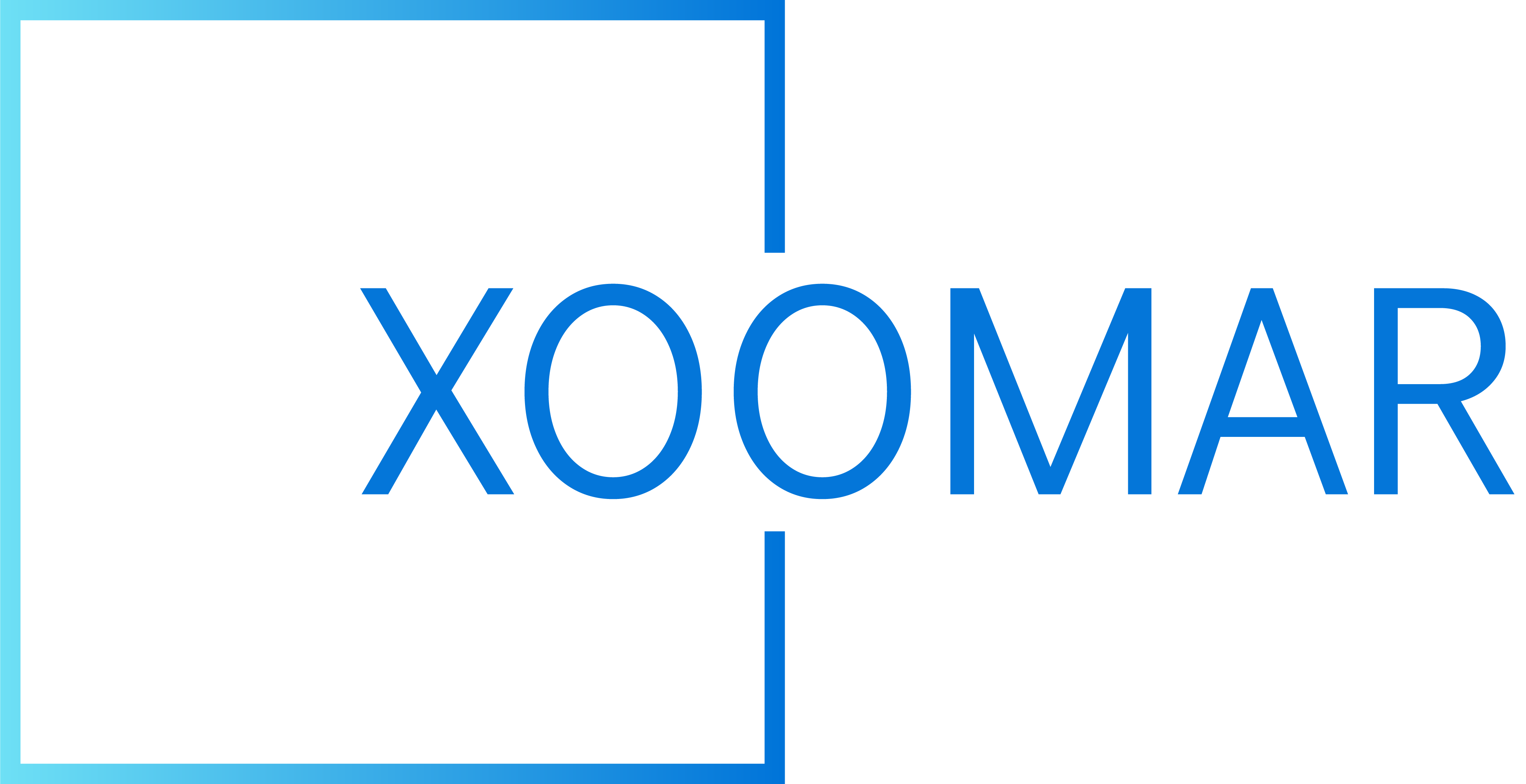
A hobbyist with an idea and five minutes can now produce a digital sketch with the same professional-grade pen used in high-end Wacom studios. For $500, the Wacom Movinkpad 11 is a purpose-built, pocketable canvas designed to turn scattered moments of inspiration into finished art. According to TechCrunch, this Android tablet is a versatile budget option for creators, but your experience hinges on fitting a streamlined, single-device workflow.
TechnologyAugust 7, 2026· 8 min read· By XOOMAR Insights Team
Wacom Debuts $500 Pocket Canvas for Pro-Grade Sketching
Updated on August 7, 2026
XOOMAR Intelligence
Analyst Take
58/ 100
4 sources analyzedLow confidenceTrend10Freshness97Source Trust90Factual Grounding92Signal Cluster20
Is the Movinkpad 11 Your Next Creative Tool? Be Honest
The Movinkpad 11 isn't trying to be everything to everyone. It sits firmly in a specific spot on the value spectrum. It's for you if: You're an aspiring digital artist, a student sketching between classes, or a professional needing a portable scratchpad for concepts on the go. You value immediate access over ultimate power. The Quick Draw feature, which wakes the tablet directly into the sketching app with a pen tap, exemplifies this ethos. It's not for you if: Your workflow is locked into Adobe's ecosystem, particularly Photoshop or Illustrator, which lack native Android support. If you need a powerhouse tablet for video editing or 3D modeling, the Mediatek Helio G99 processor and 8GB RAM, while sufficient for drawing, will feel limiting.
Price is its main virtue. At $500, it's anchored between a $30 Huion basic tablet and Wacom's own $3,500 Cintiq Pro. It includes the Wacom Pro Pen 3, a battery-free stylus with 8,192 pressure levels and tilt sensitivity, identical to the tool pros use. For that price, it's a focused instrument, not a general-purpose tablet pretending to be something more.
Unboxing to First Sketch: A Ten-Minute Sprint
Getting started is intentionally simple. The goal is to minimize friction between your idea and your canvas.
What's in the box:
- Wacom Movinkpad 11 tablet (1.3 pounds / 0.3 inches thick)
- Wacom Pro Pen 3 (Slim Edition) with three felt nibs stored inside
- USB-C to USB-C charging cable (1 meter)
- No power adapter, laptop, or dongles required.
Setup walkthrough:
- Charge the tablet using any USB-C power source.
- Power it on. You'll be guided through connecting to Wi-Fi and setting a device PIN or swipe unlock.
- You can sync a Google account for cloud services.
- The core drawing apps are pre-loaded: Wacom Canvas (for instant sketching) and Clip Studio Paint Debut (a full illustration suite with a 2-year license).
The entire process, from unboxing to a blank canvas in Wacom Canvas, takes under ten minutes. There is no driver installation for its primary, standalone Android mode. The barrier to entry is almost non-existent, a key selling point for newcomers.
Crafting Your Ideal Digital Drawing Environment
Before you dive into a masterpiece, spend five minutes optimizing the device for your comfort and style.
Ergonomics and Angle The tablet lacks a built-in kickstand, so you'll need to prop it or hold it. Its light weight (1.3 lbs) makes it easy to use on your lap or a desk. Find an angle that feels natural, similar to a sketchbook.
Pen and Pressure Calibration The Pro Pen 3 works out of the box. The three side buttons can be customized within supporting apps like Clip Studio Paint. Spend a minute in your preferred app's settings mapping these to actions like Eraser, Undo, or Brush Size toggle. This is where you start building speed.
Display and Eye Comfort The 11.45-inch IPS display has a 2200 x 1440 resolution and a matte, etched glass surface designed to feel like paper and reduce glare. For long sessions:
- Adjust brightness from the Android settings. It peaks at 400 nits, which is bright enough for indoor use.
- The screen covers 99% of the sRGB color space, which is solid for digital art and ensures predictable colors if you share work online.
XOOMAR Analysis: The matte screen is a double-edged sword. It provides excellent pen control and reduces glare, but it also slightly softens the image clarity compared to a glossy glass screen. This is a deliberate trade-off Wacom makes to prioritize the drawing feel over maximum sharpness.
Mastering the Movinkpad's Portable Workflow
Your efficiency on the Movinkpad 11 depends on leaning into its built-in features, not fighting for a desktop-class experience.
Embrace Quick Draw This is your secret weapon. When an idea strikes, simply tap and hold the pen to the screen. The tablet wakes and launches directly into Wacom Canvas. It bypasses the lock screen and home screen entirely. Use this for capturing raw ideas instantly.
Leverage the Free Software Suite Don't ignore the bundled apps. They're curated for this device.
- Wacom Canvas is your digital napkin. It's intentionally minimal, pencil, ink, eraser, export. Its limitation is a lack of layers, forcing you to sketch loosely and commit. Use it for thumbnails and concepts. As TechCrunch's reviewer noted, "I wish Canvas provided at least 2 to 4 layer options."
- Clip Studio Paint Debut is where you refine. Import your Canvas sketches here to add layers, color, and detail. The included 2-year license removes a major cost barrier for beginners.
- Wacom Shelf automatically organizes your sketches and imported images (JPG, PNG, etc.) into a visual gallery. It's your project starting point.
Watch Out For Android's Limits This is the core compromise. You cannot run desktop applications like the full Adobe Creative Suite. Your workflow must be built around Android-compatible apps like Clip Studio Paint, Krita, or Infinite Painter. For artists whose process ends with intricate Photoshop finishing, the Movinkpad 11 might only be a portable sketching companion, not a start-to-finish tool. This Android limitation is a key factor, as explored in our coverage on Meta Betrayed AI's Open Future for Your Code, where platform control defines creative possibility.
From Doodle to Finished Art: A Starter Project
Let's translate the features into a real task. Your goal: create a simple character illustration, start to finish, on the Movinkpad 11.
- Capture the Spark: Use Quick Draw. Tap-and-hold the pen, and in Wacom Canvas, rough out three simple character poses with the pencil tool. Don't overthink; just get the shapes down. Export your favorite as a PNG.
- Refine the Sketch: Open Clip Studio Paint Debut. Import your PNG sketch. Create a new layer over it. Using a finer pen tool, draw clean line art. Use one of your programmable pen buttons to switch to the eraser quickly.
- Add Color and Depth: Create layers underneath your line art for flat colors. Use another layer for shadows. The tablet's 99% sRGB screen will give you a reliable preview of how these colors will look on other devices.
- Finalize and Export: Flatten your image and export a high-resolution JPG. You can save it to the 128GB internal storage, sync it to your Google Drive, or share it directly from the tablet.
This project exercises the key gear: the instant-access Canvas, the pressure-sensitive Pro Pen 3, the layer-rich Clip Studio, and the portable form factor. As you experienced in our guide to Travel Gadgets That Save Your Summer Trip, the best tools are the ones you actually have with you when inspiration strikes.
Keeping Your Movinkpad Performing Like New
The Movinkpad 11 requires minimal maintenance, but a few habits will preserve its best qualities.
Pen and Screen Care
- The felt nibs will wear down with use. Wacom sells replacement packs for $15. Swap them when the drawing feel becomes too slippery or scratchy.
- Use a microfiber cloth to clean the matte screen. Avoid harsh chemicals that could damage the etched coating. The matte surface naturally resists fingerprints better than glossy screens.
Software and Connectivity
- Update the Android OS and your drawing apps through the Google Play Store. Wacom may also update its proprietary Canvas and Shelf apps.
- If the pen feels unresponsive, ensure the screen is clean and the nib is properly seated. The EMR technology requires no Bluetooth pairing or batteries, so issues are rare.
- For extended desktop use as a pen display, connecting to a Windows or Mac computer, you'll need to download the Wacom driver from their website. This expands its functionality but introduces traditional driver variables.
The Wacom Movinkpad 11 succeeds by doing one thing very well: making professional-grade digital sketching accessible, immediate, and affordable. It won't replace a high-end studio setup, but that's not the point. It's for the ideas that happen anywhere else. Your decision comes down to a simple question: is capturing those fleeting sparks, with pro-level tool feel, worth $500? For a growing number of digital artists, the answer is a quick, decisive sketch.
Key Takeaways
- It makes professional-grade digital art accessible with the same Wacom Pro Pen 3 used in high-end studios for a fraction of the price.
- It caters specifically to mobile creators and students who need a quick, portable sketchpad, not a full replacement for desktop workflows.
- It highlights a growing market for mid-priced, specialized creative tools that prioritize immediacy and focus over general-purpose power.
Digital Art Tablet Comparison
| Product | Price | Primary Use Case | Key Limitation |
|---|---|---|---|
| Huion Basic Tablet | $30 | Basic drawing input | Limited features/professional tools |
| Wacom Movinkpad 11 | $500 | Portable sketching/digital art | No native Adobe app support; not for heavy video/3D |
| Wacom Cintiq Pro | $3,500 | High-end professional studio work | High cost, less portable |
Digital Art Tablet Price Comparison
Huion Basic
$30
Wacom Movinkpad 11
$500
Wacom Cintiq Pro
$3,500
Sources
- [1] TechCrunch
- [2] Wacom MovinkPad 11 review: Good for artists, but mind your workflow
- [3] Wacom Just Launched MovinkPad 11 — Here’s Everything You Need to Know About It — DIGITAL ARTS BLOG
- [4] You won’t believe which pro-level pen Wacom just added to this budget Android drawing tablet
Written by
XOOMAR Insights Team
Research and Editorial Desk
The XOOMAR Insights Team pairs automated research with human editorial judgment. We track hundreds of sources across technology, fintech, trading, SaaS, and cybersecurity, cross-check the facts, and explain what happened, why it matters, and what to watch next. We do not just rewrite headlines. Every article is fact-checked and scored for reliability before it goes live, and we link back to the original sources so you can verify anything yourself.
Explore More Topics
Related Articles
 Technology
Android Flaw Shares User Location 60M Times, Data Goes to FBI
A core Android flaw has allowed third-party ad code inside ordinary apps to secretly share users' precise location data millions of times, feeding data brokers
Aug 4, 20266 min
 Technology
$100 Moto G Play Deal Turns Budget Android into a Steal
Best Buy cut the Moto G Play 2024 to $100, making Motorola's no-frills Android a sharp pick for backups and first-time buyers.
Aug 1, 20266 min
 Global Trends
Quordle's Trickiest Puzzle Uses Repeated Letters to Win
Today's Quordle, game #1657, has a signature challenge: three of the four answers contain repeated letters, forcing a strategic rethink of your usual guesses.
Aug 7, 20266 min
 Technology
OpenAI Halts Astra AI Over Weaponization Fears
OpenAI voluntarily halted development of its Astra AI after evaluating that its advanced, agentic coding capabilities could independently execute serious real-w
Aug 7, 20266 min
 Technology
AI Shopping Traffic Fails Mass Retailers But Delivers Elite Spenders
Data from Etsy and DoorDash reveals AI shopping traffic is less than 1% of total visits, but it converts customers with a 37% higher spend per visit.
Aug 7, 20267 min
 Fintech
OCC Rejects Bunq Bank Charter for Inexperience, Thin Funding
The OCC denied Bunq's application for a U.S. bank charter, citing its board's lack of experience in American regulation, an unconvincing business plan, and insu
Aug 7, 20265 min
 Global Trends
Hunter Biden Calls Pardon a Betrayal of America
Hunter Biden publicly declared his father's pardon was bad for America, framing it as a political failure that undermines Joe Biden's legacy and principles.
Aug 7, 20267 min
 Global Trends
DOJ Fired Prosecutor Over Anti-Trump Blog in Hours
A federal prosecutor filed suit after the Justice Department fired him in under three hours when a conservative commentator publicized his old blog posts critic
Aug 7, 20268 min
 SaaS & Tools
Rippling Burned Millions on AI Before Building an ROI Tool
After discovering its AI token spend was ballooning to match payroll, fintech company Rippling built an internal tool to track costs per employee and task, and
Aug 7, 20269 min
 Global Trends
Grandfather's Licensed Handgun Murdered Thai School Children
A legally registered grandfather's handgun killed eight people at a Thai school, spotlighting a national crisis where 4 million unregistered firearms hide withi
Aug 7, 20265 min
Don't miss the signal
Get our weekly roundup of the stories that matter across tech, fintech, and trading. No noise, just signal.
Free forever. No spam. Unsubscribe anytime.