
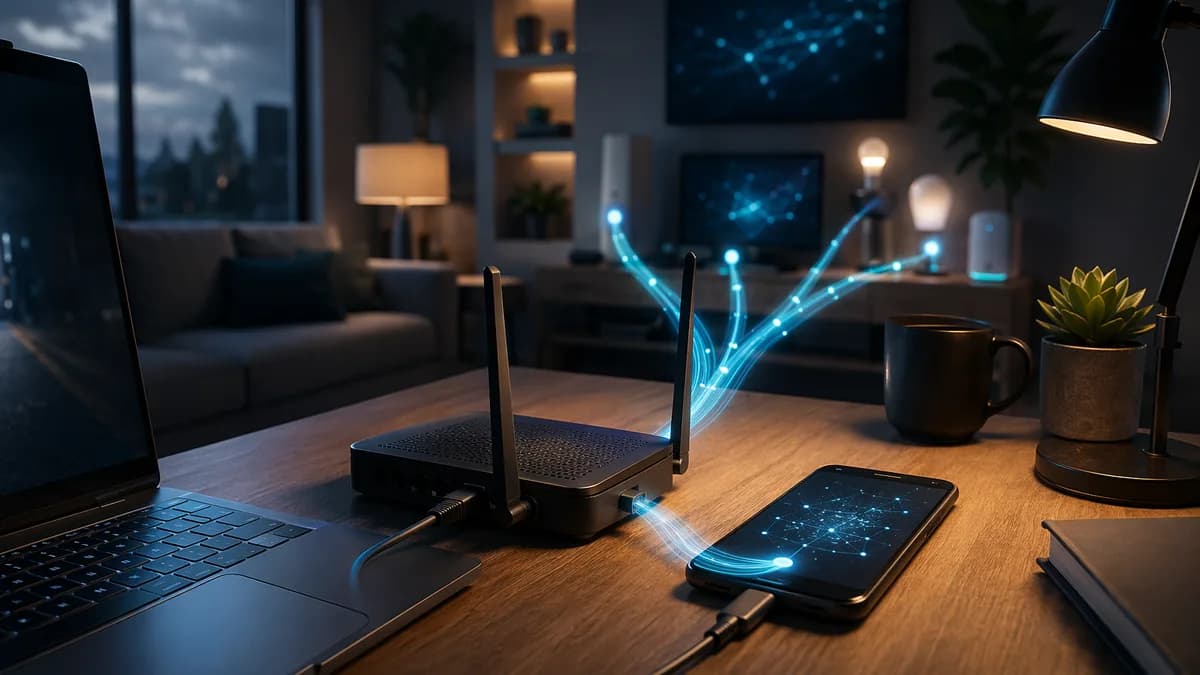
An old Android phone can keep your home router online when broadband drops, so your laptops, TVs, smart home gear, and work devices stay on the same home Wi-Fi instead of jumping to a temporary phone hotspot.
TechnologyJune 29, 2026· 8 min read· By XOOMAR Insights Team
Old Android Phone Rescues Your Home Router From Outages
Updated on June 29, 2026
XOOMAR Intelligence
Analyst Take
57/ 100
4 sources analyzedLow confidenceTrend10Freshness98Source Trust85Factual Grounding89Signal Cluster20
That’s the practical trick in Adrian Kingsley-Hughes’ guide at ZDNet: the phone supplies mobile data, while the router keeps doing the local networking job. The big win is boring, which is exactly what you want during an outage. No retyping Wi-Fi passwords into every device. No rebuilding your home network in a panic.
“An Android phone can help keep your home network online.”
“Router-level backup keeps more devices connected during outages.”
“You can avoid changing Wi-Fi settings on every device.”
Primary keyword: old Android phone backup connection for home router.
Home users: set up the Android phone so the router, not every device, gets the backup link
The basic plan is simple: connect an Android phone with an active data plan to your home router, then let the router share that mobile connection across your existing Wi-Fi network.
That matters most if your house has gear that expects the usual network to be there: work laptops, TVs, smart speakers, security cameras, smart locks, and tablets. The ZDNet example came from a real outage problem: hot weather in the UK, with temperatures hitting 99.1°F/37.3°C, had contributed to power outages and downed phone lines.
You have three practical routes:
- USB tethering from phone to router USB port
- Wi-Fi hotspot to router using WWAN or similar router support
- Ethernet tethering from phone to the router’s WAN port
Which one should you try first? If your router has a WAN port, and almost every router does, Ethernet tethering is the cleanest place to start.
Router owners: check the ports and menus before buying anything
Before you touch settings, look at your router.
You’re hunting for three possible connection paths:
| Method | Router needs | Phone needs | Best fit |
|---|---|---|---|
| USB tethering | USB port and support for phone tethering | Android USB tethering | Simple if your router recognizes the phone |
| Wi-Fi hotspot to router | WWAN, WAN over Wi-Fi, WISP, Wi-Fi as WAN, or similar | Android hotspot | Useful when cables or adapters aren’t available |
| Ethernet tethering | WAN/internet Ethernet port | Android Ethernet tethering plus USB-C Ethernet adapter | Most router-like setup |
Log in to your router admin panel and look for internet source settings. ZDNet notes that WWAN can appear under several names, including Wireless Wide Area Network, WAN over Wi-Fi, Wi-Fi as WAN, WISP, or Wi-Fi tethering.
If your router is basic, OpenWrt or DD-WRT may unlock advanced options, but only if your router is supported. That’s not a casual click-through upgrade. Treat it as a separate project.
If you’re already comparing routers because your current one lacks these features, our coverage of Prime Day Router Deals Knock $145 Off Orbi Mesh Wi-Fi is a useful place to think about what router capabilities actually matter during outages.
Method 1: use USB tethering when the router recognizes the phone
Start here if your router has a USB-A port.
- Connect the Android phone to the router with a USB-A-to-USB-C cable.
- On the phone, go to Settings.
- Tap Network & internet.
- Tap Hotspot & tethering.
- Turn on USB tethering.
- Open the router admin panel and check whether the WAN or internet status shows connected.
ZDNet says many routers auto-detect a USB-tethered Android phone as an Ethernet connection on the WAN port. Some budget routers and ISP-supplied routers may not.
Watch out for the real failure point here: the router, not the phone. If the router doesn’t understand USB tethering, the phone can be sharing data perfectly and the home network still won’t use it.
The upside is practical. The phone should charge while connected by USB, and your router can keep broadcasting the same home Wi-Fi network.
Method 2: connect the router to the phone’s Wi-Fi hotspot
This is not the usual “everyone joins the phone hotspot” move. The cleaner version is to make the router join the phone’s hotspot, then keep the router as the network hub.
Use this if your router supports WWAN, WISP, WAN over Wi-Fi, or a similar mode.
- Turn on the Android phone’s hotspot.
- Log in to the router admin panel.
- Find the router’s wireless WAN or Wi-Fi-as-internet setting.
- Connect the router to the phone hotspot.
- Confirm the router reports an active internet connection.
ZDNet names GL.iNet travel routers, including Beryl AX, Slate 7, and Mango, as examples that support this kind of feature. Some DrayTek and Ubiquiti UniFi routers also support it, according to the source.
The catch is availability. ZDNet is blunt that this capability is “not all that common.”
This method is useful when you don’t have the right adapter. It’s also the one that will send you deepest into your router’s admin pages. If your home depends on connected devices, that prep matters. We’ve seen how fragile smart home assumptions can be in other areas too, including the hardware business pressures around Level Home layoffs and the Kwikset transition.
Method 3: feed the router WAN port with Android Ethernet tethering
This is the strongest option in the ZDNet guide.
You need:
- USB-C-to-Ethernet adapter
- Short Ethernet cable
- Android phone with Ethernet tethering
- Router with a WAN/internet port
Steps:
- Plug the USB-C-to-Ethernet adapter into the Android phone.
- Connect Ethernet from the adapter to the router’s WAN or internet port.
- On the phone, open Settings.
- Tap Network & internet.
- Tap Hotspot & tethering.
- Turn on Ethernet tethering.
ZDNet says no extra configuration is usually needed for this approach.
Adapter choice matters. ZDNet reports good results with Anker, Ugreen, and Plugable adapters, and says adapters using ASIX AX88179 or Realtek RTL8153 chipsets seem to be OK. The advice from the source is to stay around the $10 to $20-plus range and avoid super-cheap sub-$10 no-name adapters.
Watch out for power. With Ethernet tethering, the phone won’t charge through a simple Ethernet adapter. For a longer outage, ZDNet suggests either scheduling charging downtime or using a USB-C multi-port hub that supports Power Delivery. Not every hub will work, and if the hub isn’t powered, the phone may have to power it.
Android beats iPhone for this specific router backup job
An iPhone can share cellular data over USB when Personal Hotspot is enabled, but ZDNet says it uses a proprietary Apple protocol. That means the router needs explicit iPhone tethering support.
GL.iNet routers worked in the author’s experience. Many others did not.
Wi-Fi mode should work if the router supports WWAN. Ethernet tethering, according to ZDNet, is “a big no for the iPhone.”
So if your goal is an old Android phone backup connection for home router, Android is the simpler tool for this job.
Run a five-minute outage drill before broadband fails
Don’t wait for the next line fault.
Test the setup while your main connection still works:
- Pick your method: USB, Wi-Fi, or Ethernet.
- Connect the Android phone to the router.
- Enable the matching tethering option on Android.
- Confirm the router shows internet access through the phone.
- Disconnect your normal ISP feed and check whether devices still load pages through the same home Wi-Fi.
Write down the exact Android menu path and router page that worked. Put the adapter and cable near the router. Label them if other people in the house may need to use them.
That small bit of preparation is the difference between a backup plan and a drawer full of parts.
Keep the mobile backup usable during a longer outage
Mobile backup is best treated as continuity, not unlimited replacement broadband.
The source-supported constraints are clear:
- Active data plan: The phone needs one, or a data SIM for the job.
- Battery: Ethernet tethering may require charging breaks unless you use a powered USB-C hub.
- Router compatibility: USB and Wi-Fi methods depend heavily on router support.
- Adapter quality: Ethernet tethering depends on the USB-C Ethernet adapter actually working with Android.
If you use Ethernet tethering, turning off Wi-Fi and Bluetooth on the phone can help the battery last longer, according to ZDNet. Keep the phone accessible, because you may need to re-enable tethering or move back to the primary internet connection.
Pick the method that matches your router, then test it now
For most people, the ranking is straightforward.
- Ethernet tethering: Best router-like setup if your Android phone and adapter support it.
- USB tethering: Clean and simple when the router recognizes the phone.
- Wi-Fi hotspot to router: Handy fallback if your router supports WWAN-style features.
The practical next move: try Ethernet tethering first with a decent USB-C Ethernet adapter, then keep USB and Wi-Fi hotspot modes as backups. If your old Android phone has an active data plan, it can become a real home internet safety net before the next outage forces the issue.
Key Takeaways
- An old Android phone can keep the existing home Wi-Fi network online during broadband outages.
- Router-level backup avoids reconnecting laptops, TVs, and smart home devices to a temporary hotspot.
- Ethernet tethering is presented as the simplest starting point for most routers with a WAN port.
Backup Connection Options for a Home Router
| Option | How it works | Best fit |
|---|---|---|
| USB tethering | Connects the Android phone to the router’s USB port | Routers with USB tethering support |
| Wi-Fi hotspot to router | Router connects to the phone hotspot using WWAN or similar support | Routers that can use Wi-Fi as an internet source |
| Ethernet tethering | Connects the phone to the router’s WAN port | Cleanest first option if the router has a WAN port |
Sources

Written by
XOOMAR Insights Team
Research and Editorial Desk
The XOOMAR Insights Team pairs automated research with human editorial judgment. We track hundreds of sources across technology, fintech, trading, SaaS, and cybersecurity, cross-check the facts, and explain what happened, why it matters, and what to watch next. We do not just rewrite headlines. Every article is fact-checked and scored for reliability before it goes live, and we link back to the original sources so you can verify anything yourself.
Explore More Topics
Related Articles
 Technology
I Replace Goolge Android With Privacy-Focused Alternative on Pixel
Step-by-step guide for installing GrapheneOS on Pixel phones, turning them into privacy-focused devices without requiring expert-level skills.
Aug 15, 20267 min
 Technology
Judge Smashes Google's Anticompetitive App Store Roadblocks
A federal judge ordered Google to fix its 'anticompetitive friction' and make installing rival app stores like Epic’s as easy as downloading a regular app, afte
Aug 15, 20266 min
 Technology
Build Your Own Linux Distro Overnight With AI
OpenFactory, an AI-powered service currently in alpha, lets you define and generate a custom KDE Plasma Linux distribution overnight, shifting distro creation f
Aug 15, 20266 min
 Technology
Solar AirTag Rival Beats Dead Battery Glitch
The Ugreen Finder Pro uses a solar panel to top up its sealed battery, aiming for a two-year lifespan to eliminate the dead-battery risk of standard trackers.
Aug 14, 20268 min
 Technology
Haptics Decide Premium Smartphone Feel in 2026
Top-tier haptic feedback is now a major divider between premium and average smartphones, transforming typing and navigation into a precise, physical experience.
Aug 13, 202612 min
 Trading
Gold Soars Past $4,400 As US Dollar Weakening Continues
Gold surged over 1% to $4,422 as a weakening US Dollar, driven by expectations of a more dovish Federal Reserve, ignited a sharp rally in the precious metal.
Aug 18, 20267 min
 Fintech
Ebanx Plants Executives in Foreign Markets for Growth
Payments giant Ebanx is decentralizing its leadership, placing senior executives directly in high-growth markets to address local complexity and drive its next
Aug 18, 20266 min
 Global Trends
Zambia Reelection Cemented Amid Austerity and Turmoil
Zambia’s President Hakainde Hichilema secures a second term with over 61% of the vote, a mandate to continue economic austerity and debt restructuring despite a
Aug 18, 20265 min
 Future Fiction
Tupac Refused to Name Attackers in Final Moments
The Tupac Shakur murder trial hinges on the rapper's final, defiant statement, which prosecutors say created a 'black box' of silence and conspiracy that outran
Aug 18, 20269 min
 Trading
New Zealand Dollar Stalls on China’s Slumping Consumer
The New Zealand Dollar slumped as weak Chinese economic data proved it's now a direct proxy for China's volatile consumer, not its own domestic story.
Aug 18, 20268 min
Don't miss the signal
Get our weekly roundup of the stories that matter across tech, fintech, and trading. No noise, just signal.
Free forever. No spam. Unsubscribe anytime.