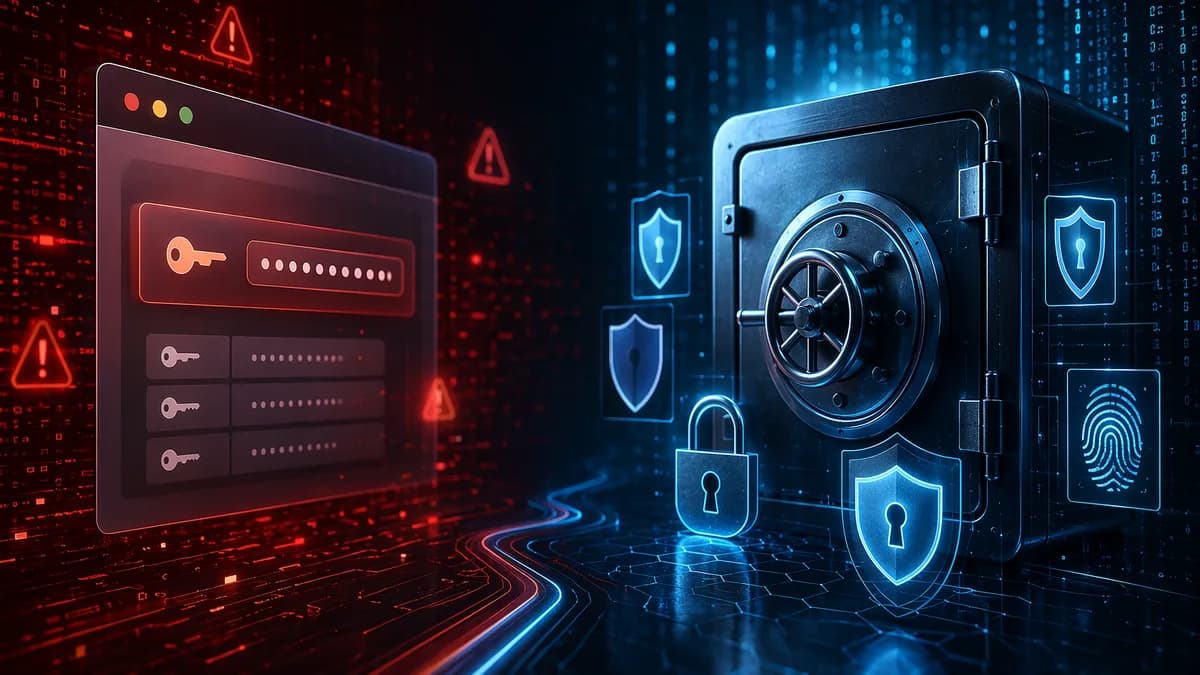
Everyday users comparing password manager vs browser passwords are usually asking a practical question: “Is the free password storage in Chrome, Safari, Firefox, or Edge safe enough, or should I pay for a dedicated password manager?” The researched answer is nuanced: browser password storage is much safer than reusing passwords, but dedicated password managers usually offer stronger separation, broader platform support, better sharing, and more complete security workflows.
XOOMAR Intelligence
Analyst Take
The right choice depends on your risk level, devices, and habits. If browser storage helps you use unique passwords everywhere, it is a meaningful security improvement. If you manage banking, work, healthcare, family accounts, or multiple devices and browsers, a standalone password manager is often the safer long-term setup.
1. How Browser Password Storage Works
Browser password storage is built directly into browsers such as Chrome, Safari, Firefox, and Edge. When you log in to a website, the browser asks whether you want to save the username and password. On future visits, it can autofill those credentials for you.
Consumer Reports testing found that the password managers built into Chrome, Edge, Firefox, and Safari can generate passwords. Firefox and Safari required the user to be logged in for that functionality in the tested setup.
Browser password managers are designed around convenience. They usually work best when you stay within the same browser or ecosystem—for example, Chrome with a Google account or Safari with Apple devices.
What browser password managers commonly do
| Browser password feature | What the source data confirms |
|---|---|
| Password saving | Browsers prompt users to save credentials after login. |
| Password generation | Chrome, Edge, Firefox, and Safari were able to generate passwords in Consumer Reports testing. |
| Autofill | Browsers autofill saved credentials on return visits. |
| Syncing | Browser passwords can sync when tied to a browser or platform account. |
| Compromised password checks | Chrome, Edge, Firefox, and Safari allow users to check whether saved passwords have been compromised. |
| Reused password checks | Chrome, Edge, and Safari allow reused-password checks; Consumer Reports found Firefox was the exception among those tested. |
Chrome’s Google Password Manager has become more robust than older browser password storage. Wired reports that Google uses AES encryption and offers on-device encryption, where passwords are encrypted before being saved on the device and the user manages the key. Google has also added app-bound encryption, which raised the bar against older methods that could decrypt Chrome passwords with relatively simple scripts.
Safari’s password storage is also frequently discussed as part of Apple’s ecosystem. Consumer Reports found that Safari supports password sharing, while the other tested browsers did not offer that same sharing capability in the test.
Browser password managers are no longer automatically “bad.” The more accurate comparison is that they are convenient, improving, and much better than password reuse—but still more limited than standalone password managers.
The main limitation: ecosystem dependence
Browser storage is tightly linked to the browser profile and often to a larger account ecosystem. That is convenient if you use one browser everywhere, but it becomes less ideal if you use Safari on a phone, Firefox on a laptop, Chrome on an Android device, or multiple browsers for work and personal use.
The source data repeatedly points to this pattern: browser password managers are strongest inside one ecosystem, while standalone password managers are designed to operate across ecosystems.
2. How Dedicated Password Managers Work
A dedicated password manager is a separate app or service built specifically to generate, store, audit, sync, and share credentials. Examples mentioned in the source data include 1Password, Bitwarden, Dashlane, Keeper, NordPass, Proton Pass, and C2 Password.
Instead of storing passwords as part of your browser profile, a password manager stores them in an encrypted vault. Many dedicated password managers use a zero-knowledge model, meaning the provider stores encrypted data but does not hold the key needed to read it.
Wired gives Proton Pass as an example of zero-knowledge encryption. The provider holds encrypted passwords, but not the decryption key. Consumer Reports also notes that 1Password Families requires a secret key in addition to a password when logging in from a new device.
What dedicated password managers typically add
| Dedicated password manager capability | Why it matters |
|---|---|
| Encrypted vault | Credentials are stored in a vault built specifically for password security. |
| Separate master password | Access is not simply tied to the browser being open. |
| Cross-browser use | Many work through browser extensions, websites, and mobile apps. |
| Cross-device support | Standalone tools are designed for mixed device environments. |
| Secure sharing | Users can share individual entries or vaults without sending passwords in plain text. |
| Security audits | Many provide password health, reuse, and breach monitoring tools. |
| Non-password storage | Some store secure notes, documents, images, product keys, payment cards, and identity information. |
Consumer Reports describes standalone password managers as operating across browsers and devices. For example, 1Password can be accessed through its website in any browser, through a browser extension, or through a phone app.
Online Tool Guides notes that standalone tools such as NordPass offer apps for Windows, macOS, Linux, iOS, and Android. The same source says C2 Password offers apps for Windows, macOS, iOS, Android, and Linux.
Standalone tools can store more than passwords
Consumer Reports found that 1Password can store passwords, product keys, notes, documents, images, and other files. Wired also notes that third-party password managers can store encrypted documents, notes, and custom entries.
Examples from the source data include:
- Proton Pass: Offers email aliases to reduce the chance of an email address leaking in a breach.
- 1Password: Offers Travel Mode to remove vaults while traveling.
- Bitwarden: Offers a self-hosted option for users who want to take their vault off the internet.
- NordPass: Allows users to share entries.
These features go beyond the basic “save and autofill” model of browser storage.
3. Security Differences That Actually Matter
The most important security question in the password manager vs browser passwords debate is not simply “which uses encryption?” Both browser-based and standalone tools use encryption. The more important question is how the encryption is implemented, what account controls access, and what happens if a device or account is compromised.
Browser passwords are tied to the browser and account ecosystem
Browser password storage is closely tied to the browser profile, local device security, and often a sync account such as a Google account or Apple ID.
Wired reports that Chrome’s Google Password Manager uses AES and offers stronger protections than older browser password storage. Chrome also supports optional protection with Windows Hello, allowing users to require a PIN or biometric authentication before passwords are filled.
However, Wired also highlights an important practical issue: that protection is optional. If extra authentication is not enabled, someone with access to a logged-in PC may be able to open browser settings and view or export passwords in plain text.
Firefox’s own documentation, cited by Wired, warns that although Firefox passwords are encrypted, “someone with access to your computer user profile can still see or use them.”
The security issue is not only encryption strength. It is also operational security: what can happen when your browser profile, device session, or main account is already accessible.
Dedicated managers separate browsing from credential storage
Dedicated password managers are built around the vault as the primary security object. Threat.news frames the distinction clearly: browser tools are integrated, while dedicated managers are specialized.
That separation can reduce the blast radius of a browser or ecosystem compromise. If a Google account, browser profile, or unlocked computer session is compromised, a separate password manager still requires its own unlock method in many setups.
This does not make password managers invulnerable. Source data acknowledges that a password manager vault can become a single point of failure. If the master password is lost, recovery may be difficult or impossible. If the vault is compromised, the impact can be serious.
But compared with browser storage, dedicated managers generally offer clearer separation, stronger vault controls, and more features designed around credential risk.
Encryption models compared
| Security factor | Browser password storage | Dedicated password manager |
|---|---|---|
| Encryption | Chrome uses AES; Chrome supports on-device encryption; Chrome and Safari are described as using AES-256 in source data. | Many standalone tools use zero-knowledge encryption; NordPass is described as using XChaCha20; other tools may use different models. |
| Access control | Often tied to device login, browser profile, or platform account. | Usually tied to a separate vault password, secret key, biometric unlock, or app-level controls. |
| Account takeover risk | If the browser sync account is compromised, synced credentials may be exposed depending on settings and recovery path. | Requires compromise of the password manager account and vault credentials. |
| Physical access risk | A logged-in device may expose saved passwords if extra authentication is not enabled. | Many password managers auto-lock and require separate vault access. |
| Best fit | Low-friction password storage for users who would otherwise reuse passwords. | Higher-security storage for users with more accounts, mixed platforms, or sensitive logins. |
Wired also notes the risk of concentrating email, browser sync, and saved passwords behind a single high-value account. A reported Gmail incident led Google to urge 2.5 billion users to update passwords, illustrating why a major account ecosystem can be an attractive target.
4. Autofill, Phishing Protection, and Login Safety
Autofill is not just a convenience feature. It can also influence login safety.
Both browser password storage and dedicated password managers can autofill saved credentials. That helps users avoid typing passwords manually and makes it easier to use long, unique passwords. But autofill behavior can also become risky if users blindly submit credentials after clicking suspicious links.
Threat.news notes that autofill can act as a useful signal: if a saved login does not appear where expected, that may indicate the site is not the real domain. It is not perfect anti-phishing protection, but it can slow down mistakes.
Why domain matching matters
A password manager or browser should only offer credentials on the matching domain. If you land on a lookalike phishing page and your login does not appear, that absence is a warning sign.
However, users still need to pay attention. Source data warns that real-world compromises often begin with fake login prompts delivered through email, SMS, social media, or other links.
Autofill comparison
| Autofill factor | Browser passwords | Dedicated password managers |
|---|---|---|
| Convenience | Very high inside the same browser. | High after setup, though extensions may add some friction. |
| Domain-based autofill | Can help avoid entering credentials on the wrong site. | Also helps identify domain mismatches; source data says password managers are typically stricter about domain matching. |
| Multi-account handling | Can be convenient but may be confusing in complex work/personal environments. | Often better organized for multiple vaults, identities, or account groups. |
| Unexpected login prompts | Users still need caution. | Users still need caution. |
If a login page appears unexpectedly after a link in email, SMS, or social media, slow down. Autofill is helpful, but it is not a substitute for checking the domain and context.
Browser convenience can be a double-edged sword
Wired highlights that browser password managers are designed to reduce friction. That is good for adoption, because people are more likely to use a tool that does not get in the way.
But lower friction may mean less re-authentication by default. Chrome allows optional Windows Hello protection, but Wired notes that this setting is turned off by default. Users who rely on browser passwords should review these settings and enable available device-level or biometric checks where possible.
5. Password Sharing and Family Account Features
Secure sharing is one of the clearest areas where dedicated password managers tend to outperform browser password storage.
Many households and small teams share logins for streaming services, utilities, Wi-Fi credentials, shared financial accounts, or administrative tools. The unsafe version of this behavior is sending passwords through chat, email, screenshots, or plain text notes.
Dedicated password managers are designed to reduce that risk.
What Consumer Reports found about sharing
Consumer Reports notes that standalone password managers typically support password sharing by creating a shared vault or sharing individual passwords. This allows each person to have their own account while sharing selected login credentials.
In its browser testing, Consumer Reports found that Safari allowed password sharing, while Chrome, Edge, and Firefox did not offer sharing in the tested comparison.
Wired adds that Google Password Manager and iCloud Keychain can share passwords only within their own ecosystems. With a third-party password manager, sharing can be less dependent on everyone using the same browser or platform.
Sharing comparison
| Sharing need | Browser passwords | Dedicated password manager |
|---|---|---|
| Share one login with a spouse or partner | Safari supports sharing; other tested browsers did not in Consumer Reports testing. | Commonly supported through shared vaults or individual item sharing. |
| Share across different ecosystems | Often limited to the same browser or platform ecosystem. | Generally better suited for mixed devices and browsers. |
| Family account management | Limited compared with standalone services. | Many tools support family or team-style sharing models. |
| Avoid plain-text sharing | Possible in some ecosystems, but limited. | A core reason to use a dedicated manager. |
Why sharing matters for safety
Sharing passwords casually creates long-term security problems. If a password is sent in a chat thread, email inbox, or document, it can persist long after the login changes. A dedicated password manager gives users a safer way to grant and revoke access.
For families managing shared accounts—or adult children helping parents with account recovery—secure sharing and emergency planning can become more important than the encryption debate alone.
6. Cross-Device Syncing and Platform Support
Cross-device syncing is where the best choice depends heavily on your setup.
If you use one browser and one device ecosystem, browser password storage may feel seamless. If you use different browsers, operating systems, phones, work devices, or personal devices, a dedicated password manager usually becomes more practical.
Browser syncing works best inside one ecosystem
Chrome password syncing works best when signed into Chrome with a Google account. Safari’s password experience is strongest inside Apple’s ecosystem. Edge works naturally inside Microsoft’s ecosystem.
That is not a flaw if your life fits neatly inside one ecosystem. But many users do not work that way.
Threat.news points out that browser storage can become fragmented when users switch between browsers for work, development, testing, or privacy reasons. Online Tool Guides similarly notes that built-in tools are often tied to specific browsers or ecosystems, which can limit flexibility.
Standalone managers are designed for mixed environments
Consumer Reports says standalone password managers are designed to operate across browsers and devices. A user can access 1Password through a website, browser extension, or phone app.
Online Tool Guides gives examples of standalone tools with broad platform support, including NordPass apps for Windows, macOS, Linux, iOS, and Android, and C2 Password apps for Windows, macOS, iOS, Android, and Linux.
Syncing and platform comparison
| User setup | Browser passwords may be enough | Dedicated manager usually fits better |
|---|---|---|
| One browser on all devices | Yes, especially if sync and device security are enabled. | Still useful, but less necessary. |
| Safari on iPhone and Firefox on laptop | Can become fragmented. | Better cross-browser consistency. |
| Chrome on Android and Brave or Firefox on desktop | May require imports or manual workarounds. | Better for mixed browser use. |
| Work and personal account separation | Possible but may be clunky. | More organized vault separation is often easier. |
| Frequent device switching | Best inside the same ecosystem. | Designed for broader access. |
Consumer Reports also notes that Chrome, Edge, Firefox, and Safari allow users to import passwords from one browser to another. However, importing is not the same as ongoing unified access. If you regularly switch environments, a standalone vault is usually simpler to maintain.
7. Data Breach Alerts and Password Health Reports
Both browser password managers and dedicated password managers can help identify compromised credentials, but standalone tools often go further in vault-wide auditing and organization.
Consumer Reports testing found that Chrome, Edge, Firefox, and Safari allow users to check whether passwords have been compromised. Chrome, Edge, and Safari also allow users to see whether passwords have been reused; Firefox was the exception among the tested browsers.
Safari behaved somewhat differently in the Consumer Reports test: it did not warn during new account creation when an identical password was used, but it did alert users to duplicate passwords when viewing stored passwords.
Password health comparison
| Health and breach feature | Browser password storage | Dedicated password manager |
|---|---|---|
| Compromised password checks | Confirmed in Chrome, Edge, Firefox, and Safari testing. | Commonly offered, often with more detailed vault reporting. |
| Reused password checks | Confirmed in Chrome, Edge, and Safari; not Firefox in Consumer Reports testing. | Commonly part of password health reports. |
| Weak password cleanup | Available in some browser tools. | Often easier to manage across a full vault. |
| Dark web or breach monitoring | Basic alerts are available in modern browsers. | Source data describes dedicated managers as offering detailed alerts and dark web monitoring. |
| Security audit workflow | Useful, but usually not the main product focus. | Often central to the product experience. |
Why password health matters
Unique passwords are the core benefit of any password storage system. Consumer Reports emphasizes that unique passwords protect users after a data breach because attackers often try stolen credentials on other sites in credential stuffing attacks.
If you reuse passwords, one breach can lead to multiple account takeovers. A password health report helps identify reused, weak, or compromised credentials so you can replace them with generated unique passwords.
The best password tool is not just the one that stores passwords. It is the one that helps you find and fix bad passwords before attackers use them.
8. When Browser Passwords Are Good Enough
Browser passwords can be good enough for some everyday users—especially when the alternative is password reuse, handwritten notes, or storing passwords in an unprotected notes app.
Wired is explicit on this point: storing unique passwords in your browser is more secure than reusing the same few passwords with small variations. Browser password managers are also “leaps and bounds better” than not using a password manager at all.
Browser passwords are a reasonable choice if:
- Low complexity: You use one main browser across your phone, laptop, and desktop.
- Low sharing needs: You do not need to share many logins with family members, roommates, or coworkers.
- Basic account set: You have a relatively small number of accounts and few high-risk credentials.
- Strong device security: You use a device password, PIN, biometric login, and available browser protections.
- No appetite for setup: You would otherwise reuse weak passwords rather than configure a standalone tool.
- Ecosystem comfort: You are comfortable tying password storage to your Google, Apple, Microsoft, or browser account ecosystem.
How to make browser password storage safer
If you choose browser storage, the source data supports several practical steps:
- Enable MFA: Turn on multi-factor authentication for the browser or platform account used for sync.
- Use device security: Consumer Reports recommends using a password to log in to your computer, phone, and other devices.
- Enable biometric prompts: Chrome can integrate with Windows Hello for PIN or biometric checks before filling passwords.
- Check password health: Use compromised and reused password checks where available.
- Avoid password reuse: Let the browser generate unique passwords instead of recycling old ones.
- Wipe old devices: Consumer Reports recommends wiping a computer before selling it or disposing of it.
- Protect the main account: Your browser sync account is high-value, so secure it with MFA or passkeys where available.
When browser storage is not ideal
Browser storage becomes less compelling when your browser account is also your email, recovery hub, cloud account, and identity provider. If that one account is compromised, the attacker may gain access to too much of your digital life.
Threat.news recommends thinking in failure scenarios: what happens if you lose a device, switch browsers, get phished, suffer account takeover, or need to help a family member recover access quickly?
That is the right way to evaluate password manager vs browser passwords for real-world use.
9. When to Upgrade to a Password Manager
You should consider upgrading to a dedicated password manager when your account risk, sharing needs, or device complexity outgrow browser storage.
Dedicated password managers are usually the better fit for people who need stronger separation, secure sharing, organized recovery, or cross-platform consistency.
Upgrade if you manage sensitive accounts
A dedicated manager makes more sense if you store credentials for:
- Email: Your email is often the password reset hub for other services.
- Banking: Financial accounts need stronger protection and unique credentials.
- Healthcare: Medical portals may contain sensitive personal information.
- Work tools: Work logins can expose business systems or client data.
- Cloud storage: Cloud accounts often contain documents, backups, and personal records.
- Administrative accounts: Social media admin, payroll, business dashboards, and cloud consoles carry elevated risk.
Threat.news recommends starting with the accounts that would hurt most if compromised: primary email, banking, payroll, password reset inboxes, cloud storage, work identity providers, social media admin accounts, and messaging apps.
Upgrade if you need secure sharing
If you share passwords with a spouse, partner, family member, roommate, or coworker, a standalone manager is usually safer than sending credentials through chat or email.
Consumer Reports says standalone password managers typically allow password sharing through shared vaults or individual password sharing. Wired also notes that dedicated managers can share entries more flexibly than browser tools limited to their own ecosystems.
Upgrade if you use multiple browsers or devices
A password manager is usually more convenient if you use:
- Multiple browsers: Chrome, Safari, Firefox, Edge, Brave, or different browsers for different tasks.
- Multiple operating systems: Windows, macOS, Linux, iOS, and Android.
- Work and personal devices: Especially if accounts need to stay organized separately.
- Mobile apps: Where browser-specific storage may not always provide the cleanest experience.
Upgrade if you want one security hub
Dedicated managers often store more than passwords. Based on the source data, they may support:
- Secure notes
- Documents
- Images
- Product keys
- Payment cards
- Identity details
- Wi-Fi credentials
- Recovery codes
- Passkeys
- Two-factor authentication codes, depending on the product
Browser storage may handle passwords, addresses, and payment information—Chrome is cited as storing payment information and addresses—but it is not usually designed as a full account security hub.
Pricing context at the time of writing
Pricing changes frequently, but one source in the provided research lists the following starting prices and free-tier notes for selected password managers:
| Product | Best-fit example from source data | Starting price listed | Free tier or trial listed |
|---|---|---|---|
| Bitwarden | Open-source, budget users | $1/month | Yes, described as generous |
| 1Password | Families and teams | $2.99/month | 14-day trial |
| Proton Pass | Privacy-focused users | $1.99/month | Yes |
| Dashlane | All-in-one features | $3.33/month | Limited |
| Keeper | Business compliance | $2.92/month | 30-day trial |
These figures should be treated as source-listed pricing at the time of writing, not a guarantee of current pricing. Always verify directly before buying.
Bottom Line
For most everyday users, the safest answer is not “browser passwords are bad.” The better answer is: browser passwords are a solid baseline if they help you stop reusing passwords, but dedicated password managers are usually stronger for people with sensitive accounts, mixed devices, sharing needs, or higher recovery risk.
Use browser password storage if you live inside one ecosystem, do not need sharing, and would otherwise reuse weak passwords. Upgrade to a standalone password manager if you want a separate encrypted vault, better cross-platform access, secure sharing, broader storage options, and more complete password health reporting.
In the password manager vs browser passwords comparison, browser storage wins on convenience and adoption. Dedicated password managers win on specialization, separation, flexibility, and advanced account management.
FAQ
Are browser passwords safe enough for everyday users?
Yes, browser passwords can be safe enough for some everyday users, especially compared with reusing passwords or storing them in notes. Chrome, Edge, Firefox, and Safari can generate passwords, autofill credentials, and check for compromised passwords. However, they are more limited than dedicated password managers in sharing, cross-platform support, and vault-level controls.
Is a dedicated password manager safer than browser password storage?
Usually, yes—especially for users with sensitive accounts or multiple devices. Dedicated password managers are built around encrypted vaults, often use zero-knowledge architecture, and separate credential storage from the browser account. Browser storage has improved, but it remains closely tied to the browser profile, device security, and sync account.
What is the biggest risk of using browser passwords?
The biggest practical risk is concentration. Your browser passwords may be tied to a high-value browser or platform account, and on some setups a person with access to an unlocked device may be able to view or export saved passwords. Wired notes that Chrome can use Windows Hello protection, but that added authentication is optional.
Can browser password managers detect breached passwords?
Yes. Consumer Reports testing found that Chrome, Edge, Firefox, and Safari allow users to check whether saved passwords have been compromised. Chrome, Edge, and Safari also allow reused-password checks, while Firefox was the exception in that specific testing.
Do browser password managers support secure sharing?
Support is limited. Consumer Reports found that Safari allowed password sharing, while Chrome, Edge, and Firefox did not in its tested comparison. Dedicated password managers typically offer stronger sharing options, such as shared vaults or individual item sharing.
When should I switch from browser passwords to a password manager?
Switch when you manage sensitive accounts, use multiple browsers or operating systems, need to share passwords securely, want breach monitoring and password health reports, or need to store recovery codes, secure notes, documents, passkeys, or identity information in one place. For higher-risk users, a dedicated password manager is usually the more complete option.
Sources & References
Content sourced and verified on June 17, 2026
- 1Browser Password Managers Are Great, and a Terrible Idea
https://www.wired.com/story/browser-password-managers/
- 2Which Is Better: Your Browser's Password Manager or a Standalone Service? - Consumer Reports
https://www.consumerreports.org/electronics-computers/password-managers/browser-password-manager-or-standalone-password-service-a1214951437/
- 3Password Manager vs Browser Passwords
https://threat.news/password-manager-vs-built-in-browser-passwords-security-tradeoffs
- 4Browser-Based vs. Standalone Password Managers: Which is Best? - Online Tool Guides
https://onlinetoolguides.com/browser-based-vs-standalone-password-managers/
- 5Password Manager vs Browser Passwords: Which Is Safer in 2026?
https://lunyb.com/blog/password-manager-vs-browser-passwords-mq8a0g35
- 6Password Managers vs. Browser-Saved Passwords: Which to Use?
https://techreviewadvisor.com/password-managers-vs-browser-saved-passwords/

Written by
XOOMAR Insights Team
Research and Editorial Desk
The XOOMAR Insights Team pairs automated research with human editorial judgment. We track hundreds of sources across technology, fintech, trading, SaaS, and cybersecurity, cross-check the facts, and explain what happened, why it matters, and what to watch next. We do not just rewrite headlines. Every article is fact-checked and scored for reliability before it goes live, and we link back to the original sources so you can verify anything yourself.