Choosing password manager vs browser storage is no longer a simple “browser bad, standalone good” decision. Built-in browser password managers in Chrome, Safari, Edge, and Firefox have improved with password generation, compromised-password checks, device authentication, encryption improvements, and passkey support. But dedicated password managers still offer stronger separation, broader cross-browser use, sharing tools, and more complete vault features.
XOOMAR Intelligence
Analyst Take
For everyday users, the safest choice depends on how you actually browse, which devices you use, whether you share accounts, and how much security “friction” you are willing to accept.
How Browser Password Storage Works
Browser password storage is built directly into the browser or operating-system ecosystem you already use. When you log in to a website, the browser asks whether you want to save the username and password. Later, it can autofill those credentials when you return.
According to Consumer Reports testing, the password managers built into Chrome, Edge, Firefox, and Safari can generate passwords, similar to standalone services such as 1Password Families. That matters because unique passwords are one of the biggest practical defenses against credential stuffing, where attackers take breached usernames and passwords and try them across other websites.
What browsers typically do well
| Browser password feature | What the source data shows |
|---|---|
| Password generation | Chrome, Edge, Firefox, and Safari were able to generate passwords in Consumer Reports testing. |
| Compromised password checks | Chrome, Edge, Firefox, and Safari allow users to check whether saved passwords have been compromised. |
| Reuse warnings | All tested browser password managers except Firefox allowed users to see whether passwords were reused. |
| Autofill convenience | Browser storage is quick to set up and tightly integrated into everyday browsing. |
| Passkey support | Source data notes that major browsers now support passkeys. |
Browser password managers are especially frictionless. Safari’s password manager, for example, is enabled by default and prompts users automatically. Chrome’s manager is similarly integrated into the Google account and Chrome experience.
If you are currently reusing the same few passwords, saving unique passwords in a browser is more secure than continuing to reuse passwords across websites.
Where browser storage lives
Browser password managers usually tie saved credentials to a broader browser or platform account. For example, Chrome password syncing is connected to your Google account, while Safari password syncing is closely tied to Apple’s ecosystem and iCloud Keychain.
That makes setup easy, but it also means your passwords may sit inside the same ecosystem as your email, browser history, bookmarks, settings, and device sync.
How Dedicated Password Managers Work
Dedicated password managers are standalone services or apps built specifically to generate, store, autofill, audit, and share credentials. Examples mentioned in the source data include 1Password, Bitwarden, Proton Pass, NordPass, Dashlane, Keeper, and KeePass.
Unlike browser storage, a dedicated manager usually stores your credentials in a separate encrypted vault. That vault can be accessed through desktop apps, mobile apps, browser extensions, and web access, depending on the product.
The vault model
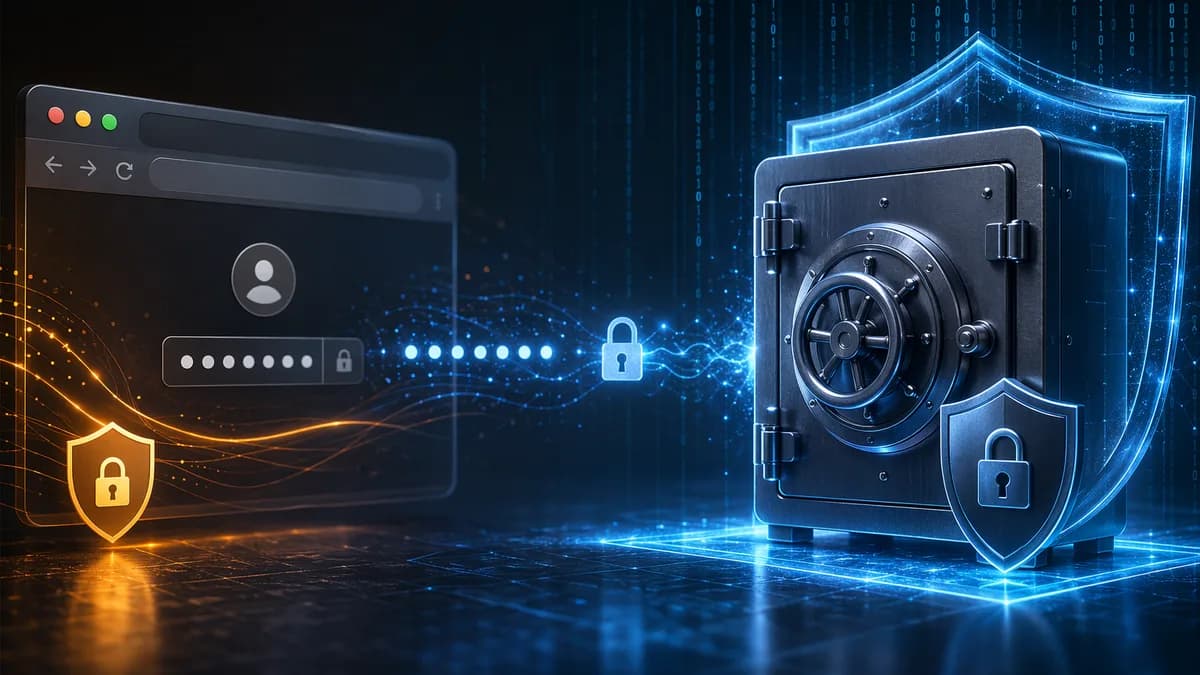
The key difference is separation. A standalone password manager is not just another feature inside your browser profile. It is a dedicated vault designed around credential storage.
Source data describes dedicated managers as commonly using zero-knowledge encryption, meaning the provider stores encrypted data but does not hold the key needed to read it. The user’s master password or equivalent unlocks the vault.
Examples from the research include:
- Proton Pass: Cited as using zero-knowledge encryption.
- Bitwarden: Mentioned as a dedicated option with cross-platform support and a self-hosted option.
- 1Password: Cited for family features, multifactor authentication, and a secret key required when logging in from a new device.
- KeePass: Mentioned as an offline-oriented option.
- NordPass: Mentioned as allowing users to share entries.
- Keeper: Described in source discussion as using zero-knowledge encryption.
What dedicated managers add
Dedicated tools often go beyond passwords. Consumer Reports notes that 1Password can store passwords, product keys, notes, documents, images, and other files, such as a passport photo or healthcare proxy PDF.
Other examples from the source data include:
- Proton Pass: Email aliases to reduce exposure of your real email address.
- 1Password: Travel Mode to clean up vaults while traveling.
- Bitwarden: Self-hosting option for taking a vault off the internet.
- Third-party managers generally: Secure sharing, password audits, breach alerts, encrypted notes, and structured vaults.
Security Differences That Matter
The most important password manager vs browser security difference is not simply “encryption vs no encryption.” Modern browser password managers do use security protections. The bigger issue is architecture: where the credentials live, what unlocks them, and what else an attacker gets if one account or device session is compromised.
Encryption and account separation
Wired’s analysis notes that Google Password Manager uses AES, described in the source as a gold-standard encryption method among password managers. Google also allows users to set up on-device encryption, where passwords are encrypted before being saved and the user manages the key.
However, the source also emphasizes that the default experience is designed to reduce friction. Google can manage the encryption key by default, while on-device encryption is an option users must choose.
Dedicated password managers typically center the whole product around a separate encrypted vault. That vault is unlocked by a master password or similar primary credential, often with additional authentication.
| Security factor | Browser password manager | Dedicated password manager |
|---|---|---|
| Encryption | Modern browsers use encryption; Chrome supports on-device encryption as an option. | Commonly built around vault-level encryption and zero-knowledge architecture. |
| Account exposure | Often tied to a high-value browser or platform account. | Separate vault account reduces dependence on one browser ecosystem. |
| Device-session risk | If a device is unlocked and protections are not enabled, browser credentials may be easier to access. | Vaults often have their own lock rules and master password requirements. |
| Browser attack surface | Integrated into the browser, so browser bugs, extensions, or account compromise can matter. | Separated from the browser, though browser extensions still require careful use. |
| Setup friction | Usually lower. | Usually higher, especially during initial setup. |
The “logged-in computer” problem
Wired highlights a practical risk: without extra authentication enabled, someone with access to a logged-in PC may be able to open the browser’s password settings and view or export passwords in plaintext.
Chrome can be configured to require Windows Hello, a PIN, or biometric authentication before filling or revealing passwords. But the source notes that this protection is optional, not always enabled by default.
Firefox is also described more cautiously. Mozilla’s own warning, quoted in the source data, says that although Firefox passwords are encrypted, “someone with access to your computer user profile can still see or use them.”
The practical security question is not just “is it encrypted?” It is “what happens if someone gets access to my browser session, device profile, or main platform account?”
The high-value account issue
Browser password managers often sit behind accounts that are already major targets. Wired points to the risk of tying passwords to a pervasive account such as a Google account, especially because account takeovers often happen through phishing.
That does not mean Google or Apple accounts are inherently unsafe. Both offer stronger protections such as multifactor authentication and passkeys. But if your email, browser sync, and saved passwords all depend on the same account, compromise of that account can become more damaging.
Dedicated password managers add another boundary. Even if an attacker targets your email or browser account, your password vault can remain separately protected.
Convenience and Cross-Device Sync Compared
Convenience is where browser password managers shine. If you use the same browser and ecosystem everywhere, browser storage can feel almost invisible.
For example, if you use Chrome across your laptop and Android phone, or Safari across Apple devices, saved passwords and passkeys can sync smoothly. Source discussion also notes that browser autofill may provide a consistent experience inside the browser and, in some cases, mobile apps that rely on platform autofill behavior.
Browser convenience is strongest inside one ecosystem
Browser password managers are usually fastest to start using because there is little to install. Consumer Reports notes that standalone password managers require additional setup, such as signing up for an account, setting a primary password, and adding browser extensions.
But browser convenience weakens when you mix platforms.
Bitwarden’s source material cites the example of Google Password Manager working well with Android and Chrome, but becoming less useful outside that ecosystem. The research notes that Google does not offer a standalone desktop app for Google Password Manager; on desktop it is built into Chrome, and on Android it relies on Google Play Services. If you use Safari, Firefox, or another browser, there may be no native Google Password Manager extension, meaning autofill may not work the same way.
Dedicated managers are stronger across mixed devices
Dedicated managers are designed for people who use multiple browsers, operating systems, or devices. Bitwarden’s research page states that Bitwarden works across Windows, Mac, Linux, iOS, Android, Chrome, Firefox, Safari, Edge, and specialized browsers.
Consumer Reports makes a similar point: standalone managers are designed to work across browsers and devices through websites, browser extensions, and phone apps.
| Everyday setup | Better fit based on source data | Why |
|---|---|---|
| One browser, one ecosystem | Browser password manager may be enough | Fast setup, native autofill, fewer extra apps. |
| Safari on phone, Firefox on laptop | Dedicated password manager | Standalone tools sync across browsers and devices more consistently. |
| Chrome on Android, Brave or Firefox on desktop | Dedicated password manager | Browser-specific managers may lose autofill convenience outside their home ecosystem. |
| Family with mixed Apple, Android, Windows devices | Dedicated password manager | Cross-platform sharing and access are usually stronger. |
| User who wants no subscription and minimal setup | Browser password manager | Built in and free. |
Password Sharing and Family Account Features
Password sharing is one of the clearest areas where dedicated password managers tend to win.
Consumer Reports notes that standalone password managers typically allow sharing by creating a shared vault or sharing individual passwords. This lets two people keep their own accounts while sharing specific logins.
By contrast, browser sharing is more limited.
What Consumer Reports found
Consumer Reports tested browser password managers in Chrome, Edge, Firefox, and Safari. The result: Safari allowed password sharing, but the other tested browsers did not.
Safari’s sharing uses Apple’s ecosystem features. On a Mac, users can open Safari settings, go to Passwords, authenticate, select a saved login, and share it through AirDrop. The receiving person must be discoverable through AirDrop.
That can be useful, but it is still ecosystem-specific.
Dedicated sharing is broader
Wired’s analysis notes that Google Password Manager and iCloud Keychain can share passwords, but only within their own ecosystems. A dedicated password manager such as NordPass allows users to share entries more broadly.
Dedicated managers are especially useful when:
- Families: Multiple people need access to streaming, utility, school, or household accounts.
- Partners: Spouses or partners need shared access to financial or insurance accounts.
- Small teams: Coworkers need controlled access to shared business tools.
- Mixed-device households: Some people use Apple devices, others use Android or Windows.
Sharing passwords by text message, email, or chat creates unnecessary exposure. A manager with built-in sharing is safer and easier to revoke.
Breach Monitoring and Password Health Tools
Breach monitoring and password health checks help users find weak, reused, or exposed credentials. Both browser and dedicated managers now offer some version of these tools, but dedicated managers often provide broader management features.
Browser breach checks have improved
Consumer Reports found that Chrome, Edge, Firefox, and Safari allow users to check whether saved passwords have been compromised. It also found that all tested browser password managers except Firefox allowed users to see whether passwords had been reused.
Safari behaved somewhat differently in testing. On macOS, it did not warn at the moment a duplicate password was being created, but it did alert users to duplicate passwords when viewing stored passwords.
Dedicated managers often go further
Standalone managers commonly include password audits, breach alerts, vault organization, and secure storage for more than just logins.
From the source data:
- 1Password: Can check reused passwords and whether a password appears in stolen-credential databases; also stores files, notes, images, documents, and product keys.
- Proton Pass: Offers email aliases that may reduce the chance of your main email address being exposed in a breach.
- Third-party managers generally: Often include weak-password checks, reused-password checks, breach alerts, secure notes, and structured vaults.
The source data does not provide a uniform feature-by-feature test for every standalone password manager, so it is best to evaluate the specific product you are considering.
| Password health feature | Browser managers | Dedicated managers |
|---|---|---|
| Compromised password checks | Available in Chrome, Edge, Firefox, and Safari based on Consumer Reports testing. | Commonly available in standalone tools such as 1Password. |
| Reused password warnings | Available in Chrome, Edge, and Safari in Consumer Reports testing; Firefox was the exception. | Common password audit feature. |
| Weak password audits | Varies by browser. | Commonly offered as part of vault health tools. |
| Email alias support | Not cited for browser managers in source data. | Proton Pass is cited as offering email aliases. |
| Secure document storage | Browser managers may store some data such as Chrome payment information and addresses. | 1Password is cited as storing notes, documents, images, files, and product keys. |
Passkey Support and Future-Proofing
Passkeys are designed to reduce reliance on traditional passwords. They are resistant to phishing and are not stolen from a company server in the same way a password database can be exposed.
The source data notes that major browsers now support passkeys. Google and Apple also offer passkeys and device-bound authentication methods to strengthen account security.
Browser passkeys are convenient
Browser and platform ecosystems are important to passkey adoption because they control much of the login experience. If you use Chrome, Safari, Edge, or Firefox, passkey support is increasingly part of the browser experience.
That makes browser password managers more future-ready than they used to be.
Dedicated password managers also support passkeys
Source discussion notes that dedicated managers are also moving into passkey storage and sharing. A community discussion cited 1Password for a smooth passkey and family experience, while dedicated managers in general were described as supporting password and passkey sharing.
The important distinction is portability. If your passkeys are tied only to one browser or platform ecosystem, switching devices or browsers may be less convenient. A dedicated manager may offer more consistency across mixed platforms, though passkey behavior can still depend on the websites, devices, and browsers involved.
Future-proofing depends on your ecosystem
| Future-proofing question | Browser storage | Dedicated manager |
|---|---|---|
| Do you use one platform everywhere? | Strong fit. | Also works, but may be more setup than needed. |
| Do you switch browsers often? | Less ideal. | Stronger fit. |
| Do you need passkey sharing? | Limited and ecosystem-dependent. | More likely to support broader sharing, depending on product. |
| Do you want one vault for passwords, passkeys, notes, and files? | Limited. | Stronger fit based on cited standalone features. |
When Browser Passwords May Be Enough
Browser passwords may be enough for many everyday users, especially those who prioritize simplicity and are not currently using any manager at all.
Consumer Reports found that only 35% of Americans use a password manager. For the majority who may still rely on memory, reused passwords, notes, or paper, turning on a browser password manager can be a meaningful improvement.
Browser storage may be reasonable if:
You use one browser consistently
If Chrome, Safari, Edge, or Firefox is your main browser across devices, built-in storage can be convenient.You stay inside one ecosystem
Safari works best inside Apple’s ecosystem. Google Password Manager works best with Chrome and Android.You do not need advanced sharing
If you rarely share accounts, browser limitations may not bother you.You want no extra setup
Browser managers are built in, usually free, and often prompt automatically.You enable stronger protections
Use device passwords, biometrics, multifactor authentication, and passkeys where available.
Browser password safety checklist
If you choose browser storage, do not leave it in the weakest configuration.
- Device lock: Use a password, PIN, or biometric lock on every computer and phone.
- Account protection: Turn on multifactor authentication for your Google, Apple, Microsoft, or browser-sync account.
- Biometric prompts: Enable Windows Hello, Touch ID, or similar authentication before viewing or autofilling passwords when available.
- On-device encryption: Use browser options such as Chrome’s on-device encryption where available.
- Password audits: Regularly check for compromised and reused passwords.
- Device disposal: Wipe computers and phones before selling, recycling, or giving them away.
A browser password manager is not “nothing.” Used correctly, it can help everyday users create unique passwords and avoid dangerous reuse.
When to Upgrade to a Password Manager
A dedicated manager becomes more compelling when your digital life gets more complex. The password manager vs browser decision often turns on whether browser convenience still outweighs the benefits of separation, sharing, and cross-platform access.
Upgrade if you use multiple browsers or platforms
If you use Safari on an iPhone, Firefox on a laptop, Chrome on an Android tablet, or different browsers for work and personal browsing, a standalone vault is usually easier to manage.
Consumer Reports states that syncing between apps and devices will likely be easier with a standalone service such as 1Password, especially when users mix browsers and devices.
Upgrade if you share passwords
If you share logins with a spouse, family member, roommate, or coworker, a dedicated manager is usually safer than sending passwords manually.
Safari supports sharing in Consumer Reports testing, but Chrome, Edge, and Firefox did not in that test. Dedicated managers typically offer shared vaults or item-level sharing.
Upgrade if you want stronger vault separation
Dedicated password managers create a separate security boundary. Instead of storing credentials inside your main browser account, you protect them inside a dedicated vault.
This matters if you are concerned about:
- Phishing: Account takeovers often begin with stolen login credentials.
- Browser exposure: Browser extensions, bugs, or open sessions can increase risk.
- High-value accounts: Your email or platform account may already unlock many parts of your life.
- Work/personal separation: A dedicated vault can help segment credentials more cleanly.
Upgrade if you store more than passwords
A dedicated password manager may be the better tool if you want to store:
- Secure notes
- Documents
- Images
- Product keys
- Passport photos
- Healthcare forms
- Wi-Fi passwords
- Two-factor codes, where supported by the chosen product
Consumer Reports specifically notes that 1Password can store notes, documents, images, other files, and product keys. Wired also cites encrypted documents, notes, and custom entries as advantages of third-party managers.
What about cost?
Browser password managers are included with the browser. Make Tech Easier’s source data notes that Bitwarden has a robust free tier, while 1Password and others require subscriptions of $3–5/month for full features.
Because pricing and plans can change, check the provider directly at the time of writing before choosing based on cost alone.
Bottom Line
In the password manager vs browser comparison, browser password managers are much safer than reusing passwords, storing them in notes, or writing them down without protection. Chrome, Edge, Firefox, and Safari can generate passwords, check for compromised credentials, and support modern security features such as biometrics and passkeys.
Dedicated password managers are still the stronger choice for users who want better separation, cross-browser support, secure sharing, richer vault storage, and more control. If you live entirely inside one browser ecosystem and enable strong protections, browser storage may be enough. If you use mixed devices, share accounts, or want a dedicated encrypted vault, upgrading to a standalone password manager is the safer long-term move.
FAQ
Is a browser password manager better than no password manager?
Yes. The source data consistently supports the idea that using a browser password manager is better than reusing the same passwords or storing them insecurely. Browser managers can generate unique passwords and check for compromised credentials.
Are dedicated password managers always safer?
They generally offer stronger architecture because they use a separate encrypted vault and often zero-knowledge encryption. However, safety still depends on how you use them: choose a strong master password, enable multifactor authentication, and keep devices secure.
Can browsers check if my passwords were leaked?
Yes. Consumer Reports found that Chrome, Edge, Firefox, and Safari allow users to check whether saved passwords have been compromised. Chrome, Edge, and Safari also allowed reused-password checks in that testing, while Firefox was the exception.
Which is more convenient: browser passwords or a password manager?
Browser passwords are usually more convenient if you use one browser and one ecosystem. Dedicated password managers are more convenient if you use multiple browsers, operating systems, or devices because they are designed for cross-platform access.
Do browser password managers support password sharing?
Safari allowed password sharing in Consumer Reports testing, but Chrome, Edge, and Firefox did not in that test. Dedicated password managers typically offer stronger sharing options, such as shared vaults or individual item sharing.
Do passkeys replace password managers?
Not entirely, at least based on the source data. Major browsers support passkeys, and dedicated managers are also adding passkey support. For now, many users still need a place to manage passwords, passkeys, notes, shared credentials, and recovery information.
Sources & References
Content sourced and verified on June 16, 2026
- 1Browser Password Managers Are Great, and a Terrible Idea
https://www.wired.com/story/browser-password-managers/
- 2Which Is Better: Your Browser's Password Manager or a Standalone Service? - Consumer Reports
https://www.consumerreports.org/electronics-computers/password-managers/browser-password-manager-or-standalone-password-service-a1214951437/
- 3Browser password managers vs dedicated manager?
https://www.reddit.com/r/cybersecurity_help/comments/1o82pxy/browser_password_managers_vs_dedicated_manager/
- 4Browser vs. Third-Party Password Manager: Which Is Best For You?
https://www.maketecheasier.com/browser-vs-third-party-password-manager/
- 5Why security experts recommend standalone password managers over browser-based options | Bitwarden
https://bitwarden.com/blog/beyond-your-browser/
- 6Password Managers vs. Browser-Saved Passwords: Which to Use?
https://techreviewadvisor.com/password-managers-vs-browser-saved-passwords/

Written by
XOOMAR Insights Team
Research and Editorial Desk
The XOOMAR Insights Team pairs automated research with human editorial judgment. We track hundreds of sources across technology, fintech, trading, SaaS, and cybersecurity, cross-check the facts, and explain what happened, why it matters, and what to watch next. We do not just rewrite headlines. Every article is fact-checked and scored for reliability before it goes live, and we link back to the original sources so you can verify anything yourself.