
In the fast-evolving digital landscape of 2026, the ability to create clear, engaging video tutorials and demonstrations is not just an asset, it's a necessity. From educators building online courses to professionals streamlining team communication, the demand for high-quality screen recording content is higher than ever. Finding the best screen recording tutorial software hinges on identifying the tool that perfectly balances your technical expertise, content goals, and budget against a crowded field of options.
Introduction: The High Demand for Video Tutorials & Demos
Video has become the undisputed king of communication for demonstrating processes, teaching skills, and sharing ideas. Asynchronous video messages replace lengthy meetings, while comprehensive tutorials form the backbone of online education and customer support. Modern screen recording tutorial software has evolved far beyond simple capture; the top tools now integrate intelligent editing, AI-powered enhancements, and seamless sharing workflows. Whether you're a solo creator, a corporate trainer, or an educator, the right software transforms your screen activity into compelling, professional content with minimal friction. The core challenge is selecting a tool from over 100 available options, a decision that depends entirely on whether you're sending a quick video message to a colleague or producing a polished, multi-lesson course.
Essential Features: Cursor Effects, Annotation, Webcam Overlay, Easy Editing
Before diving into specific tools, it’s crucial to understand the features that separate basic recorders from powerful tutorial-creation platforms. These functionalities directly impact your workflow efficiency and the final video's educational clarity. Based on aggregated reviews and comparisons, here are the non-negotiable features for tutorial creation in 2026:
- Cursor Effects & Mouse Emphasis: Highlighting clicks, movement paths, and hover effects guides the viewer’s attention and is essential for software tutorials.
- Real-Time Annotation & Drawing Tools: The ability to draw arrows, boxes, and outlines on the fly during recording emphasizes key areas without requiring post-production.
- Movable Webcam Overlay: A picture-in-picture webcam feed adds a personal touch. Advanced tools allow you to move or resize the webcam window during recording for dynamic presentations.
- Keystroke or Hotkey Display: Showing keyboard inputs on screen is invaluable for coding tutorials, software walkthroughs, and any process involving shortcuts.
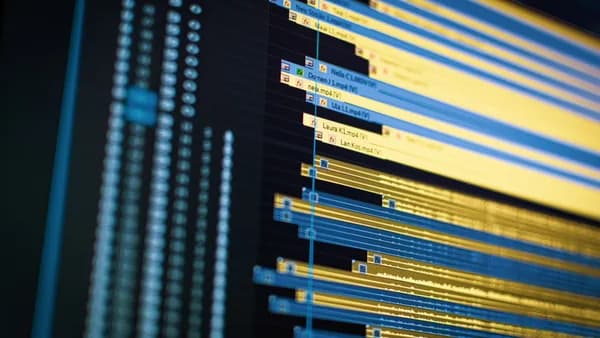
- Built-in, Intuitive Editing: Seamless trimming, cutting, and basic effect application within the same tool dramatically speeds up production versus exporting to a separate editor.
- High-Quality Output & Flexible Sharing: Support for Full HD, 4K recording, and one-click sharing via cloud links or direct platform publishing (YouTube, Vimeo) is standard for professional results.
Key Insight: Modern tools are judged not just on recording quality, but on the entire workflow, from the moment you hit record to when your audience watches. The time from "I want to record" to "teammate can watch" is a critical metric.
Camtasia: The All-in-One Powerhouse for Professional Tutorials
Camtasia by TechSmith consistently ranks as a top-tier solution for users who need a complete, integrated suite for professional-grade tutorial production. It is designed for seamless video creation and editing in one application, making it ideal for training videos, software demonstrations, and detailed online courses.
Key Strengths for Tutorial Creators:
- Integrated Recording & Multi-Track Editing: Camtasia's powerful editor is built-in, featuring drag-and-drop controls, animations, callouts, and sophisticated cursor highlighting. This eliminates the need to switch between separate apps.
- Tutorial-Specific Features: It offers robust tools like quizzes, behaviors, motion paths for animations, and templates tailored for common training and tutorial styles, which are highly valued by instructional designers.
- Cross-Platform Compatibility: Unlike some competitors, Camtasia provides the same rich feature set on both Windows and Mac.
- Royalty-Free Assets & Publishing: The software includes a library of royalty-free music and stock assets and allows direct publishing to platforms like YouTube.
Considerations & Pricing: While feature-rich, Camtasia has a steeper initial investment and learning curve. Its pricing at the time of writing includes an upfront cost of $299 for a perpetual license, or subscription plans starting at $179.88/year for the Essentials plan. It is noted that large projects can be demanding on system resources.
| Best For | Key Advantage | Potential Drawback |
|---|---|---|
| Corporate trainers, instructional designers, online course creators, YouTubers | All-in-one professional editing suite with tutorial-specific tools (quizzes, callouts) | Higher upfront cost and complexity for beginners |
ScreenFlow (Mac): Intuitive Editing with High-End Motion Graphics
For Mac users seeking a powerful yet more streamlined alternative, ScreenFlow stands out. It combines high-quality screen and retina display recording with a robust, user-friendly editing environment specifically tuned for the macOS experience, making it a favorite for creating polished product demos and tutorials.
Key Strengths for Tutorial Creators:
- Recording and Editing in One Tool: Like Camtasia, ScreenFlow consolidates the workflow. It offers excellent built-in callout and annotation tools, automatic zoom effects, and smooth highlight transitions.
- High-Quality Output & Stock Library: It supports recording iPhone/iPad screens for app demos and includes a built-in stock media library.
- One-Time Purchase Model: A significant advantage is its one-time purchase price of $169 (at the time of writing), with no subscription required for the core software, though major version upgrades may cost extra.
Considerations & Pricing: The primary limitation is its platform exclusivity; ScreenFlow is Mac-only. For users who need a cross-platform solution or use Windows, Camtasia is the direct alternative. Its interface is praised for being intuitive for Mac users, though it may lack some of the advanced templating and quiz features found in Camtasia.
Loom: Speed & Simplicity for Quick Async Communication
When the priority is frictionless recording and instant sharing rather than deep editing, Loom is the undisputed leader. It has pioneered asynchronous video communication, perfect for quick team updates, bug reports, code walkthroughs, and simple, short-form tutorials.
Key Strengths for Tutorial Creators:
- Ultra-Fast Workflow: Loom's one-click recording and automatic cloud upload create a seamless "record → link" process in seconds. Viewer analytics show who watched, for how long, and where they dropped off.
- AI-Powered Enhancements: Features like auto-generated transcripts with chapters and automatic captions make content more accessible and searchable.
- Cross-Device Accessibility: Apps are available for Windows, Mac, iOS, Android, and as browser extensions.
Considerations & Pricing: Loom's editing is basic, limited to trimming and stitching clips. Its free tier is generous but restrictive for serious creators, limiting users to 25 videos with a maximum length of 5 minutes. For full features, its Business plan starts at $15 per creator per month. It is noted that advanced features like drawing tools and mouse effects are only available on paid Education, Business, and Enterprise plans.
Key Workflow Tip: For internal team communication and quick explanatory clips, Loom's speed is unmatched. For polished, public-facing tutorial series, its editing limitations mean you'll likely need a more robust tool.
Descript: Revolutionary Editing Through Transcripts & Overdub
Descript represents a paradigm shift in video editing, particularly for tutorial creators who produce a lot of narrated, talking-head, or presentation-style content. It is built on the revolutionary premise that you should edit video by editing the transcript.
Key Strengths for Tutorial Creators:
- Transcript-Based Editing: Delete, rearrange, or clean up your narration by simply editing the text in the transcript. The video and audio automatically adjust. This is a massive time-saver for removing filler words ("um," "ah") and pauses.
- AI Voice Clone (Overdub): Its standout feature allows you to fix mispronunciations or even generate new spoken lines using an AI clone of your voice, eliminating the need for re-recording.
- Strong Audio/Video Syncing: Excellent for content where precise narration is key.
Considerations & Pricing: Descript is less suited for highly visual, action-heavy tutorials like gameplay or fast-paced software demos where the transcript is not the focus. Its pricing starts at $16 per user per month for the annual Creator plan, with the Pro plan at $24 per user per month. The Overdub feature requires a separate add-on.
OBS Studio: The Free, Open-Source Choice for Advanced Users
OBS Studio is the powerhouse for users who need maximum control, high-quality output, and a $0 price tag. As a free, open-source tool, it is the industry standard for live streamers and a highly capable recorder for tutorials, though it demands more technical setup.
Key Strengths for Tutorial Creators:
- Complete Control & Zero Cost: It is 100% free with no watermarks, recording limits, or subscriptions. You have granular control over every aspect of encoding, sources, and scenes.
- High Performance & Flexibility: Supports multiple sources (screen, specific window, webcam, browser) composed into scenes, allowing for complex, multi-layered recordings. It can record locally in high quality while simultaneously streaming.
- Large Community & Plugins: Being open-source, it benefits from a vast community, extensive tutorials, and plugin support.
Considerations & Pricing: The major hurdle for tutorial creators is the complete lack of built-in editing. You must use a separate editor like DaVinci Resolve (free) or Camtasia after recording. Its interface has a steeper learning curve, requiring users to configure scenes, sources, and encoding settings. It is described as requiring "technical knowledge" and having a "complex setup for beginners."
| Best For | Key Advantage | Potential Drawback |
|---|---|---|
| Advanced users, tech-savvy creators, live streamers, those on a strict budget | Unmatched control and customization; completely free | No built-in editing; significant learning curve |
Bonus: Lightweight Browser-Based Tools for Instant Shares
For users who need to record quickly without any software installation, browser-based tools are ideal. They are perfect for recording webinars, specific browser tasks, or creating instant shares.
- ScreenApp: Highlighted as a leader in AI-powered recording, it offers unlimited free browser-based recording with automatic transcription in 50+ languages and smart editing suggestions.
- Screencastify & Vmaker: Popular Chrome extensions that allow quick recording directly in the browser, with easy sharing to Google Drive or via link. Free plans often have time limits (e.g., 5 or 30 minutes) and watermarks.
- Clipchamp: A Windows-friendly, browser-based tool with a generous library of stock media and AI voiceovers, though it lacks advanced recording features like keystroke overlay or movable webcam.
The trade-off for convenience is typically limited editing functionality and a dependence on a stable internet connection during recording.
Optimizing Your Setup: Microphones, Lighting, and File Management
The best screen recording tutorial software is only as good as your production setup. To create professional tutorials, you must consider elements beyond the software itself.
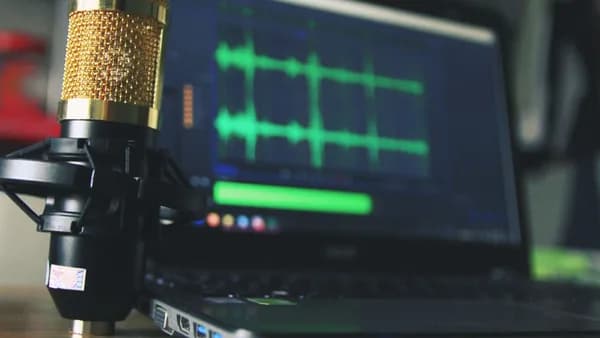
- Audio Quality is Paramount: All recording tools depend on your microphone. Even free tools like OBS Studio can produce excellent results with a good USB microphone. Research consistently emphasizes testing your audio setup for background noise, echo, and volume consistency.
- Lighting for Webcam Feeds: A simple ring light or well-placed natural light dramatically improves the professionalism of your webcam overlay, making tutorials more engaging.
- File Management & Storage: Consider where your raw footage and final exports will live. A 10-minute 1080p recording can be 200-500MB. Tools like Loom and ScreenPal offer integrated cloud hosting, while OBS Studio and Camtasia save files locally, requiring your own storage solution.
- System Performance: Before recording a long tutorial, test your software's impact on system resources. Tools like Bandicam are specifically noted for high-quality capture with low system impact, which is crucial for recording software or games.
Publishing & Distribution Tips for Maximum Engagement
Creating the tutorial is only half the battle. Effective publishing ensures your content reaches and retains its audience.
- Leverage Platform-Specific Features: If your software allows direct publishing to YouTube or Vimeo, use it. Add chapters, custom thumbnails, and SEO-friendly descriptions.
- Utilize AI Enhancements: Tools like Loom and ScreenApp offer auto-generated transcripts and chapters. These make your content accessible and allow viewers to navigate quickly to relevant sections, increasing watch time.
- Analyze Viewer Insights: Paid plans of tools like Loom and Vidyard provide analytics on who watched, for how long, and where they dropped off. Use this data to refine your content and delivery.
- Consider the Hosting Environment: For internal business tutorials, sharing a secure Loom or Vidyard link that integrates with your CRM (like Salesforce) may be ideal. For public courses, hosting on a dedicated platform like Teachable or Thinkific alongside your videos might be necessary.
FAQ
What is the best free screen recording software for tutorials? For beginners, Loom and ScreenPal offer robust free tiers for basic recording and sharing. For users willing to tackle a learning curve, OBS Studio is the most powerful free option, though it lacks built-in editing. ScreenApp also provides unlimited free AI-powered browser recording.
I need to record tutorials on a Mac. What should I use? For an all-in-one purchase with excellent editing, ScreenFlow ($169 one-time) is a top Mac-specific choice. For cross-platform compatibility and more advanced course features (quizzes, templates), Camtasia is available for Mac. Screen Studio is another Mac-focused tool noted for automatic cinematic animations.
What features are most important for creating software tutorials? Based on side-by-side comparisons, look for software that includes: mouse click effects and movement highlights, a keystroke/hotkey display, real-time drawing/annotation tools, and the ability to move the webcam overlay during recording. Bandicam and Camtasia are frequently noted for excelling in these areas.
Can I edit my tutorials easily within these programs? Camtasia and ScreenFlow are built around integrated, powerful editors. Descript offers a unique transcript-based editor ideal for narrated content. Loom and most browser-based tools offer only basic trimming. OBS Studio has no built-in editor at all.
How do I choose between a subscription and a one-time purchase? Consider your long-term needs and frequency of use. ScreenFlow's one-time fee is cost-effective for dedicated Mac users. Camtasia offers both models. Tools like Loom and Descript operate on subscriptions, which include ongoing cloud services and AI features. For occasional use, free tools or trials may suffice.
Bottom Line
Choosing the best screen recording tutorial software in 2026 requires matching the tool's strengths to your primary use case. For polished, professional course creation with minimal friction between recording and editing, Camtasia (cross-platform) or ScreenFlow (Mac) are the leading all-in-one solutions. If speed and effortless sharing for team communication or quick clips are paramount, Loom is unmatched. For creators who prioritize narrative precision and want to edit by editing text, Descript offers a revolutionary workflow. And for those with technical skill seeking maximum control at zero cost, OBS Studio remains the powerful, free standard.
The optimal choice is the one that removes barriers between your knowledge and your audience, enabling you to create clear, engaging tutorials consistently. Ground your decision in the features confirmed by current research: movable webcams, cursor effects, intuitive editing, and a sharing workflow that fits your audience's needs.