If you’re shopping for tablets for reading PDFs around Amazon Prime Day 2026, the best choice is not always the newest or most powerful tablet. PDFs, textbooks, and research papers need a screen large enough to show fixed layouts, enough storage for large files, solid battery life, and — for students and professionals — reliable stylus annotation.
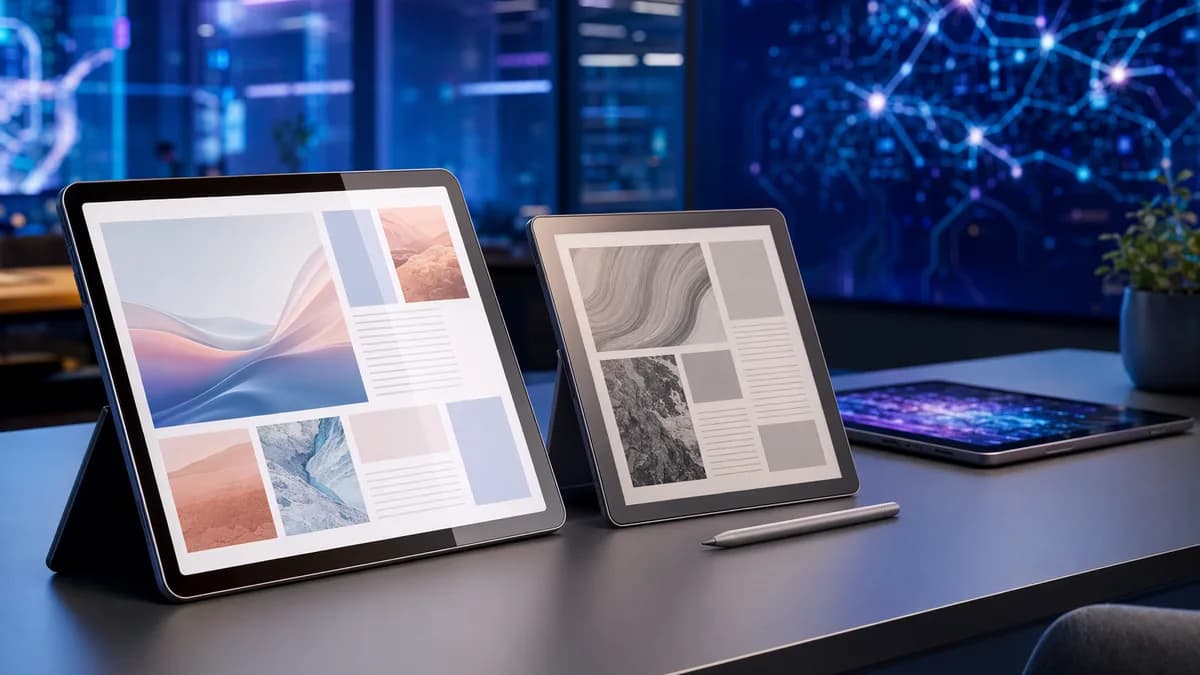
The research points to a clear split: standard tablets like the Apple iPad, Samsung Galaxy Tab, and Amazon Fire HD 10 are better for color documents, apps, multitasking, and cloud workflows, while E Ink devices like the Kindle Scribe and reMarkable Paper Pro are better for long, focused reading and handwriting comfort.
What Makes a Tablet Good for PDF Reading
A good PDF reading tablet is different from a good ebook reader. Novels reflow text to fit the screen, but PDFs often have fixed layouts, columns, charts, tables, scanned pages, diagrams, and academic formatting.
For that reason, the best tablets for reading PDFs usually balance five things:
| Buying Factor | Why It Matters for PDFs | What the Source Data Suggests |
|---|---|---|
| Screen size | Larger screens reduce zooming and panning | 10 inches or larger is often ideal for PDFs |
| Resolution | Sharp text matters for dense pages | Look for at least Full HD, 1920 x 1080 |
| Battery life | Long study or review sessions need endurance | Aim for 8–10 hours of continuous use or more |
| Storage | Scanned PDFs and textbooks can be large | 64GB minimum; 128GB is more comfortable |
| Stylus support | Essential for highlighting, margin notes, and markup | Apple Pencil, Samsung S Pen, Premium Pen, and Marker Plus are specifically mentioned in the source data |
Key buying insight: For PDFs, screen size and annotation support often matter more than raw processor power. A tablet that makes you zoom constantly or blocks easy note-taking will feel frustrating, even if it is otherwise fast.
PDF Reading Needs More Screen Than Ebook Reading
The source data repeatedly emphasizes screen real estate. Tabletzoo notes that 10 inches or larger is often ideal because it minimizes zooming. This is especially important for textbooks, journal articles, and reports with multi-column formatting.
A phone may work for quick document checks, but it is rarely comfortable for long-form PDF reading. A laptop has the screen space, but one graduate-school discussion captured a common complaint: reading hundreds of PDF pages on a laptop can feel like being stuck at a desk.
Performance Still Matters for Large PDFs
You do not need a gaming-class tablet just to read PDFs. However, Tabletzoo recommends a capable processor and 4GB or more of RAM for smooth file opening, app switching, and annotation.
That matters most when you work with:
- Scanned textbooks: Often larger and slower than text-based PDFs.
- Research papers with figures: Charts, diagrams, and embedded images add load.
- Split-screen workflows: Reading on one side and taking notes on the other.
- PDF annotation apps: Markup tools can lag on weaker devices.
Best Tablets for Reading PDFs
Below are the best options grounded in the source data, organized by real-world use case rather than brand hype.
1. Apple iPad Standard Model — Best All-Around PDF Tablet for Most Readers
The standard Apple iPad appears consistently as a strong value choice for everyday PDF reading. Tabletzoo highlights its 10.2-inch Retina display, 2160 x 1620 resolution, smooth performance, strong PDF app support, and Apple Pencil compatibility.
It is especially useful if you want a tablet that can read PDFs, annotate papers, manage files, browse the web, and run mainstream study apps.
| Feature | Source-Backed Details |
|---|---|
| Screen | 10.2-inch Retina display |
| Resolution | 2160 x 1620 |
| Stylus | Supports Apple Pencil 1st generation |
| Apps | Access to Adobe Acrobat Reader, GoodNotes, Notability, and other iPadOS PDF apps |
| Storage Note | Base models are often 64GB, which Tabletzoo notes can be limiting |
| Best For | Students, casual readers, general PDF users |
Pros
- Sharp Text: The Retina display is well suited to dense reading.
- Annotation Support: Apple Pencil support makes it useful for highlighting and handwriting.
- App Ecosystem: iPadOS has strong PDF and note-taking app options.
- All-Day Use: Source data describes long battery life for reading.
Cons
- Base Storage: 64GB may feel tight if you store many textbooks or scanned files.
- Older Pencil Support: The standard model cited supports the older Apple Pencil.
- Design: Tabletzoo notes thicker bezels compared with Pro-style models.
2. Apple iPad Air — Best iPad for Heavy Annotation and Smooth Performance
The Apple iPad Air is the step-up option for readers who do more than read. Tabletzoo identifies it as a better choice for advanced note-taking because it supports Apple Pencil 2nd generation, has a 10.9-inch Liquid Retina display, 2360 x 1640 resolution, P3 wide color, an M-series chip, and USB-C.
| Feature | Source-Backed Details |
|---|---|
| Screen | 10.9-inch Liquid Retina display |
| Resolution | 2360 x 1640 |
| Stylus | Supports Apple Pencil 2nd generation |
| Port | USB-C |
| Best For | Students and professionals who annotate heavily |
Pros
- Better Pencil Experience: Apple Pencil 2nd generation support is better suited to frequent markup.
- Strong Performance: Tabletzoo says the M-series chip handles PDFs smoothly.
- Better Display: P3 wide color helps with visual documents, charts, and images.
- USB-C: Useful for accessories and file transfer.
Cons
- Higher Price Tier: It costs more than the standard iPad.
- Base Storage Caveat: Source data notes that base storage often starts at 64GB.
3. Samsung Galaxy Tab A Series / Tab A9+ — Best Value Android PDF Tablet
The Samsung Galaxy Tab A series, including the Galaxy Tab A9+, is positioned in the source data as an accessible Android option for everyday PDF reading.
Tabletzoo lists the Galaxy Tab A9+ with an 11.0-inch display and 1920 x 1200 resolution. It is highlighted for large, bright displays, affordability, Android app flexibility, good battery life, and — on some models — expandable storage via microSD.
| Feature | Source-Backed Details |
|---|---|
| Screen | 11.0 inches on Galaxy Tab A9+ |
| Resolution | 1920 x 1200 |
| Storage | Some models offer microSD expansion |
| Apps | Google Play PDF apps, including Adobe Acrobat and Xodo |
| Best For | Budget-conscious Android users |
Pros
- Large Screen: The 11-inch size is helpful for textbooks and articles.
- Expandable Storage: MicroSD support on some models is valuable for large PDF libraries.
- Android Flexibility: Good access to PDF apps through Google Play.
- Value Focus: Tabletzoo describes the series as affordable.
Cons
- Performance Limits: May slow down with very large or complex PDFs.
- Display Sharpness: Resolution may not match premium tablets.
- Stylus Limitation: Advanced stylus support is typically found on higher-end Samsung tablets.
4. Samsung Galaxy Tab S Series — Best Android Tablet for PDF Annotation
For Android users who want premium PDF reading and markup, the Samsung Galaxy Tab S series is the stronger choice. Tabletzoo highlights the Tab S line for AMOLED displays on many models, powerful processors, S Pen support, large storage options, microSD support on many models, and Samsung DeX.
TechDetects also identifies the Samsung Galaxy Tab S10 FE as a strong Android PDF workflow option, citing AMOLED visuals, S Pen support, and robust multi-window capabilities under One UI.
| Feature | Source-Backed Details |
|---|---|
| Display | AMOLED on many Tab S models; source highlights strong contrast and vibrant colors |
| Stylus | Comes with or supports Samsung S Pen, depending on model |
| Productivity | Samsung DeX and multi-window support are mentioned |
| Storage | Large storage options and microSD support on many models |
| Best For | Android users who annotate, multitask, and manage many documents |
Pros
- S Pen Workflow: Strong for handwriting, highlighting, and margin notes.
- Large-Screen Options: Better for split-screen reading and note-taking.
- Android Multitasking: Multi-window and DeX can help with research workflows.
- Expandable Storage: Valuable for large PDF archives.
Cons
- Premium Pricing: Source data places it at the higher end.
- OLED Consideration: Tabletzoo notes AMOLED burn-in can be a concern over very long periods, though rare with modern panels.
5. Amazon Fire HD 10 — Best Budget Tablet for Basic PDF Reading
The Amazon Fire HD 10 is one of the most affordable options in the source data. Tabletzoo calls Fire HD tablets “budget-friendly champions” for PDF reading, while Best Buy listings show the Fire HD 10 with a 10.1-inch display, 3GB RAM, and either 32GB or 64GB storage.
Best Buy listed the 32GB Fire HD 10 at $139.99 and the 64GB Fire HD 10 at $179.99 in the provided source data.
| Feature | Source-Backed Details |
|---|---|
| Screen | 10.1-inch display |
| Resolution | 1920 x 1200 according to Tabletzoo |
| RAM | 3GB RAM in Best Buy listing |
| Storage | 32GB or 64GB listed |
| Price in Source Data | $139.99 for 32GB; $179.99 for 64GB |
| Best For | Budget readers and light PDF use |
Pros
- Low Price: One of the least expensive mainstream options listed.
- Good Basic Screen Size: 10.1 inches is usable for PDFs.
- Simple Interface: Useful for readers who want basic document access.
- Amazon Ecosystem: Works well if you already use Amazon services.
Cons
- Limited App Store: Tabletzoo notes the Amazon Appstore has fewer advanced PDF annotation apps than Google Play or Apple’s App Store.
- Basic Performance: Can struggle with very large or complex PDFs.
- Fire OS Restrictions: May feel limiting compared with full Android or iPadOS.
6. Kindle Scribe — Best E Ink Tablet for Long PDF Reading and Handwritten Notes
The Kindle Scribe is a strong option if your top priorities are eye comfort, handwriting, and fewer distractions. TechDetects calls it a PDF-focused E Ink device with responsive handwriting tools and easy file imports through the Kindle ecosystem. Featurelens notes that its battery lasts a long time between charges and that writing feels natural and quiet.
Best Buy lists the Kindle Scribe 64GB at $439.99 in the provided source data. Featurelens lists the Kindle Scribe 32GB at $419.99, while Best Buy lists a 32GB model at $409.99 in its captured listing.
| Feature | Source-Backed Details |
|---|---|
| Display | 10.2-inch display in Best Buy listing |
| Storage | 32GB and 64GB models listed |
| Stylus | Includes or supports Premium Pen depending on listing |
| Battery | Featurelens and TechDetects describe long battery life; TechDetects says weeks |
| Price in Source Data | $409.99–$439.99 depending on storage/listing |
| Best For | Long reading, handwritten notes, distraction-free study |
Pros
- Eye Comfort: E Ink is easier for long reading sessions.
- Writing Feel: Source data describes natural, paper-like note-taking.
- Battery Life: TechDetects says battery lasts for weeks.
- Focused Experience: Fewer distractions than a full tablet.
Cons
- Limited Apps: Featurelens notes app options are limited.
- No Color in Featurelens Testing: Charts and images are less useful if color matters.
- Bulk for One-Hand Reading: Featurelens says the size can feel bulky.
Important warning: A graduate-school discussion strongly cautioned that a regular small Kindle-style reader can be a poor fit for PDFs because PDFs need faster zooming, better color support, and more flexible navigation. The Kindle Scribe is different because it has a larger writing-focused screen, but E Ink still has trade-offs versus full tablets.
7. reMarkable Paper Pro — Best Focused Annotation Tablet for Research Papers
The reMarkable Paper Pro is built for focused PDF reading and writing rather than app-heavy multitasking. TechDetects calls it the best option for focused annotation, highlighting its color E Ink, smooth stylus interaction, and simple PDF reading and markup.
Best Buy lists the reMarkable Paper Pro with an 11.8-inch color display, adjustable reading light, Marker Plus, and paper-like writing experience. Prices in the provided Best Buy data include $679.00, $779.00, and $799.00, depending on bundle and folio.
| Feature | Source-Backed Details |
|---|---|
| Screen | 11.8-inch color display |
| Stylus | Marker Plus |
| Reading Light | Adjustable reading light listed by Best Buy |
| Price in Source Data | $679.00–$799.00 depending on bundle |
| Best For | Research papers, handwritten markup, focused workflows |
Pros
- Large Display: 11.8 inches is useful for full-page academic PDFs.
- Paper-Like Writing: Best Buy reviews specifically mention reading PDFs and note-taking.
- Focused Interface: TechDetects highlights its distraction-free feel.
- PDF Markup: Best Buy review snippets mention marking up PDFs and organizing notes.
Cons
- Higher Cost: Pricing is above many standard tablets.
- Less App Flexibility: It is designed for focused reading and writing, not general tablet use.
8. Onyx Boox Tab Ultra C Pro — Best Feature-Rich E Ink Option
The Onyx Boox Tab Ultra C Pro is listed by TechDetects as a feature-rich E Ink tablet. It has a 10.3-inch color E Ink display, runs Android 12, supports stylus input, offers handwriting-to-text, and has wider app support than more locked-down E Ink systems.
| Feature | Source-Backed Details |
|---|---|
| Screen | 10.3-inch color E Ink |
| OS | Android 12 |
| Stylus | Stylus input supported |
| Extra Feature | Handwriting-to-text |
| Best For | Users who want E Ink plus app flexibility |
Pros
- E Ink Comfort: Better for long reading than glossy screens.
- Android App Support: More flexible than Kindle or Kobo systems.
- Handwriting-to-Text: Specifically mentioned in the source data.
- Color E Ink: Useful for some charts and visual material.
Cons
- Not as Simple: More features can mean more setup than Kindle Scribe or reMarkable.
- E Ink Trade-Offs: Still not the same as LCD/OLED for fast color-heavy workflows.
9. Kobo Elipsa 2E — Best Open-Format E Ink Alternative
The Kobo Elipsa 2E is called out by TechDetects for EPUB and PDF note-taking flexibility. It offers a larger E Ink screen, stylus support, EPUB compatibility, Dropbox sync, and fluid annotation.
| Feature | Source-Backed Details |
|---|---|
| Display Type | Larger E Ink screen |
| Stylus | Stylus annotation support |
| File Support | EPUB compatibility mentioned |
| Cloud | Dropbox sync |
| Best For | Readers who want E Ink and broader format flexibility |
Pros
- Dropbox Sync: Useful for document workflows.
- EPUB + PDF Flexibility: Better if your library is not only PDFs.
- Stylus Notes: Supports markup and annotation.
Cons
- Less App Flexibility: Not positioned as a full Android or iPad-style tablet.
- Best for Reading Workflows: Less suited to interactive PDFs or app-heavy editing.
10. TCL NXTPAPER 11 Plus — Best Matte-Screen Tablet for Eye Comfort
The TCL NXTPAPER 11 Plus appears in Featurelens as a reading-focused Android tablet with an 11.5-inch 120Hz 2.2K display, NXTPAPER display technology, included stylus and flip case, 256GB storage, and an 8000mAh battery.
Featurelens highlights its matte screen, reduced reflections, paper-like mode, and stylus support.
| Feature | Source-Backed Details |
|---|---|
| Screen | 11.5-inch 120Hz 2.2K display |
| Storage | 256GB |
| Battery | 8000mAh |
| Stylus | Included stylus noted in listing |
| Price in Source Data | $379.99 |
| Best For | Readers who want Android flexibility with reduced glare |
Pros
- Matte Display: Cuts glare during long reads.
- Paper-Like Mode: Useful for books and PDFs.
- Included Stylus: Good for notes and highlights.
- Large Storage: 256GB is generous compared with many base tablets in the source data.
Cons
- Muted Colors: Matte screens trade punchy visuals for comfort.
- Large Body: Featurelens says it can feel bulky for one-handed reading.
- Pen Charging: The pen needs charging from time to time.
Screen Size and Aspect Ratio Explained
For PDF reading, screen size is not just about comfort — it changes how often you need to zoom, scroll, rotate, and pan.
Why 10 Inches Is the Practical Starting Point
Tabletzoo recommends 10 inches or larger for PDFs because it reduces zooming. That aligns with the strongest PDF-focused devices in the source data:
| Device | Screen Size | Resolution / Display Detail |
|---|---|---|
| Apple iPad Standard | 10.2 inches | 2160 x 1620 |
| Amazon Fire HD 10 | 10.1 inches | 1920 x 1200 |
| Samsung Galaxy Tab A9+ | 11.0 inches | 1920 x 1200 |
| Apple iPad Air | 10.9 inches | 2360 x 1640 |
| Samsung Galaxy Tab S9 FE | 10.9 inches | 2304 x 1440 |
| Kindle Scribe | 10.2 inches | E Ink display |
| reMarkable Paper Pro | 11.8 inches | Color display |
A smaller device can still open PDFs, but full-page academic documents are harder to read without zooming. Best Buy lists a BOOX 6-inch Go E-Reader, for example, but the source data overall points to larger screens for comfortable PDF work.
Squarer vs Wider Screens
The source data does not provide marketing aspect ratios for every device, but the listed resolutions show a useful pattern:
- Apple iPad Standard: 2160 x 1620, a squarer layout that can feel more natural for document pages.
- Amazon Fire HD 10 / Galaxy Tab A9+: 1920 x 1200, a wider layout that can be useful for media and landscape reading.
- iPad Air: 2360 x 1640, still relatively document-friendly.
- Samsung Galaxy Tab S9 FE: 2304 x 1440, closer to the wider Android tablet format.
For textbooks and journal PDFs, a taller or squarer screen often shows more of the page in portrait mode. Wider screens can work well in landscape mode, especially for split-screen notes.
LCD vs OLED vs E-Ink for Long Reading Sessions
The best display type depends on whether your PDFs are mostly text, color diagrams, or interactive documents.
| Display Type | Strengths | Trade-Offs | Best For |
|---|---|---|---|
| LCD / Liquid Retina / Standard Tablet Displays | Color, fast scrolling, strong app support | Glossy screens can reflect light | Interactive PDFs, textbooks, cloud apps |
| OLED / AMOLED | High contrast and vibrant color | Premium pricing; source notes rare burn-in concern on AMOLED | Visual PDFs, charts, multitasking |
| E Ink | Eye comfort, paper-like feel, long battery life | Slower refresh; limited apps; color limitations on some devices | Long reading, research papers, handwritten notes |
| Matte Paper-Like LCD | Reduced glare with tablet flexibility | Softer colors than glossy screens | Readers who want apps plus eye comfort |
LCD and Liquid Retina Tablets
The iPad models and many Android tablets are best if you need color, fast navigation, web access, and full-featured PDF apps. Featurelens notes that the Apple iPad 11-inch has sharp text, fast page turns, and easy switching between reading, notes, and browsing, though its glossy screen can reflect outdoors.
OLED and AMOLED Tablets
Samsung’s higher-end Tab S models are highlighted for AMOLED displays with strong contrast and vibrant colors. Tabletzoo says these displays can reduce eye strain, while also noting that burn-in can be a concern over very long periods, though rare with modern panels.
E Ink Tablets
E Ink devices like Kindle Scribe, Kobo Elipsa 2E, Onyx Boox Tab Ultra C Pro, and reMarkable Paper Pro are better for long reading and handwriting comfort. TechDetects says E Ink excels for long readings and paperwork, while LCD is better for charts, color visuals, and extensive PDF editing.
Simple rule: Choose E Ink if you mainly read and annotate text-heavy PDFs. Choose iPad, Android, LCD, or OLED if you need color charts, fast zooming, multitasking, or advanced PDF apps.
Stylus and Annotation Features to Consider
If you read PDFs for school, legal work, research, consulting, medicine, engineering, or business review, stylus support can matter as much as the screen.
Best Stylus Ecosystems Mentioned in the Source Data
| Device / Platform | Stylus Mentioned | Annotation Strength |
|---|---|---|
| Apple iPad Standard | Apple Pencil 1st generation | Good for student notes and markup |
| Apple iPad Air | Apple Pencil 2nd generation | Better for precise annotation |
| Samsung Galaxy Tab S Series | S Pen | Strong Android handwriting workflow |
| Kindle Scribe | Premium Pen | Natural writing and long-form notes |
| reMarkable Paper Pro | Marker Plus | Paper-like PDF markup |
| TCL NXTPAPER 11 Plus | Included stylus | Notes and highlights with matte display |
| Onyx Boox Tab Ultra C Pro | Stylus input | Handwriting-to-text support |
Apps Matter Too
Tabletzoo specifically mentions Adobe Acrobat Reader, GoodNotes, Notability, and Xodo as strong PDF reader or annotator options across iPadOS and Android.
A graduate-school user discussion also mentioned workflows using:
- Zotero: Reading and annotating papers on iPad.
- Google Books: Uploading textbooks to a cloud library.
- Adobe Acrobat: Reading articles.
- Squid Notes: Importing PDFs for handwritten notes.
- OneDrive: Accessing PDFs from a Kindle Fire through a browser.
That matters because annotation is not only about the pen. It is also about where your PDFs live, how you sync them, and whether your preferred app is available.
Storage, File Management, and Cloud Sync
PDFs can become a storage problem faster than people expect, especially scanned textbooks and image-heavy reports.
Tabletzoo recommends:
- 64GB minimum for PDF reading.
- 128GB for more comfortable long-term storage.
- microSD support as a bonus on some Android tablets.
- 4GB RAM or more for smoother handling of large files and annotation apps.
Storage Examples from the Source Data
| Device | Storage Mentioned |
|---|---|
| Amazon Fire HD 10 | 32GB and 64GB Best Buy listings |
| Kindle Scribe | 32GB and 64GB listings |
| Apple iPad 11-inch | 128GB in Featurelens listing |
| TCL NXTPAPER 11 Plus | 256GB |
| XP-Pen Magic Note Pad | 128GB |
| TABWEE T20 | 256GB ROM / 2TB TF listed by Featurelens |
| iPad Standard / iPad Air | Base storage often 64GB, which sources flag as potentially limiting |
Cloud Sync Options Mentioned
| Cloud / Workflow | Source-Backed Use |
|---|---|
| Google Drive | Best Buy FAQ says many PDF reader tablets integrate with cloud services like Google Drive |
| Dropbox | Best Buy FAQ mentions Dropbox; Kobo Elipsa 2E specifically supports Dropbox sync |
| OneDrive | Best Buy FAQ mentions OneDrive; one user accessed PDFs from OneDrive on Kindle Fire |
| Google Books | A graduate-school user uploaded textbooks to Google Books cloud library |
| Kindle Ecosystem | TechDetects says Kindle Scribe makes file imports easy |
| Android Apps | Boox runs Android for wider compatibility |
Storage advice: If you only read occasional PDFs, 64GB can work. If you keep textbooks, scanned chapters, research libraries, or offline files, prioritize 128GB or more or choose an Android tablet with expandable storage.
Best Picks for Students, Professionals, and Casual Readers
Here is the clearest way to choose based on your actual reading workflow.
| User Type | Best Source-Backed Picks | Why |
|---|---|---|
| Students | Apple iPad Standard, iPad Air, Samsung Galaxy Tab S Series, Samsung Galaxy Tab A9+ | Strong app support, annotation, split-screen options, and cloud workflows |
| Graduate Students / Researchers | iPad Air, Samsung Galaxy Tab S Series, reMarkable Paper Pro, Kindle Scribe | Better stylus tools, larger screens, and paper-style annotation |
| Professionals | iPad Air, Samsung Galaxy Tab S Series, Onyx Boox Tab Ultra C Pro | Multitasking, cloud access, handwriting-to-text, and PDF markup |
| Budget Readers | Amazon Fire HD 10, Samsung Galaxy Tab A Series | Lower cost and usable 10-inch-class screens |
| Long-Session Readers | Kindle Scribe, Kobo Elipsa 2E, reMarkable Paper Pro | E Ink comfort and distraction-free reading |
| Casual Readers | Amazon Fire HD 10, Apple iPad Standard, TCL NXTPAPER 11 Plus | Good balance of reading, apps, and price |
Best for Students
The Apple iPad Standard is the safest general student pick because it balances display quality, app access, and Apple Pencil support. The Samsung Galaxy Tab A9+ is a better fit for students who want Android flexibility and possible microSD expansion.
For students who annotate heavily, the iPad Air or Samsung Galaxy Tab S Series is stronger.
Best for Professionals
Professionals who review reports, contracts, academic papers, or technical documents should prioritize stylus precision, cloud sync, and multitasking. The iPad Air and Samsung Galaxy Tab S Series fit that role well.
The Onyx Boox Tab Ultra C Pro is worth considering if you want E Ink but still need broader Android app support and handwriting-to-text.
Best for Casual Readers
If your PDF reading is occasional — manuals, recipes, reports, magazines, or simple documents — the Amazon Fire HD 10 is the budget-friendly option. The Apple iPad Standard costs more but gives you a much broader app ecosystem.
For eye comfort with Android flexibility, the TCL NXTPAPER 11 Plus is notable because its matte screen and paper-like mode are specifically designed to reduce glare.
Common Mistakes to Avoid When Buying
1. Buying a Small E-Reader for Full-Page PDFs
A small e-reader may be excellent for novels but frustrating for PDFs. Fixed-page documents need screen space. The source data repeatedly points toward 10 inches or larger for PDF comfort.
2. Ignoring App Availability
The Amazon Fire HD 10 can be a good budget reader, but Tabletzoo warns that the Amazon Appstore has fewer advanced PDF annotation apps than Google Play or Apple’s App Store.
If you rely on GoodNotes, Notability, Xodo, Adobe Acrobat, Zotero workflows, Dropbox, or Google Drive, check app support before buying.
3. Choosing Too Little Storage
A 32GB tablet can work for light use, but Tabletzoo recommends at least 64GB, with 128GB being more comfortable for long-term PDF storage.
4. Assuming Every Stylus Experience Is Equal
Apple Pencil, Samsung S Pen, Kindle Premium Pen, and reMarkable Marker Plus all support writing, but they serve different workflows. iPads and Galaxy Tabs are better for app-based annotation; Kindle Scribe and reMarkable are better for focused handwriting.
5. Overlooking Screen Glare
Featurelens notes that glossy tablets such as the iPad can reflect light outdoors. Matte or E Ink devices are better if you read under bright lights or outside.
6. Buying Too Much Tablet
A premium tablet is not always necessary. If you only read basic PDFs, the Fire HD 10 or Galaxy Tab A series may be enough. If you mostly read long text and write notes, an E Ink device may be better than a high-performance tablet.
Bottom Line
The best tablets for reading PDFs depend on whether you prioritize color, apps, annotation, or eye comfort.
For most people, the Apple iPad Standard is the best all-around choice because it has a sharp 10.2-inch display, strong app support, and Apple Pencil compatibility. The iPad Air is better for heavier annotation, while the Samsung Galaxy Tab S Series is the strongest Android option for stylus-driven PDF workflows.
If price matters most, the Amazon Fire HD 10 is the budget pick, with Best Buy source data listing models at $139.99 and $179.99. If comfort and handwritten notes matter more than apps, the Kindle Scribe and reMarkable Paper Pro are the most compelling E Ink choices.
FAQ
What screen size is best for reading PDFs?
The source data recommends 10 inches or larger for PDF reading. This size helps reduce zooming and scrolling, especially with textbooks, research papers, and scanned documents.
Is an iPad good for reading and annotating PDFs?
Yes. The standard Apple iPad is highlighted for its 10.2-inch Retina display, 2160 x 1620 resolution, long battery life, strong PDF app ecosystem, and Apple Pencil support. The iPad Air is better for heavier annotation because it supports Apple Pencil 2nd generation.
Is E Ink better than LCD or OLED for PDFs?
E Ink is better for long, focused reading and handwritten notes. LCD and OLED tablets are better for color charts, fast zooming, multitasking, and advanced PDF editing. TechDetects summarizes the trade-off clearly: E Ink excels for long reading and paperwork, while LCD is better for charts, color visuals, and extensive editing.
How much storage do I need for PDF textbooks?
Tabletzoo recommends at least 64GB, with 128GB being more comfortable for long-term storage. If you store many scanned textbooks or research files offline, expandable storage or larger built-in storage is worth prioritizing.
Can I annotate PDFs on these tablets?
Yes. Many PDF reader tablets support highlighting, notes, and handwriting. The source data specifically mentions Apple Pencil, Samsung S Pen, Kindle Premium Pen, reMarkable Marker Plus, and stylus support on devices like Kobo Elipsa 2E, Onyx Boox Tab Ultra C Pro, and TCL NXTPAPER 11 Plus.
Is the Amazon Fire HD 10 good for PDFs?
The Amazon Fire HD 10 is a good budget option for basic PDF reading. However, Tabletzoo notes that it can struggle with very large or complex PDFs and that the Amazon Appstore has fewer advanced PDF annotation apps than iPadOS or Google Play.