Stepping into the world of digital art is exhilarating, but choosing your first tool shouldn’t be a daunting task that stalls your creativity before it even begins. The excellent news for 2026 is that the beginner drawing tablet market is more robust and value-packed than ever, offering professional-grade features at accessible prices. This guide cuts through the noise of endless specs and affiliate-driven lists, grounding every recommendation in hands-on testing and data to help you find the best drawing tablet for beginners 2026 that matches your goals, workstation, and budget. We’ll demystify the core decision between screen and non-screen models, compare the top contenders, and ensure you start your digital art journey on the right stroke.
Digital Art 101: Why Start with a Drawing Tablet?
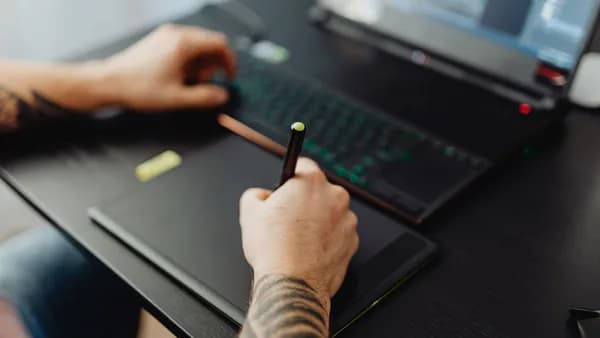
Moving from pencil and paper or a clumsy mouse to a dedicated drawing tablet is a transformative upgrade. A proper tablet provides pressure sensitivity, allowing your lines to naturally vary from hair-thin to bold based on how hard you press, just like a real pencil or brush. This fundamental capability is the cornerstone of expressive digital art, illustration, and even precise photo editing.
The barrier to entry is now remarkably low. At the time of writing, you can secure a capable, reliable beginner tablet for well under $50, with many top-rated models hovering around the $30-$40 mark. This democratization of technology means you can test the waters of digital sketching, painting, or note-taking without a major financial commitment. The key is selecting a tablet that feels intuitive, works reliably with your computer, and lets you focus on learning the craft, not troubleshooting your tools.
Core Decision: Display Tablets vs. Non-Screen Graphics Tablets
The first and most significant choice you’ll face is between a pen display (with a built-in screen) and a graphics tablet (screenless). Each has distinct advantages, learning curves, and price points that are critical for a beginner to understand.
For most beginners, starting with a screenless graphics tablet is the recommended path. It’s far cheaper, more durable, and actively helps develop the hand-eye coordination that serves digital artists for their entire careers.
Graphics Tablets (Non-Screen): You draw on a flat, blank surface while looking up at your computer monitor. This disconnect feels strange for the first few days, but most artists adapt quickly, often within a week. The benefits are substantial:
- Cost-Effective: You get more drawing area and better specs for your money. A premium non-screen tablet often costs a fraction of an entry-level display.
- Durability & Portability: No fragile glass screen to protect. They are typically thin, light, and easy to slip into a backpack.
- Ergonomics: You can position your monitor at an ideal viewing height and the tablet at a comfortable drawing angle, reducing neck and back strain.
Pen Displays (With Screen): You draw directly on the surface of a monitor, which feels immediately natural and intuitive, like drawing on paper. This comes with trade-offs:
- Higher Cost: You typically pay 3 to 5x more for a display tablet with similar drawing performance as a non-screen model.
- Desk Space & Setup: Requires more room, a separate power cable, and often a connection to your computer via an HDMI or USB-C port.
- Potential for Ergonomics Issues: You may hunch over the screen if not paired with a proper adjustable stand.
| Feature | Graphics Tablet (Non-Screen) | Pen Display (With Screen) |
|---|---|---|
| Beginner-Friendliness | Short adaptation period (few days) | Immediately intuitive |
| Typical Entry Cost | $30 - $80 | ~$200+ |
| Primary Advantage | Exceptional value, portability, ergonomic flexibility | Direct hand-eye connection, natural feel |
| Best For | Most beginners, students, budget-conscious artists, developing coordination | Beginners who strongly prefer direct drawing and have a larger budget |
Top 3 Budget-Friendly Non-Screen Tablets for 2026
Based on aggregated testing data from 2026, these three models consistently rise to the top for their reliability, value, and performance.
1. XP-Pen Deco 01 V3, Best Overall Value The XP-Pen Deco 01 V3 is frequently cited as the best overall starting point. It packs high-end specifications into a very accessible package.
- Active Area: A spacious 10 x 6.25 inches, giving you ample room for broad, gestural strokes.
- Pen Performance: Features 16,384 levels of pressure sensitivity (listed as 8,192 in some sources) and 60-degree tilt recognition, enabling natural shading techniques.
- Key Features: Comes with a battery-free stylus, 8 customizable hotkeys, and USB-C connectivity.
- Best For: Beginners who want a large drawing area and premium specs without a premium price tag. Ideal for those working with large or ultra-wide monitors.
2. Wacom Intuos Small, The Reliability Standard The Wacom Intuos Small is the industry benchmark for a reason. While its specs sheet may seem modest, its execution is flawless.
- Active Area: A compact 6 x 3.7 inches, which is sufficient for learning but may feel cramped for large illustrations.
- Pen Performance: 4,096 pressure levels powered by Wacom’s industry-leading EMR (battery-free) pen technology, known for its exceptional feel and reliability.
- Key Features: Includes a valuable software bundle (Clip Studio Paint, Corel Painter Essentials), 4 ExpressKeys, and renowned driver stability.
- Best For: The absolute beginner who prioritizes plug-and-play reliability, excellent pen feel, and a trusted ecosystem. Perfect for students and hobbyists.
3. Huion Inspiroy H640P, Best Compact Budget Pick The Huion Inspiroy H640P delivers impressive core features in a slim, portable form factor at a very competitive price.
- Active Area: 6 x 4 inches, similar to the Wacom Intuos Small.
- Pen Performance: 8,192 pressure levels with a battery-free stylus.
- Key Features: 6 programmable hotkeys, broad compatibility including Android and Linux, and a slim 0.3-inch profile.
- Best For: Beginners on a strict budget, Linux users, and students who need a highly portable, no-fuss tablet for sketching and note-taking.
Top 3 Entry-Level Display Tablets Under $500 for 2026
If you’ve determined that drawing directly on screen is a must for you, these models represent the best value at the entry-level in 2026.
1. Huion Kamvas 13 Gen 3, Best Value Pen Display The Huion Kamvas 13 Gen 3 is consistently highlighted as the top step-up choice for beginners ready for a screen.
- Screen: 13.3-inch Full HD (1920x1080) display with a 99% sRGB color gamut and an anti-glare, canvas-textured glass surface.
- Pen Performance: PenTech 4.0 with 16,384 pressure levels and tilt support.
- Key Features: Includes an adjustable stand, features a dual-dial interface for brush and canvas control, and comes with 8 shortcut keys.
- Price Point: Approximately $200.
- Best For: Beginners who have tried a non-screen tablet and struggled with the disconnect, or those who are certain they want the direct drawing experience from day one.
2. XP-Pen Artist 12 / 13.3 Pro, Strong Contenders with Premium Features XP-Pen’s display offerings provide excellent alternatives, often with unique control schemes.
- Models: The 11.6-inch Artist 12 and the 13.3-inch Artist 13.3 Pro are top picks.
- Key Features: The Artist 13.3 Pro boasts a fully laminated screen (reducing parallax), a Red Dial controller for quick adjustments, and 123% sRGB color coverage.
- Best For: Artists who value color accuracy and appreciate customizable physical controls for their workflow.
3. GAOMON PD1161, Budget-Focused Display Option For those seeking the lowest possible entry point into display tablets, GAOMON offers capable models.
- Screen: 11.6-inch Full HD display with an anti-glare film.
- Pen Performance: 8,192 pressure levels.
- Key Features: 8 shortcut keys and a generally plug-and-play setup.
- Best For: Beginners determined to get a pen display experience while minimizing initial investment.
Key Specs Explained: Pressure Sensitivity, Active Area, and Latency
Don’t get lost in marketing jargon. Here’s what the key specifications actually mean for your drawing experience.
Pressure Sensitivity (Levels): This number (e.g., 4,096, 8,192, 16,384) represents how many discrete levels of pressure the tablet can detect between the lightest touch and the hardest press.
For beginners, 4,096 levels is more than sufficient. The difference between 4K and 8K or 16K is subtle and only becomes relevant for advanced, nuanced blending techniques. Do not let this spec be your primary decision driver.
Active Drawing Area: This is the actual physical space on the tablet where the pen is tracked. Size is a matter of preference and ergonomics.
- Small (~6x4 inches): Portable, desk-friendly, but can feel restricting for full-arm movements. Good for detailed work and smaller monitors.
- Medium (~8x5 to 10x6 inches): The sweet spot for most beginners. Provides a balance of freedom and comfort without occupying the entire desk.
- Tip: Match your tablet’s active area to your screen size and drawing style. A large area is beneficial for large monitors and expressive, gestural art.
Latency (Report Rate): Often listed as PPS (Points Per Second), this affects how quickly the pen’s movement appears on screen. Modern beginner tablets from major brands have effectively eliminated perceptible lag for standard drawing. All models recommended in this guide offer latency that is imperceptible at normal drawing speeds.
Software Bundles & Compatibility (Windows, macOS, ChromeOS)
Before purchasing, always verify compatibility with your operating system and preferred software. The good news is that support in 2026 is broad.
Operating Systems:
- Windows & macOS: Universally supported by all major brands (Wacom, XP-Pen, Huion, GAOMON). Driver installation is typically straightforward.
- ChromeOS: Many tablets, including the Wacom Intuos Small and XP-Pen Deco 01 V3, offer plug-and-play support, making them excellent for students.
- Android: Select tablets from Huion and XP-Pen support connection to Android phones and tablets via an OTG adapter, creating a portable setup.
- Linux: Brands like XP-Pen and Huion have improved support, often through open-source drivers, with the XP-Pen Deco 01 V3 noted for its good Linux compatibility.
Software Bundles: Some tablets include valuable software, which can offset their cost.
- Wacom Intuos Series: Bundles often include licenses for Clip Studio Paint Pro and Corel Painter Essentials, along with training resources.
- Other Brands: Typically do not bundle major paid software but work flawlessly with free, powerful alternatives.
Recommended Free & Paid Software: All tablets in this guide work with major creative applications:
- Krita: A free, open-source powerhouse for painting and illustration.
- Clip Studio Paint: An affordable, subscription-based favorite for illustrators and comic artists.
- Adobe Photoshop: The industry-standard subscription software for digital art and photo editing.
- GIMP: A free, open-source alternative to Photoshop.
Essential Accessories: Stands, Screen Protectors, and Pens
A few small additions can greatly enhance your comfort and your tablet’s longevity.
For Pen Displays:
- Adjustable Stand: Crucial for ergonomics. Many models like the Huion Kamvas 13 include one. If not, a third-party stand is a wise investment to avoid hunching.
- Screen Protector: While most have etched glass, an additional protector can safeguard against scratches. Some artists use matte protectors to alter the drawing feel to be more paper-like.
For All Tablets:
- Drawing Glove: A simple, half-finger glove (often included with brands like VEIKK) reduces friction between your hand and the tablet surface and prevents smudges on screens.
- Replacement Nibs: Pen tips wear down over time. Kits of replacement nibs are inexpensive. Tablets like the VEIKK A30 V2 include 8 extra nibs in the box.
- Pen Holder: Keeps your stylus safe and organized. Many tablet stands include a slot for this.
Learning Curve and Skill Development for Each Type
Your choice of tablet will influence your initial learning path.
Learning with a Non-Screen Tablet: The initial hand-eye coordination disconnect is the main hurdle. Your brain must learn to watch the screen while your hand moves on a separate surface. This adaptation period typically lasts 3-7 days of regular practice. This process is not a drawback; many artists believe it builds foundational motor skills that make you a more adaptable digital artist. It encourages you to draw from your shoulder and build muscle memory for cursor placement.
Learning with a Pen Display: The learning curve is much shorter for the physical act of drawing, as it mimics paper. You can focus immediately on learning software tools, brush mechanics, and art fundamentals. However, you may develop habits reliant on looking directly at your drawing hand, and you must be mindful of setting up your workstation ergonomically to avoid strain.
Final Recommendations: Matching the Right Tablet to Your Goals
Use this decision guide to translate your specific situation into the best choice.
| Your Scenario & Goals | Recommended Tablet | Key Reason |
|---|---|---|
| Total beginner, unsure, wants the safest bet. | Wacom Intuos Small | Unmatched driver reliability and plug-and-play experience. You'll spend time drawing, not troubleshooting. |
| Beginner on a tight budget who wants ample drawing space. | XP-Pen Deco 01 V3 | Offers the largest active area and highest specs in its price class. The best value for performance. |
| Student or traveler needing maximum portability under $35. | Huion Inspiroy H640P or XP-Pen StarG640 | Slim, lightweight, and reliably gets the job done for sketching and note-taking. |
| Laptop user who hates cable clutter. | Wacom Intuos Small Bluetooth | Provides the trusted Wacom experience with the quality-of-life upgrade of wireless freedom. |
| Beginner certain they want to draw directly on screen. | Huion Kamvas 13 Gen 3 | The best blend of price, performance, and features (like the included stand) in the entry-level display category. |
The Bottom Line: The best drawing tablet for beginners in 2026 is the one that gets out of your way and lets you create consistently. For the vast majority, that is a non-screen graphics tablet like the XP-Pen Deco 01 V3 (for maximum value and space) or the Wacom Intuos Small (for maximum reliability). Investing the $150-200 you save by skipping an entry-level display on software courses, art books, or a comfortable chair will accelerate your skills far more than the intuitive screen will. Whichever path you choose, the available tools today are capable enough to support your artistic journey for years to come.
Frequently Asked Questions (FAQ)
What is the absolute cheapest good drawing tablet for a beginner? At the time of writing, the XP-Pen StarG640 is consistently highlighted as the best ultra-budget option, often priced under $30. It offers a compact 6x4 inch active area and a capable 8,192-level pressure-sensitive pen, making it a genuine, low-risk entry point.
Is 4,096 pressure sensitivity enough for a beginner? Yes, absolutely. Testing data confirms that 4,096 levels (as found on the Wacom Intuos Small) is more than sufficient for learning all fundamental digital art techniques. The difference between 4K and higher levels is negligible for beginners and only noticeable in advanced professional work.
Can I use a beginner drawing tablet with a Chromebook or Android phone? Yes, compatibility has greatly improved. Tablets like the Wacom Intuos Small and Huion Inspiroy H640P offer plug-and-play support for many Chromebooks. Several models from Huion and XP-Pen also support Android devices via an OTG adapter, turning your phone into a portable drawing station.
Should I buy a tablet with shortcut keys (hotkeys/ExpressKeys)? While not strictly necessary, shortcut keys are highly recommended for beginners. They allow you to map common actions like Undo, Brush Size, and Eraser to physical buttons, speeding up your workflow and helping you build efficient habits early. Tablets like the XP-Pen Deco 01 V3 (8 keys) and Huion Inspiroy H640P (6 keys) offer excellent utility.