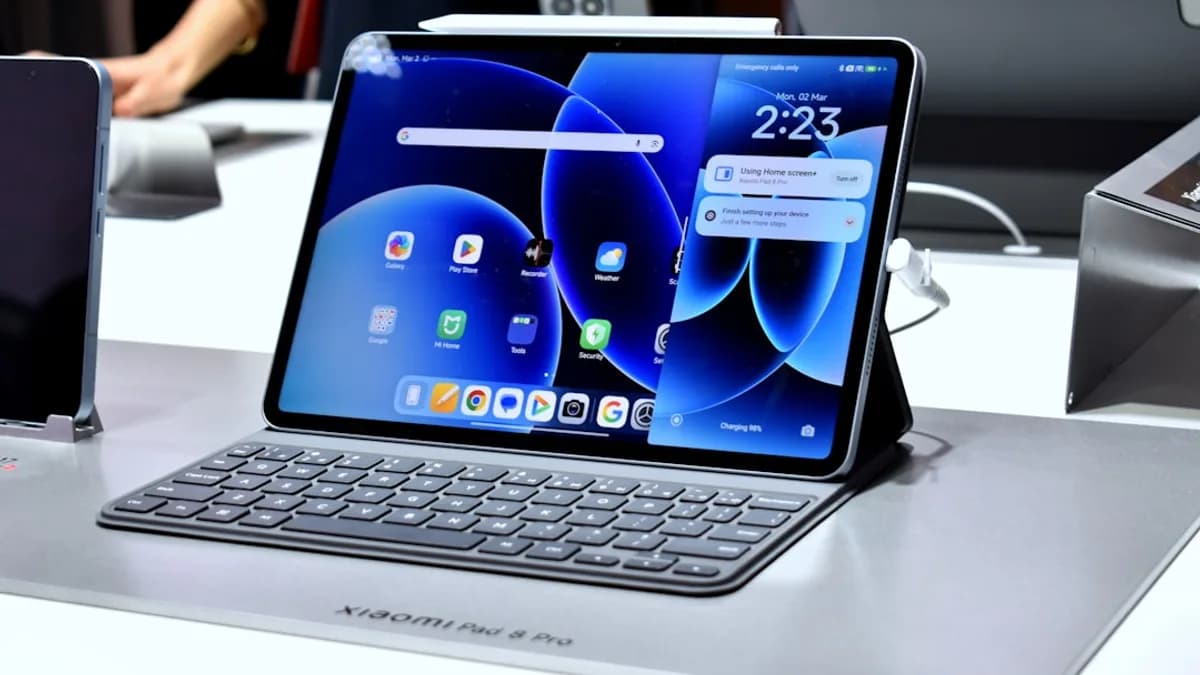
Updated: This guide has been refreshed with current buying context, clearer platform guidance, and practical warnings about stylus compatibility, accessory costs, storage, and app subscriptions.
If you’re searching for budget tablets with stylus support, the key question is not simply “Which tablet is cheapest?” It is whether the tablet actually supports the kind of pen input you need for drawing, school notes, document markup, or work meetings — and whether the stylus, keyboard, apps, storage, case, and cloud services push the final cost beyond your budget.
Prices and bundles change frequently, especially at retailers such as Best Buy, Amazon, Walmart, Target, and manufacturer stores. Some tablets include a pen in the box; others require a separate stylus that can add a meaningful amount to the real price. Before buying, verify the exact tablet model, supported pen, included accessories, return window, and current shipping or pickup options.
What to Expect From a Budget Stylus Tablet
A budget tablet with stylus support should be evaluated as a complete setup, not just as a tablet. For school, drawing, work notes, and document markup, the experience depends on pen compatibility, app support, display quality, storage, and whether you also need a keyboard.
Key buying insight: Do not assume every affordable touchscreen tablet works well with an active pen. For budget tablets stylus support, confirm stylus compatibility from the product listing or manufacturer documentation before buying.
At a minimum, shoppers should check:
- Stylus Compatibility: The listing should name the compatible pen or stylus standard.
- Included Pen: Some Samsung Galaxy Tab FE models include an S Pen, while many iPads and Windows tablets require a separate purchase.
- App Fit: Confirm your note-taking, drawing, PDF, school, or work apps are available.
- Storage Needs: Base storage can fill quickly with PDFs, videos, art files, and downloaded lessons.
- Keyboard Option: If you type essays, emails, or reports, include keyboard cost from the start.
- Retailer Logistics: Store pickup, shipping speed, open-box options, and return policies can affect value.
Budget does not mean only the purchase price
A cheap tablet can become expensive once accessories are added.
| Cost Area | Why It Matters |
|---|---|
| Tablet | The base device price is only the starting point. |
| Stylus | May be included, optional, or required separately. |
| Keyboard | Important for students and work users. |
| Apps | Drawing, notes, office, and cloud tools may have paid tiers. |
| Storage | Higher-capacity models usually cost more. |
| Case / Screen Protector | Useful for classrooms, commuting, and heavy stylus use. |
A practical budget should include taxes, shipping, warranty coverage, and any subscription apps you expect to use.
Active Stylus vs Passive Stylus: Key Differences
Stylus terminology can be confusing. A passive stylus is usually a simple rubber or mesh-tipped pointer that mimics a finger. It may work on most touchscreens, but it generally does not provide advanced features such as pressure sensitivity or palm rejection.
An active stylus communicates with the tablet and can support features such as more precise input, pressure sensitivity, tilt, palm rejection, shortcut buttons, or magnetic charging, depending on the device.
| Stylus Question | What to Check Before Buying |
|---|---|
| Is the stylus active or passive? | Do not infer active pen support from “touchscreen” alone. |
| Is the pen included? | Confirm the box contents before checkout. |
| Does it support palm rejection? | Important for handwriting and drawing. |
| Does the stylus need charging? | Some pens charge by USB-C, magnetic attachment, or battery. |
| Is pressure sensitivity listed? | Important for drawing and sketching. |
| Are replacement tips available? | Useful for students and artists who write often. |
Critical warning: A tablet that works with a basic capacitive stylus is not automatically a good note-taking or drawing tablet. Confirm the exact pen model supported by the tablet.
Best Budget Tablet for Students
The best budget tablet for students is the lowest-cost complete setup that handles notes, PDFs, class apps, and typing without surprise accessory costs.
Many students compare iPads, Samsung Galaxy Tabs, Lenovo tablets, Amazon Fire tablets, and Windows 2-in-1s. The right choice depends less on brand and more on your school workflow.
Student buying checklist
- Handwritten Notes: Confirm active stylus support and whether the pen is included.
- PDF Markup: Make sure your preferred app works on the platform.
- File Storage: Check capacity for textbooks, slides, recordings, and assignments.
- Keyboard Support: Budget for a keyboard if you write essays or long responses.
- Battery Life and Charging: Look for all-day use and common charging ports such as USB-C.
| Student Need | What to Prioritize |
|---|---|
| Lecture notes | Active stylus and palm rejection |
| Homework | App compatibility and file management |
| Reading PDFs | Comfortable screen size and storage |
| Essays | Keyboard support |
| Fast purchase | Retail availability and return policy |
Best student category recommendation
For students, choose a tablet only if the listing clearly confirms stylus support, the total price includes any required pen, and the platform supports your school’s required apps. A low upfront price is not a good deal if the stylus, keyboard, or storage upgrade makes the final setup too expensive.
Best Affordable Tablet for Drawing
For drawing, do not rely on marketing phrases like “creative,” “pen-ready,” or “artist-friendly.” Look for specific stylus features.
Drawing-focused buying checklist
When comparing affordable drawing tablets, verify:
- Active Pen Support: The tablet should support a compatible active stylus.
- Pressure Sensitivity: Important for line variation and shading.
- Palm Rejection: Helps prevent accidental marks.
- Tilt Support: Useful for some brushes and sketching tools.
- Drawing App Availability: Check apps such as Procreate, Clip Studio Paint, Sketchbook, Concepts, Krita, or platform-specific alternatives.
- Display Quality: Resolution, brightness, color, and refresh rate affect the drawing experience.
| Drawing Requirement | Why It Matters |
|---|---|
| Stylus compatibility | Prevents buying a touch-only tablet |
| Pressure support | Helps with expressive lines |
| Palm rejection | Makes hand placement easier |
| Drawing apps | Determines creative workflow |
| Storage | Art files and exports can grow quickly |
Best drawing category recommendation
For casual sketching, an affordable tablet with confirmed active stylus support may be enough. For more serious art, prioritize display quality, pressure sensitivity, palm rejection, and app support over the absolute lowest price.
Best Cheap Tablet for Work Notes
For work notes, the best cheap tablet is the one that reduces friction: quick note capture, document markup, easy sharing, and optional keyboard input.
Work note-taking checklist
Look for:
- Stylus Support: Confirm the exact compatible pen.
- PDF Annotation: Make sure your preferred document app runs well.
- Keyboard Option: Useful for follow-up emails and summaries.
- Cloud Sync: Important for moving files between phone, laptop, and tablet.
- Security: Consider biometric login, updates, and workplace app requirements.
| Work Use Case | Tablet Feature to Verify |
|---|---|
| Meeting notes | Reliable stylus and note app support |
| PDF review | Document markup tools |
| Email and reports | Keyboard support |
| Forms and signatures | Accurate pen input |
| Shared files | Cloud and storage compatibility |
Best work category recommendation
Choose the cheapest complete setup that supports your work apps, has enough storage, and includes or supports a reliable stylus. If your workplace uses Microsoft 365, Google Workspace, Slack, Teams, or industry-specific apps, confirm compatibility before buying.
Display Quality, Palm Rejection, and Pen Latency
Display quality, palm rejection, and pen latency are among the most important factors for stylus tablets.
Display quality
For note-taking, a clear display makes PDFs, slides, and textbooks easier to read. For drawing, look for resolution, brightness, color accuracy, and laminated display design if available. A larger screen can improve comfort but may increase cost and weight.
Palm rejection
Palm rejection is especially relevant for handwriting and drawing. If the feature matters to you, check whether it works with the specific stylus, not just the tablet’s touchscreen.
Pen latency
Pen latency affects how closely digital ink follows the stylus tip. For fast handwriting or sketching, lower latency feels more natural. If possible, test the tablet in person or read reviews focused on handwriting and drawing rather than general media use.
| Feature | What You Should Verify |
|---|---|
| Display quality | Size, resolution, brightness, refresh rate |
| Palm rejection | Whether it works with the supported stylus |
| Pen latency | Hands-on feel and review testing |
| Drawing performance | Pressure, tilt, and app support |
| Note-taking quality | Accuracy, comfort, and sync features |
Android vs iPad vs Windows Budget Tablets
Each platform has strengths and trade-offs.
| Platform Choice | Best Fit If You Need | What to Verify |
|---|---|---|
| Android tablet | Affordable media, notes, school apps, flexible pricing | Stylus support, update policy, app quality |
| iPad | Strong tablet apps, note-taking, drawing, education use | Exact Apple Pencil compatibility and storage tier |
| Windows tablet | Desktop-style workflows and Office-heavy tasks | Performance, keyboard, pen, and battery life |
Apple Pencil compatibility is especially important because different iPad models support different Pencil versions. Newer Apple Pencil models are not universally compatible with older iPads. Always match the exact iPad model to the exact Pencil before buying.
For Android, some tablets include a stylus, while others only support basic touch input. For Windows tablets, make sure the processor, memory, and keyboard are good enough for your workload.
Hidden Costs: Stylus, Keyboard, Apps, and Storage
Hidden costs are where many budget tablet purchases become more expensive than expected.
| Hidden Cost | Why It Can Change the Real Price |
|---|---|
| Stylus | May be sold separately |
| Keyboard | Often needed for school or work |
| Apps | Note, drawing, PDF, and office apps may require payment |
| Storage | Larger configurations cost more |
| Case | Protects the tablet in bags and classrooms |
| Screen protector | Useful for heavy stylus users |
| Cloud services | May be needed if local storage is limited |
Build a total-cost worksheet
Tablet price:
Stylus price:
Keyboard price:
Case price:
Screen protector price:
Apps or subscriptions:
Storage upgrade or cloud storage:
Taxes / shipping:
Total estimated cost:
The cheapest listing may not be the best deal if the pen is extra, the keyboard is expensive, the base storage is too small, or your required apps are not available.
Buying Tips for Choosing the Right Tablet
1. Start with your main use case
| Primary Use | Most Important Buying Criteria |
|---|---|
| School | Notes, PDFs, keyboard, storage |
| Drawing | Active stylus, pressure, palm rejection |
| Work notes | Document markup, cloud sync, keyboard |
| Casual use | Price, portability, streaming apps |
2. Confirm stylus support in writing
Do not rely only on product photos showing a pen. Look for written confirmation of the supported stylus.
3. Check whether the stylus is included
A bundle that includes the pen may be a better value than a cheaper tablet that requires an expensive accessory.
4. Compare the total setup cost
Compare tablet, stylus, keyboard, apps, case, storage, and taxes together.
5. Consider retailer convenience
Retailers such as Best Buy can be useful for in-store demos, open-box discounts, pickup, and returns. Shipping offers and return windows change, so check current terms before purchase.
6. Avoid unsupported claims
Be cautious if a listing does not clearly answer:
- Which stylus works with the tablet?
- Is the pen included?
- Is palm rejection supported?
- Are your required apps available?
- Is the storage enough?
- Is a keyboard available?
Bottom Line
For shoppers looking for budget tablets stylus support, the best value comes from buying a complete, compatible setup — not simply the cheapest tablet. Verify stylus compatibility, confirm whether the pen is included, compare the cost of keyboards and apps, and make sure the platform fits your school, drawing, or work needs.
A budget tablet can be a smart buy, but only if the final setup cost still fits your budget.
FAQ
What is the best budget tablet with stylus support?
The best option is the lowest-cost tablet that clearly confirms active stylus compatibility, supports your required apps, and has enough storage. Do not choose based on price alone.
Should I buy a tablet where the stylus is sold separately?
Yes, if the combined cost still fits your budget. Always compare the tablet, stylus, keyboard, apps, storage, and taxes together.
Are budget tablets good for drawing?
Some are good for casual drawing, but serious artists should verify pressure sensitivity, palm rejection, display quality, and app support before buying.
What should students look for in a stylus tablet?
Students should prioritize active stylus support, note-taking and PDF apps, enough storage, keyboard compatibility, and battery life.
Is Best Buy a good place to shop for budget tablets?
Best Buy can be useful for comparing models, checking open-box deals, testing devices in person, and using pickup or return options. Always verify current pricing and stylus compatibility.
How can I avoid overspending on a budget stylus tablet?
Make a full-cost budget before buying. Include the tablet, stylus, keyboard, case, screen protector, apps, cloud storage, taxes, and shipping.