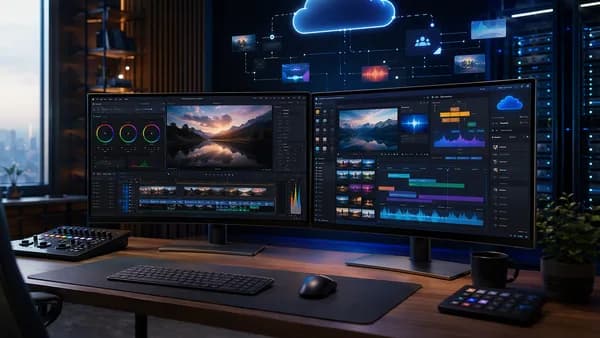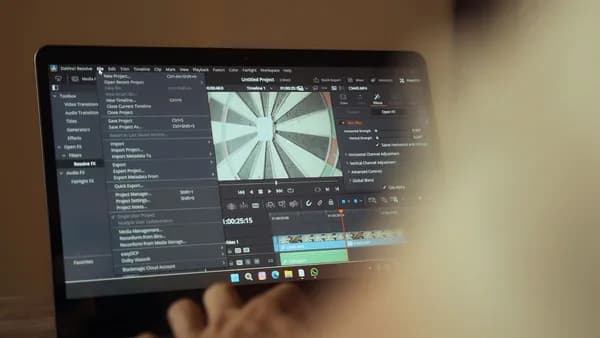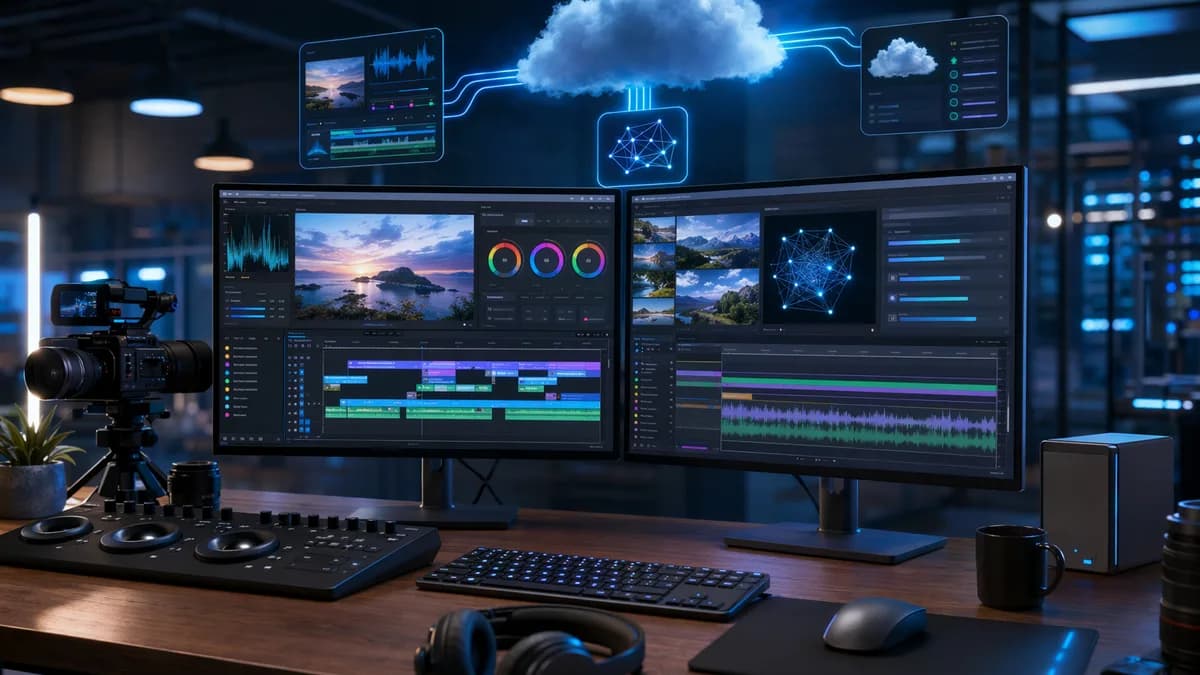
Choosing between Premiere Pro vs DaVinci is less about finding the “best” editor overall and more about matching the software to your YouTube workflow. Both Adobe Premiere Pro and DaVinci Resolve can produce professional YouTube videos, Shorts, interviews, tutorials, podcasts, documentaries, and client work—but they differ sharply in pricing, color tools, audio depth, AI features, and ecosystem.
XOOMAR Intelligence
Analyst Take
For creators evaluating long-term value, editing speed, captions, motion graphics, and scalability, the practical question is: which platform removes more friction from the way you actually make videos?
Premiere Pro vs DaVinci Resolve: Quick Comparison
For YouTube creators, the Premiere Pro vs DaVinci decision usually comes down to three trade-offs: Adobe’s flexible Creative Cloud ecosystem, DaVinci Resolve’s all-in-one post-production model, and the difference between subscription pricing and a free/one-time-license path.
| Category | Adobe Premiere Pro | DaVinci Resolve / Resolve Studio |
|---|---|---|
| Pricing model | Subscription | Free tier + $295 Studio one-time license |
| Pricing cited in source data | $20.99/month in one guide; Toolradar lists $34.49 individual monthly, $22.99 individual annual, $37.99 teams, and $59.99 Creative Cloud All Apps | Free tier available; $295 Studio |
| Editing workflow | Fast, flexible, customizable timeline | Structured page-based workflow with Cut, Edit, Fusion, Color, Fairlight, Deliver pages |
| Best editing fit | YouTube, corporate videos, commercials, social content | Long-form storytelling, all-in-one post-production, color-heavy work |
| Color tools | Lumetri Color, curves, HSL, LUTs, Color Match | Node-based grading, HDR wheels, Color Warper, DaVinci Wide Gamut, film emulation |
| Audio tools | Essential Sound; deeper work via Adobe Audition | Fairlight DAW built in, real-time mixing, multitrack recording, Dolby Atmos support |
| AI / automation | Auto Reframe, scene edit detection, transcription, Color Match, Auto Ducking | Neural Engine tools including Magic Mask, face refinement, Speed Warp, smart reframing, object removal |
| Motion graphics / VFX | Strong integration with After Effects; MOGRT templates | Fusion built in for node-based VFX, titles, motion tracking, green screen, 3D design |
| Collaboration | Adobe Team Projects, Creative Cloud integrations, Frame.io mentioned in source data | Native multi-user project sharing, shared project libraries, bin locking, Blackmagic Cloud mentioned in source data |
| Performance notes | GPU acceleration, proxies, Smart Rendering; performance can be system dependent | Optimized for GPU and multi-core; Studio supports multi-GPU acceleration and hardware encoding/decoding |
| Learning curve | More beginner-friendly and widely adopted | More complex, powerful once mastered |
Key takeaway: Premiere Pro is strongest when your YouTube workflow depends on Adobe apps, templates, social deliverables, and fast editing. DaVinci Resolve is strongest when you want advanced color, integrated audio, built-in VFX, and a lower long-term software cost.
Toolradar’s comparison rates DaVinci Resolve at 4.7/5 from 471 reviews and Adobe Premiere Pro at 4.6/5 from 2,192 reviews. That larger Premiere review base matters if you value broad adoption, while DaVinci’s higher listed rating and free tier make it compelling for creators trying to reduce risk before committing.
Which Software Is Better for YouTube Creators?
For YouTubers, “better” depends on the channel format.
If you produce talking-head videos, tutorials, ads, reaction content, interviews, or regular Shorts, Adobe Premiere Pro has a strong case because its workflow is described in the source data as fast, flexible, and optimized for content-focused production. Its customizable interface, timeline tools, Auto Reframe, transcription features, Essential Sound panel, and motion graphics templates are all relevant to repeatable YouTube publishing.
If you produce cinematic videos, music videos, documentaries, color-heavy travel films, podcast-style shows with complex audio, or client deliverables that need polish inside one application, DaVinci Resolve becomes more attractive. The source data repeatedly highlights Resolve’s advanced color page, node-based grading, Fairlight audio tools, Fusion VFX, and all-in-one design.
Best fit by YouTube workflow
| YouTube creator type | Better fit based on source data | Why |
|---|---|---|
| Beginner YouTuber | Premiere Pro if budget allows; DaVinci Resolve if cost is priority | Premiere is described as more beginner-friendly; Resolve has a powerful free tier |
| Shorts / Reels / TikTok repurposing | Premiere Pro or DaVinci Resolve Studio | Premiere has Auto Reframe; Resolve Studio has smart reframing |
| Talking-head / tutorial creator | Premiere Pro | Fast timeline, transcription tools, Essential Sound, templates |
| Cinematic filmmaker | DaVinci Resolve Studio | Advanced HDR, node-based grading, Color Warper, DaVinci Wide Gamut |
| Podcast-style video creator | DaVinci Resolve Studio | Fairlight DAW is built in with multitrack recording and real-time mixing |
| Motion graphics-heavy creator | Premiere Pro + After Effects | Adobe Dynamic Link and MOGRT ecosystem are major advantages |
| All-in-one post-production creator | DaVinci Resolve | Edit, color, VFX, audio, and delivery live inside one app |
| Adobe ecosystem user | Premiere Pro | Integrates with After Effects, Photoshop, Audition, Adobe Stock, Creative Cloud Libraries |
| Budget-conscious creator | DaVinci Resolve | Free tier plus $295 Studio option |
Featured-snippet answer: For most YouTube creators who prioritize fast editing, captions, social cutdowns, and Adobe templates, Premiere Pro is the smoother choice. For creators who prioritize color grading, integrated audio, built-in VFX, and long-term cost control, DaVinci Resolve is the stronger value.
Editing Workflow and Timeline Performance
The daily editing experience is where YouTube creators feel the difference most. Both tools are professional non-linear editors, but they organize the work differently.
Premiere Pro editing workflow
Adobe Premiere Pro uses a traditional, highly customizable editing interface with bins, timelines, source/program monitors, and adjustable panels. The source data describes this as a flexible workflow that can be tailored to different project types.
For YouTube creators, that flexibility is useful when building repeatable production systems:
- Timeline editing: Ripple, roll, trim, multicam, and adjustment layers are listed among Premiere’s main editing features.
- Workspace customization: Editors can arrange panels and create custom workspaces.
- Proxy workflows: Adobe’s source data highlights proxy workflows for more responsive performance.
- Smart Rendering: Miracamp lists Smart Rendering as a Premiere performance feature.
- Multicam editing: Adobe notes multi-camera source sequences with synchronized In/Out points, clip markers, and audio.
This makes Premiere Pro especially practical for creators who cut frequent uploads, client videos, ads, YouTube Shorts, or multicam talking-head content.
DaVinci Resolve editing workflow
DaVinci Resolve uses a structured page-based workflow: media management, cutting, editing, Fusion, Color, Fairlight, and delivery. The source data describes this as more rigid than Premiere’s open-ended interface, but also cleaner and more organized.
For YouTube creators, Resolve’s structure can be a benefit if you want a disciplined post-production pipeline:
- Cut page: Designed for rapidly assembling rough cuts from large amounts of footage.
- Edit page: Traditional NLE-style editing for full timeline work.
- Color page: Dedicated professional color workflow.
- Fairlight page: Integrated audio post-production.
- Fusion page: Built-in VFX and motion graphics.
Miracamp describes Premiere as optimized for fast, content-focused workflows like YouTube, corporate videos, and commercials, while Resolve is described as built for long-form storytelling with detailed trim tools and advanced timeline controls.
Timeline performance and hardware
The source data does not provide export-time benchmarks, so it would be misleading to claim one is always faster on every machine. What the research does say is more nuanced.
| Performance area | Premiere Pro | DaVinci Resolve Studio |
|---|---|---|
| General performance | Good, but system dependent | Optimized for GPU and multi-core |
| Large projects | Can lag without top-tier hardware, especially multicam and large projects, according to Miracamp | Source data describes smoother performance and scalability |
| Acceleration | GPU acceleration, proxies, Smart Rendering | Multi-GPU acceleration, hardware encoding/decoding, optimized playback |
| Hardware demands | Toolradar lists “resource intensive” as a weakness | Toolradar lists “hardware intensive” as a weakness |
Practical warning: Neither editor is “lightweight” in the source data. Premiere Pro is described as resource intensive, while DaVinci Resolve is also described as hardware intensive—especially as you move into advanced color, VFX, and Studio features.
For YouTubers on modest machines, proxies and optimized media workflows matter regardless of which editor you choose.
Color Correction, Grading, and Visual Polish
Color is one of the clearest differences in the Premiere Pro vs DaVinci debate.
Premiere Pro color tools
Premiere Pro includes Lumetri Color, which the source data describes as convenient and capable for the majority of users. It supports color correction tools such as curves, HSL, LUTs, and precise matching tools. Adobe’s own comparison also mentions Color Match, an AI-powered feature designed to make color correction faster.
For YouTube creators, Lumetri is usually enough for:
- Basic correction: Exposure, contrast, white balance, saturation.
- LUT workflows: Applying a consistent look across uploads.
- HSL adjustments: Targeting specific color ranges.
- Fast social content: Making quick color tweaks without leaving the edit workspace.
- Brand consistency: Keeping recurring content visually similar.
The limitation, according to the source data, is that Premiere’s color workflow is more basic than Resolve’s and less suited to advanced HDR or complex grading.
DaVinci Resolve color tools
DaVinci Resolve began as a dedicated color grading application, and the source data consistently identifies color as its strongest differentiator.
DaVinci Resolve Studio includes or is associated with:
- Node-based grading
- HDR wheels
- Film emulation
- Color Warper
- DaVinci Wide Gamut
- Magic Mask
- Face refinement
- End-to-end color management
Unlike layer-based workflows, Resolve’s node system lets editors build a tree of individual corrections. One node might handle exposure, another might isolate skin tones, and another might apply a look. The source data describes this as offering more precise, non-destructive control than Premiere’s layer-style approach.
| Color task | Premiere Pro | DaVinci Resolve Studio |
|---|---|---|
| Quick YouTube correction | Strong fit via Lumetri | Strong fit, but workflow may be more involved |
| LUT-based creator workflow | Supported | Supported |
| Advanced cinematic grading | More limited | Core strength |
| HDR workflows | Source data says limited compared with Resolve | Advanced HDR tools listed |
| Skin/subject isolation | Not highlighted in source data as a major strength | Magic Mask and face refinement listed |
| Complex color pipelines | Less specialized | Node-based grading and DaVinci Wide Gamut |
For YouTube creators, this means Premiere Pro is often faster for standard content, while Resolve is better when the look of the video is a major part of the channel’s value.
Audio Editing and Podcast-Style Video Production
Audio quality is critical for YouTube retention, especially for interviews, podcasts, educational channels, and talking-head videos. The research shows a major philosophical split: Premiere simplifies common audio tasks, while DaVinci Resolve integrates a full audio workstation.
Premiere Pro audio workflow
Premiere Pro includes Essential Sound, which is designed to speed up common audio work. Adobe’s comparison page lists Auto Ducking, which mixes dialog and voiceover against background audio in seconds. Miracamp also notes that Premiere integrates with Adobe Audition for more advanced audio work.
Useful Premiere audio features from the source data include:
- Essential Sound: Simplifies dialog, music, and mix tasks.
- Auto Ducking: Helps balance voiceover or dialog against background music.
- Audition integration: Supports more demanding audio post-production.
- AI-assisted audio cleanup/mixing: Described in the source data as effective for editors who are not audio engineers.
This is a strong fit for YouTubers who need clean audio quickly but do not want to operate a full DAW inside every edit.
DaVinci Resolve Fairlight workflow
DaVinci Resolve includes Fairlight, described in the source data as a full digital audio workstation built into the editor.
Fairlight features listed in the research include:
- Dolby Atmos support
- Real-time mixing
- Multitrack recording
- 3D audio
- Advanced bussing
- Effects plugins
- ADR capabilities
- Recording, editing, mixing, and mastering tools
For podcast-style YouTube production, this is significant. A creator can edit a multicam podcast, mix multiple microphones, process dialog, and finish the audio without leaving Resolve.
| Audio need | Premiere Pro | DaVinci Resolve |
|---|---|---|
| Fast dialog cleanup | Essential Sound | Fairlight tools |
| Music ducking under voice | Auto Ducking | Manual/pro audio mixing tools |
| Podcast-style multitrack work | Possible, deeper work via Audition | Fairlight built in |
| Advanced audio post | Audition round-trip | Integrated DAW |
| Best for non-audio specialists | Premiere’s simplified controls | More powerful, but more complex |
Creator takeaway: If you want fast, good-enough audio tools inside a familiar editing workflow, Premiere Pro is efficient. If your channel depends on complex audio production, DaVinci Resolve’s Fairlight page gives you more depth inside one application.
AI Tools, Captions, and Automation Features
AI and automation now matter because YouTube creators are often producing multiple formats from the same shoot: long-form videos, Shorts, clips, podcast excerpts, and social teasers.
Premiere Pro AI and automation
Adobe’s source data highlights Adobe Sensei AI-powered features in Premiere Pro, including:
- Auto Reframe: Changes video aspect ratio for different platforms.
- Color Match: Helps match color between clips.
- Auto Ducking: Mixes dialog or voiceover against background audio.
- Scene edit detection: Listed in Miracamp’s comparison.
- Speech to Text / transcription: Listed in Miracamp’s Premiere feature summary.
- Text-Based Editing: Described in the source data as useful for documentary and interview-based work.
For YouTube creators, the most relevant features are Auto Reframe and transcription-based workflows. Auto Reframe is especially useful when adapting horizontal videos into vertical formats for TikTok, Reels, and YouTube Shorts.
DaVinci Resolve AI and automation
DaVinci Resolve Studio includes Neural Engine tools, which the source data positions as more advanced for AI-driven editing features.
Listed Neural Engine tools include:
- Magic Mask
- Face refinement
- Speed Warp
- Smart reframing for social content
- Object removal
These are especially relevant for creators working on visual polish, stylized content, cinematic edits, and social repurposing.
| AI / automation feature | Premiere Pro | DaVinci Resolve Studio |
|---|---|---|
| Auto reframing | Auto Reframe | Smart reframing |
| Captions / transcription | Speech to Text, basic transcription tools, Text-Based Editing mentioned | Source data does not emphasize captions as a Resolve strength |
| Color matching | Color Match | Advanced color tools; source data emphasizes grading more than simple match |
| Audio automation | Auto Ducking | Fairlight mixing tools; automation not framed the same way |
| Subject isolation | Not highlighted as a core strength in source data | Magic Mask |
| Object removal | Not listed in source data | Object removal listed |
| Speed processing | Not highlighted in source data | Speed Warp listed |
In short, Premiere Pro’s AI tools are highly practical for publishing workflows, while DaVinci Resolve Studio’s AI tools are more tied to advanced image manipulation, reframing, and finishing.
Templates, Plugins, and Creator Ecosystems
The ecosystem around the editor can matter as much as the editor itself. YouTube creators often rely on intro templates, lower thirds, transitions, LUTs, stock footage, review links, and team workflows.
Premiere Pro creator ecosystem
Premiere Pro’s biggest ecosystem advantage is Adobe Creative Cloud. The source data repeatedly highlights its integration with:
- After Effects
- Audition
- Photoshop
- Adobe Stock
- Creative Cloud Libraries
- Frame.io
- Team Projects
- Motion Graphics Templates / MOGRTs
Adobe’s own comparison page also states that Premiere has integrations with over 320 third-party technology partners.
For YouTubers, this ecosystem is useful when you need repeatable branded assets:
- Lower thirds: MOGRT templates can standardize on-screen names and titles.
- Intros/outros: Motion graphics can be built in After Effects and used in Premiere.
- Thumbnails and graphics: Photoshop integration helps creators working across video and channel packaging.
- Review workflows: Frame.io is mentioned in the source data for version approval.
- Stock assets: Adobe Stock can be accessed while working through Creative Cloud Libraries.
Miracamp specifically recommends creating production templates—such as intros, lower thirds, and LUTs—in a dedicated project to keep a consistent identity.
DaVinci Resolve ecosystem
DaVinci Resolve’s ecosystem is less about separate creative apps and more about an integrated production suite. Its major components are built directly into the application:
- Fusion: Node-based VFX, titles, motion tracking, green screen, and 3D design.
- Fairlight: Full audio post-production environment.
- Color page: Professional grading environment.
- Blackmagic Cloud: Collaboration mentioned in source data.
- Blackmagic hardware ecosystem: Cameras using Blackmagic RAW, color grading panels, and editing keyboards are mentioned in the research.
This makes Resolve attractive to creators who prefer staying in one application instead of moving between separate tools.
| Ecosystem area | Premiere Pro | DaVinci Resolve |
|---|---|---|
| Motion graphics | After Effects integration, MOGRT templates | Fusion built in |
| Audio expansion | Audition integration | Fairlight built in |
| Image/design support | Photoshop integration | Not highlighted in source data |
| Stock assets | Adobe Stock and Creative Cloud Libraries | Not highlighted in source data |
| Review/approval | Frame.io mentioned | Blackmagic Cloud collaboration mentioned |
| Third-party ecosystem | Adobe cites over 320 third-party technology partners | Source data emphasizes Blackmagic hardware/software integration |
| Best ecosystem fit | Creators already using Adobe apps | Creators wanting one integrated post-production suite |
Important trade-off: Premiere Pro’s ecosystem is broader across creative apps. DaVinci Resolve’s ecosystem is deeper inside one application.
Pricing, Licensing, and Long-Term Cost
Pricing is one of the most commercially important differences for YouTube creators.
At the time of writing, the provided source data lists several Premiere Pro pricing references. One guide lists Premiere Pro at $20.99/month as a standalone app. Toolradar lists Adobe Premiere Pro pricing as $34.49 Individual Monthly, $22.99 Individual Annual, $37.99 Teams, and $59.99 Creative Cloud All Apps.
For DaVinci Resolve, the source data is more consistent: there is a Free tier, and DaVinci Resolve Studio is listed at $295 as a one-time purchase. Miracamp describes that Studio purchase as including lifetime updates and no monthly fees.
| Pricing factor | Adobe Premiere Pro | DaVinci Resolve |
|---|---|---|
| Free tier | Not listed as free in source data | Free tier available |
| Standalone pricing cited | $20.99/month in one guide; Toolradar lists $34.49 monthly and $22.99 annual plan | $295 Studio |
| Team pricing cited | Toolradar lists $37.99 Teams | N/A in Toolradar table |
| Full suite option | Toolradar lists $59.99 Creative Cloud All Apps | All-in-one app model |
| Long-term cost model | Subscription adds up over time but includes ongoing updates | One-time Studio license; no monthly fees in source data |
| Budget advantage | Better if you already need Creative Cloud apps | Better if you want free start or one-time purchase |
What pricing means for YouTubers
- Budget creators: DaVinci Resolve has the obvious advantage because the free tier lets you start without paying.
- Adobe users: Premiere Pro may be cost-effective if you already rely on After Effects, Photoshop, Audition, Adobe Stock, or Creative Cloud Libraries.
- Long-term solo creators: Resolve Studio’s $295 one-time license is a strong value if its workflow fits your production style.
- Teams and agencies: Premiere Pro’s value depends on Creative Cloud collaboration, Team Projects, Frame.io, and cross-app workflows. Resolve’s value depends on native multi-user collaboration, project libraries, and bin locking.
The key is not just monthly cost. It is whether the surrounding workflow saves enough time to justify the licensing model.
Final Verdict by Creator Type
There is no universal winner in Premiere Pro vs DaVinci for YouTube. The better choice depends on your content format, budget, collaboration needs, and how much you value all-in-one finishing.
1. New YouTube creators on a budget
Choose DaVinci Resolve if keeping costs low is the priority. The source data confirms a free tier, and Toolradar specifically recommends DaVinci Resolve for users on a budget.
That said, Resolve has a steeper learning curve, so beginners should expect more time upfront.
2. Fast-turnaround YouTubers
Choose Premiere Pro if you publish frequently and want a familiar, flexible editing environment with transcription, Auto Reframe, Essential Sound, templates, and Creative Cloud integrations.
This is especially relevant for tutorials, commentary, ads, educational videos, and social-first content.
3. Cinematic creators and color-focused channels
Choose DaVinci Resolve Studio. The research is clear that Resolve’s color tools are more advanced, including node-based grading, HDR wheels, Color Warper, DaVinci Wide Gamut, film emulation, Magic Mask, and face refinement.
If your channel’s look is part of your competitive advantage, Resolve is the stronger color platform.
4. Podcast and interview creators
Choose DaVinci Resolve if you need deep built-in audio tools. Fairlight is described as a complete DAW with multitrack recording, real-time mixing, Dolby Atmos support, and advanced audio post features.
Choose Premiere Pro if your audio needs are simpler and you prefer Essential Sound plus Auto Ducking.
5. Motion graphics-heavy creators
Choose Premiere Pro if you rely on After Effects, MOGRTs, branded templates, and fast graphics iteration. The Adobe Dynamic Link workflow is described in the source data as a major advantage because it connects Premiere and After Effects without export/re-import friction.
Choose DaVinci Resolve if you are willing to learn Fusion’s node-based VFX workflow and want those capabilities built in.
6. Growing teams and production studios
Both tools scale, but differently.
- Premiere Pro: Better fit for teams already using Creative Cloud, Team Projects, Frame.io, and Adobe app integrations.
- DaVinci Resolve Studio: Better fit for teams wanting native multi-user project sharing, shared project libraries, bin locking, and an integrated post-production pipeline.
Bottom Line
For YouTube creators, Adobe Premiere Pro is the better fit when speed, templates, Creative Cloud integration, social reframing, transcription, and motion graphics workflows matter most. It is especially practical for creators already using After Effects, Photoshop, Audition, Adobe Stock, Creative Cloud Libraries, or Frame.io.
DaVinci Resolve is the better fit when long-term cost, professional color grading, integrated audio, built-in VFX, and all-in-one post-production matter more. Its free tier and $295 Studio license make it especially attractive for creators who want to avoid an ongoing subscription.
The most balanced recommendation: choose Premiere Pro for fast, repeatable YouTube production inside the Adobe ecosystem; choose DaVinci Resolve for creator-filmmakers, color-heavy channels, podcast-style workflows, and anyone who wants a powerful free starting point.
FAQ
Is Premiere Pro or DaVinci Resolve better for YouTube?
It depends on the channel. Premiere Pro is better suited to fast YouTube workflows, social cutdowns, templates, transcription, and Adobe integrations. DaVinci Resolve is stronger for advanced color grading, integrated audio with Fairlight, built-in Fusion VFX, and long-term value.
Is DaVinci Resolve really free?
Yes, the source data lists DaVinci Resolve as having a Free tier. The paid DaVinci Resolve Studio version is listed at $295 as a one-time purchase.
How much does Premiere Pro cost?
The provided sources list different Premiere Pro pricing references. One guide lists $20.99/month as a standalone app. Toolradar lists $34.49 Individual Monthly, $22.99 Individual Annual, $37.99 Teams, and $59.99 Creative Cloud All Apps at the time of writing.
Which editor is better for color grading?
DaVinci Resolve Studio is stronger for color grading based on the source data. It includes advanced tools such as node-based grading, HDR wheels, Color Warper, DaVinci Wide Gamut, film emulation, Magic Mask, and face refinement. Premiere Pro’s Lumetri Color is useful for basic and professional YouTube color work, but the sources describe Resolve as the more advanced color platform.
Which is better for captions and social media clips?
Premiere Pro has strong creator-focused automation features including Speech to Text, transcription tools, Auto Reframe, scene edit detection, Color Match, and Auto Ducking. DaVinci Resolve Studio also supports smart reframing through Neural Engine tools, but the provided source data emphasizes Premiere more for transcription and captions.
Which one has better audio tools?
For quick creator audio, Premiere Pro offers Essential Sound, Auto Ducking, and Audition integration. For advanced audio production, DaVinci Resolve has the advantage because Fairlight is a full DAW built into the application, with multitrack recording, real-time mixing, Dolby Atmos support, 3D audio, and ADR capabilities.
Sources & References
Content sourced and verified on June 9, 2026
- 1DaVinci Resolve vs Premiere Pro | Complete Guide
https://www.miracamp.com/learn/premiere-pro/vs-davinci-resolve-studio
- 2Adobe Premiere Pro vs. DaVinci Resolve: The Honest Breakdown | Chase Jarvis
https://chasejarvis.com/blog/adobe-premiere-vs-da-vinci-resolve/
- 3Adobe Premiere Pro vs DaVinci Resolve: Which is Better in 2026?
https://toolradar.com/compare/adobe-premiere-pro-vs-davinci-resolve
- 4DaVinci Resolve vs. Premiere | Adobe
https://www.adobe.com/products/premiere/premiere-vs-blackmagic-design.html
- 5DaVinci Resolve vs Adobe Premiere Pro: Which One Should You Choose?
https://www.video-editor.com/blog/davinci-resolve-vs-adobe-premiere-pro
- 6DaVinci Resolve Vs Premiere Pro: A Comprehensive Guide
https://contentcreatortemplates.com/learn/davinci-resolve-vs-premiere-pro

Written by
XOOMAR Insights Team
Research and Editorial Desk
The XOOMAR Insights Team pairs automated research with human editorial judgment. We track hundreds of sources across technology, fintech, trading, SaaS, and cybersecurity, cross-check the facts, and explain what happened, why it matters, and what to watch next. We do not just rewrite headlines. Every article is fact-checked and scored for reliability before it goes live, and we link back to the original sources so you can verify anything yourself.