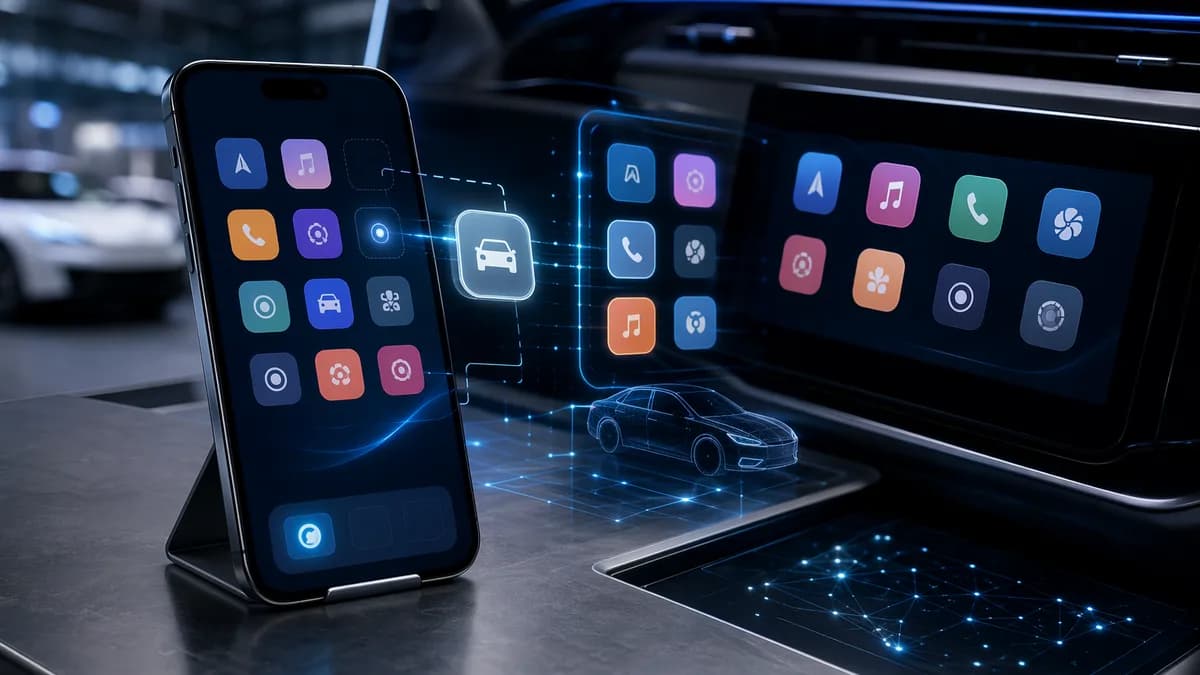
Your car's screen looks like the problem, but you can rearrange CarPlay apps from your iPhone before you ever open the driver’s door.
XOOMAR Intelligence
Analyst Take
Clean up and rearrange CarPlay apps from your iPhone
The expected fix is to sit in the parked car and poke at the dashboard. The real fix is buried in iPhone Settings.
Apple automatically shows compatible apps on CarPlay, which can leave your vehicle display packed with icons you never tap. Tom's Guide notes that compatible apps appear whether you want them there or not, including newly supported apps such as ChatGPT Voice Mode.
“You don’t need to follow these steps while using CarPlay in your vehicle. You can do it right now, without your car anywhere nearby.”
By the end, you’ll have a cleaner CarPlay home screen, fewer distracting icons, and the apps you actually use pushed toward the first page. This guide covers reordering apps, hiding compatible apps, and adding hidden apps back later. It does not rely on an unsupported reset shortcut, because the supplied instructions verify app editing, not a universal reset option.
If you’re already tightening up your Apple setup, this pairs well with our guide on why Apple AirTags crush $2 Bluetooth trackers where it hurts, our coverage of how Leaked iPhone 18 Pro Max Battery Breaks Apple’s Pattern, and our look at Apple’s Broadcom chip deal.
Before you start: pick the exact car you want to change
The assumption is that CarPlay has one universal layout. It doesn’t work that way in the supplied guidance.
Your iPhone shows a list of vehicles you’ve already set up with CarPlay. You customize the layout by selecting a specific car from that list. If you use more than one CarPlay vehicle, choose carefully, because the app arrangement is tied to the selected vehicle.
Follow this path:
- Open Settings on your iPhone.
- Tap General.
- Tap CarPlay.
- Select your vehicle from the list.
Watch out for one important limitation: the source material supports customization for vehicles already shown in the CarPlay menu. It does not verify a troubleshooting flow for missing vehicles, so don’t assume the same steps apply if your car isn’t listed.
Step 1: open the CarPlay settings menu on your iPhone
Start where the control actually lives: the iPhone, not the dashboard.
Open Settings, tap General, then scroll to CarPlay. You should see the vehicles your iPhone has set up with CarPlay. Tap the car you want to edit.
This is the first gap between expectation and reality. CarPlay may appear on the car’s infotainment screen, but the app layout is managed on the paired iPhone. That makes the cleanup easier, because you can do it at home, at your desk, or anywhere else you’re not driving.
Watch out for editing the wrong vehicle if your iPhone has been paired with multiple cars. A tidy layout in one car won’t necessarily mean the same layout in another.
Step 2: open the Apps page to see what CarPlay is showing
After selecting your vehicle, go to the screen that shows app controls. In the Tom’s Guide walkthrough, the relevant option is Apps.
That page shows every installed iPhone app with CarPlay support. It includes Apple’s own CarPlay apps and third-party apps that are allowed to appear on the vehicle display.
Here’s the practical split:
| Control | What it does | Why it matters |
|---|---|---|
| Three-line handle | Lets you drag apps into a new order | Moves priority apps closer to the first CarPlay screen |
| Red button | Removes an app from the included CarPlay list | Hides clutter without deleting the iPhone app |
| Green button | Adds a removed app back | Restores apps when your driving routine changes |
Not every app can be removed. Tom’s Guide says Phone, Music, Maps, Messages, Settings, and Now Playing can’t be removed from the list. Treat those as fixed pieces of the CarPlay setup and organize around them.
Step 3: move your most-used CarPlay apps to the first screen
The goal isn’t a pretty grid. The goal is fewer taps while driving.
Use the three-line handle next to an app name, then drag it up or down the list. Apps higher in the list appear earlier in CarPlay. Once the order is saved, your next CarPlay session should show the new arrangement.
A practical order looks like this:
- Navigation: Put Maps or your preferred navigation app near the top.
- Audio: Place your main music or podcast app next.
- Messaging: Keep Messages or another CarPlay-compatible messaging app reachable if you use it.
- Specialty apps: Move less frequent apps lower, even if you still want them available.
There’s a catch. The list view on iPhone doesn’t look like the grid on your car display. 9to5Mac notes that CarPlay screens can use different layouts, including common grids such as 2x4, while some screens use different arrangements. So don’t overthink pixel-perfect placement on the first pass. Put the most important apps highest, connect later, then adjust if the first screen doesn’t land the way you expected.
Before vs. after:
- Before: Every compatible app competes for space.
- After: Your daily driving apps surface first.
- Before: You swipe through icons you don’t use.
- After: You scan faster and tap less.
Step 4: remove CarPlay apps you don’t want on the dashboard
Clutter wins by default. Your job is to make it lose.
On the Apps page, tap the red button next to an unwanted app, then confirm removal. This hides the app from CarPlay. It does not delete the app from your iPhone.
That distinction matters. You can keep an app installed for phone use while keeping it off the vehicle screen. Tom’s Guide’s example is ChatGPT, which added CarPlay support and then appeared as an icon. If you don’t want a compatible app visible while driving, remove it from the included CarPlay list.
Good candidates for removal include:
- Unused audio apps: Keep the one you actually play.
- Duplicate navigation apps: Don’t keep extras on the first page if they slow you down.
- Low-priority apps: Anything you don’t need while driving belongs lower or hidden.
- Apps you don’t want visible in the car: If it distracts you, remove it.
Smaller infotainment screens make this more noticeable. Fewer icons means less visual scanning. That’s the real win.
Step 5: add hidden CarPlay apps back when your routine changes
Removing an app from CarPlay isn’t permanent.
Apps you remove can be added back from the same app-editing screen. Tap the green button next to an app name to return it to the included CarPlay section. Once it’s back, use the drag handle again to place it where you want.
This is useful after installing a new CarPlay-compatible app. Tom’s Guide says every app installed on your iPhone with CarPlay support appears on this screen, and compatible apps may show up automatically. That’s convenient, but it’s also how clutter creeps back.
Watch out for new icons after app updates or fresh installs. If your CarPlay dashboard starts feeling messy again, return to Settings, General, CarPlay, select your car, then Apps.
Don’t depend on a reset button to fix a messy CarPlay layout
A reset shortcut sounds tempting, especially if the layout feels chaotic. But the verified source material here does not establish a Reset option inside the CarPlay app customization flow.
Use the controls that are confirmed:
- Drag apps to reorder them.
- Tap red to hide apps.
- Tap green to restore apps.
That’s enough for most cleanup jobs. It also gives you more control than a full reset would, because you’re not throwing away the whole arrangement just to fix a few bad icons.
If apps seem missing, first check whether they were removed from the included list. Then add them back with the green button and drag them into place.
Your next drive should start with less CarPlay noise
The fastest path is simple: Settings, General, CarPlay, select your vehicle, then open Apps.
From there, rearrange CarPlay apps by dragging them, hide dashboard clutter with the red button, and restore hidden apps with the green button when your routine changes. Do the cleanup before you drive, not while you’re on the road.
The next useful check comes after your iPhone reconnects to the car. If the first screen still buries the apps you reach for most, move those apps higher in the list and trim again. CarPlay gets better when the default mess stops making decisions for you.
Key Takeaways
- CarPlay layouts can be cleaned up directly from iPhone Settings without sitting in the car.
- Removing unused compatible apps can reduce dashboard clutter and distraction while driving.
- CarPlay app arrangements are vehicle-specific, so users with multiple cars need to customize each one separately.
Primary Sources & Disclosures

Written by
XOOMAR Insights Team
Research and Editorial Desk
The XOOMAR Insights Team pairs automated research with human editorial judgment. We track hundreds of sources across technology, fintech, trading, SaaS, and cybersecurity, cross-check the facts, and explain what happened, why it matters, and what to watch next. We do not just rewrite headlines. Every article is fact-checked and scored for reliability before it goes live, and we link back to the original sources so you can verify anything yourself.