
You can make an Apple Watch feel dramatically more useful in about 30 minutes by turning on the quiet features Apple doesn’t put in the spotlight. These underrated Apple Watch features — the same kind of overlooked Apple-software wins covered in our looks at quiet iOS 27 features, iOS 27 AI features, and iOS 27 features for older iPhones — won’t replace the headline fitness tools, but they cut friction from logins, payments, navigation, photos, timers, calls, and small daily routines.
TechnologyJune 20, 2026· 9 min read· By XOOMAR Insights Team
10 Apple Watch Features That Kill Daily Friction Fast
Updated on June 21, 2026
XOOMAR Intelligence
Analyst Take
67/ 100
4 sources analyzedLow confidenceTrend10Freshness100Source Trust83Factual Grounding92Signal Cluster40
The list below is based on Engadget’s June 16, 2026 roundup of lesser-known Apple Watch tools, according to Engadget. Exact menus can vary by watchOS version, Apple Watch model, and region, so treat the paths as a practical guide rather than a legal contract.
Before you start: check the model limits before hunting through Settings
Start with the basics. Keep your Apple Watch on your wrist, keep the paired iPhone nearby, and know which model you’re using. Several of these features are not universal.
Quick compatibility checks:
| Feature | Requirement from the source |
|---|---|
| Auto Unlock for Mac | Same Apple account on Mac and watch, Wi-Fi and Bluetooth on, watch passcode set |
| Backtrack | Apple Watch Series 6 and later or Apple Watch SE, running watchOS 10 or newer |
| Double Tap and wrist flick | Apple Watch Series 9 or later, Apple Watch SE 3, or Apple Watch Ultra 2 and later |
| Wrist flick | Added in watchOS 26 |
| Camera Remote Smart Stack hint | Appears in watchOS 26 when the iPhone camera opens |
XOOMAR analysis: the highest return here comes from features that remove a repeated action. Unlocking a Mac, paying at checkout, naming timers, and finding a phone in the dark are small wins, but they compound because they hit moments when friction is already annoying.
If you use a Mac heavily, this also fits the broader Apple workflow conversation we track in Best Stock Charting Software for Mac Cuts Through Hype, where small setup decisions can change whether a machine feels fast or merely powerful.
1. Use Auto Unlock so your Apple Watch opens your Mac
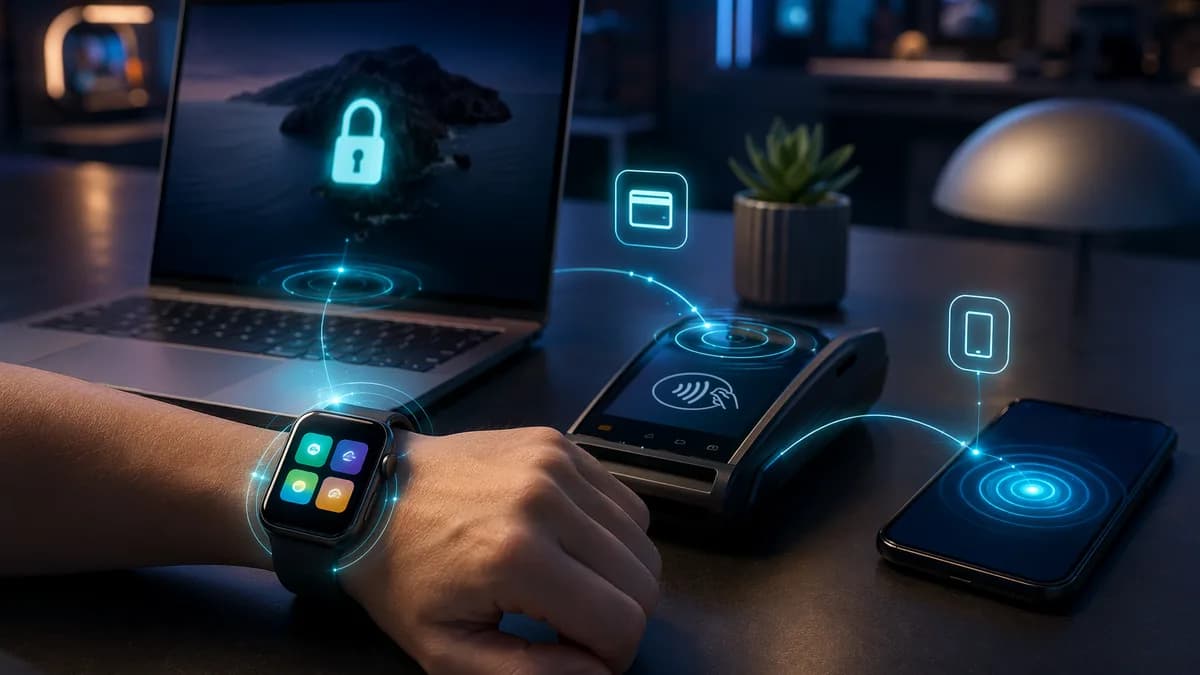
Auto Unlock is the fastest win if you work from a Mac. It lets you skip typing your Mac login password when you’re wearing your Apple Watch. Engadget notes the feature debuted in macOS Sierra in 2016, and it still helps on Macs without Touch ID, desktop setups, older MacBooks, or MacBooks used in clamshell mode with an external monitor.
Set it up on your Mac:
- Open System Settings.
- Go to Touch ID & Password.
- Turn on the toggle next to your watch’s name.
Watch out for the requirements. Your Mac and Apple Watch need Wi-Fi and Bluetooth turned on, both devices must be logged into the same Apple account, and the watch needs a passcode. The payoff is broader than login. Engadget says Auto Unlock can also authenticate admin-level actions, basically anything Touch ID can do.
2. Turn on Backtrack before you need to retrace a route
Backtrack lives in the Compass app, and it records your path so you can follow it back if you get turned around. This is one of the most practical underrated Apple Watch features because you don’t want to discover it after you’re already unsure where you are.
On supported models, Apple Watch can automatically start a Backtrack session when you begin a workout in a remote location. Still, don’t rely on automatic behavior for a serious walk or hike.
Set it up manually:
- On your watch, go to Settings > Compass.
- Check that Backtrack is turned on.
- Add a Backtrack shortcut to Control Center for faster access.
- When you’re ready to return, tap the pause button in the lower-right of the Compass screen.
- Choose Retrace Steps and follow the compass arrow.
If you own an Apple Watch Ultra, Engadget says you can set the Action button to start Backtrack: Settings > Action Button > Action > Backtrack > Record path.
3. Set up gestures for one-handed control
Double Tap lets you control recent Apple Watch models by pinching your index finger and thumb together twice. It can scroll through the Smart Stack, play or pause media, and answer calls. Engadget’s writer calls out kitchen use and dog-walking as moments where this makes sense, which is exactly the point: gestures matter when your other hand is busy.
Set it up here:
- Open Settings on the watch.
- Go to Gestures > Double Tap.
- Customize how you want it to behave.
In watchOS 26, Apple added wrist flick. Quickly turn your wrist away and back to dismiss what’s onscreen and return to the watch face. It also works for muting incoming calls, stopping timers, and dismissing notifications.
Older and broader option: Cover to Mute. Cover the screen with your palm for about three seconds to silence a call, timer, or alert. It won’t dismiss the alert. It just mutes it.
For deeper one-handed control, AssistiveTouch can simulate screen taps, Digital Crown turns, swipes, and more. Turn it on at Settings > Accessibility > AssistiveTouch.
4. Use Camera Remote for group shots without sprinting back to the phone
Camera Remote turns the Apple Watch into a live viewfinder and shutter button for your iPhone. Set the iPhone on a tripod or prop it up, step into frame, then trigger the shot from your wrist.
How to use it:
- Open your iPhone’s Camera app.
- On watchOS 26, tap the Smart Stack hint that appears at the bottom of the watch face, or open the Camera Remote app manually.
- Use the live viewfinder on the watch to frame the shot.
- Tap the three dots in the lower-right corner to choose countdown or instant shot.
- Switch between front and rear cameras from the same menu.
- Tap the shutter button, or use Double Tap if your model supports it.
This is the cleanest example of the Apple Watch acting as an iPhone control surface rather than a tiny standalone computer.
5. Ping your iPhone and flash the light when sound isn’t enough
Most users know the Ping iPhone button. Fewer use the flashlight trick.
To find your iPhone:
- Press the Apple Watch side button to open Control Center.
- Tap the icon that looks like a phone with sound waves.
- Listen for the sound.
- On the screen that appears, hold down the same phone icon to turn on the iPhone flashlight.
That last step matters in a dark room, under a couch, or inside a bag. Sound narrows the search. Light finishes it.
6. Set up Walkie-Talkie for quick voice bursts
Walkie-Talkie gives you a push-to-talk link with another Apple Watch user. It’s not subtle, so set availability carefully, but it can be useful when a full call is too much.
Setup is simple:
- Open the yellow Walkie-Talkie app.
- Scroll through contacts and add someone.
- Wait for them to accept.
- Once their card turns yellow, select them.
- Hold the talk button while speaking.
If the other person is available, Walkie-Talkie opens automatically on their Apple Watch and plays your message. You take turns talking, like the name suggests. You can change availability inside the app or from Control Center, and Engadget notes you won’t hear messages while on a phone call or in theater mode.
7. Name timers with Siri so dinner doesn’t become guesswork
Multiple unnamed timers are chaos. Named timers fix that in one sentence.
Try these:
- “Siri, set a pasta timer for eight minutes.”
- “Hey Siri, set a 15-minute timer for sauce.”
- “Siri, set a five-minute sauté timer.”
Each timer shows its name at the top. That’s the entire trick, and it’s why it works. You don’t need a new app or a complex automation. You just need to stop creating three identical countdowns.
8. Put Apple Pay on your wrist and test it before checkout
Apple Pay on Apple Watch is one of those features many people know about but still don’t use. Once it’s set up, you don’t need your wallet or phone for contactless payment.
Set it up:
- Open the Apple Watch app on iPhone.
- Scroll to Wallet & Apple Pay.
- Add at least one card if none is present.
You can also open Wallet directly on the watch and add a card from there.
At checkout, double-click the Apple Watch side button, choose the card, and hold the watch within a few centimeters of the reader. A tap, chime, and onscreen confirmation show the payment went through.
This also sits inside Apple’s wider control over its services and devices, a theme we covered in Brazil Cracks Apple’s App Store Fortress Wide Open.
9. Make the watch read the time aloud
Speak Time is useful when looking at the screen is awkward, inconvenient, or just not what you want to do. Hold two fingers on the watch face for a moment, and Siri reads the time aloud.
If it doesn’t work:
- Open Settings on the watch.
- Go to Clock.
- Turn on Speak Time.
It’s a small accessibility-adjacent convenience that also works as a low-effort morning or hands-busy shortcut.
10. Send your heartbeat with Digital Touch
Digital Touch is more sentimental than essential, but it’s one of the stranger and more personal Apple Watch features that still deserves a look. It sends a haptic version of your heartbeat to someone else.
Here’s how:
- Open Messages on your Apple Watch.
- Choose a chat thread.
- Tap the plus icon next to the text field.
- Choose Digital Touch.
- Hold two fingers on the screen until you see a red pulsing heart and feel haptic feedback.
- Tap Done, then send it.
The recipient doesn’t need an Apple Watch, but Engadget notes the feature works best if they have one. Otherwise, they see the visual heartbeat on an iPhone screen without the wrist haptics.
The setup order that gives the biggest payoff fastest
If you only have 10 minutes, start with Auto Unlock, Backtrack, Apple Pay, Camera Remote, and Ping iPhone with flashlight. Those five solve obvious problems with almost no learning curve.
Then add the personal layer: Double Tap, wrist flick, Walkie-Talkie, named timers, Speak Time, and Digital Touch. That’s where the Apple Watch stops feeling like a notification mirror and starts behaving like a tool tuned to your habits.
The watch gets better when you treat settings as part of the product. Defaults are safe. These underrated Apple Watch features are where the device starts earning its spot on your wrist.
Key Takeaways
- These Apple Watch features can reduce everyday friction around logins, payments, navigation, calls, timers, and photos.
- Compatibility varies by Apple Watch model, watchOS version, and region, so users should check requirements before changing settings.
- Small setup changes can make the watch more useful quickly, especially for repeated tasks like unlocking a Mac or finding an iPhone.
Apple Watch Feature Compatibility Checks
| Feature | Requirement |
|---|---|
| Auto Unlock for Mac | Same Apple account on Mac and watch, Wi-Fi and Bluetooth on, watch passcode set |
| Backtrack | Apple Watch Series 6 and later or Apple Watch SE, running watchOS 10 or newer |
| Double Tap and wrist flick | Apple Watch Series 9 or later, Apple Watch SE 3, or Apple Watch Ultra 2 and later |
| Wrist flick | Added in watchOS 26 |
| Camera Remote Smart Stack hint | Appears in watchOS 26 when the iPhone camera opens |
Sources

Written by
XOOMAR Insights Team
Research and Editorial Desk
The XOOMAR Insights Team pairs automated research with human editorial judgment. We track hundreds of sources across technology, fintech, trading, SaaS, and cybersecurity, cross-check the facts, and explain what happened, why it matters, and what to watch next. We do not just rewrite headlines. Every article is fact-checked and scored for reliability before it goes live, and we link back to the original sources so you can verify anything yourself.
Explore More Topics
Related Articles
 Technology
Apple Traps Creative Pros With $260 Mac Studio Discount
Apple raised Mac Studio trade-in values by $260 and added Android devices to its program, a direct subsidy to poach creative professionals during their upgrade
Aug 8, 20267 min
 Technology
OpenAI Calls Apple Lawsuit 'Rotten to Its Core'
OpenAI has moved to dismiss Apple's trade secrets lawsuit, framing it as a baseless and reactive attempt to smear a competitor. The filing accuses Apple of tryi
Aug 8, 20266 min
 Technology
Apple Must Let iPhones Paste to Windows PCs in EU
Europe's regulators are forcing Apple to break a key ecosystem lock, requiring it to let iPhone users copy text and paste it directly onto Windows PCs by 2027.
Aug 4, 20267 min
 Technology
Apple Accuses 11 Ex-Employees of Taking Secrets to OpenAI
Apple’s court filing reveals at least 11 former employees may have taken confidential product information to OpenAI, escalating a targeted legal attack on its A
Aug 4, 20266 min
 Technology
OpenAI Brands Apple Lawsuit 'Oddly Personal' in Public War
OpenAI launched a public relations offensive against Apple's trade secret lawsuit, calling it 'careless, aggressive, and oddly personal' in a blog post that rev
Aug 4, 20266 min
 Cybersecurity
Security Chaos Floods Apple Bug Bounties With AI Slop
A flood of AI-generated reports is overwhelming companies like Apple, forcing them to cap bug bounties as attacks swamp ports, banks, and infrastructure in a se
Aug 8, 20267 min
 Global Trends
Fauci Invokes Fifth Amendment 111 Times, Phone Seized
Senators have obtained a copy of Dr. Anthony Fauci’s iPhone, escalating their threat to hold him in contempt after he invoked his Fifth Amendment right 111 time
Aug 9, 20268 min
 Global Trends
Drug Cartels Now Move Tonnage Like Multinationals
A massive drug bust in Spain and Ecuador seized 21 tons of cocaine, exposing an industrial-scale supply chain that is now as sophisticated as a multinational co
Aug 9, 20268 min
 Trading
Tokyo's Yen Gambit Already Fails at $153 Ceiling
TD Securities strategists assert Japan's massive currency intervention only created a temporary bounce, with USD/JPY's decline capped near 153 as overwhelming U
Aug 9, 20266 min
 Future Fiction
The Unbind
In 2053, after the global rollout of fusion-powered resonant energy grids ends energy scarcity, geopolitical analyst Li Wei is tasked with monitoring global stability. Instead, she uncovers a growing subculture of "Unbinders" who voluntarily reject the wireless power field, revealing that true human connection may require a little friction.
Aug 9, 20269 min
Don't miss the signal
Get our weekly roundup of the stories that matter across tech, fintech, and trading. No noise, just signal.
Free forever. No spam. Unsubscribe anytime.