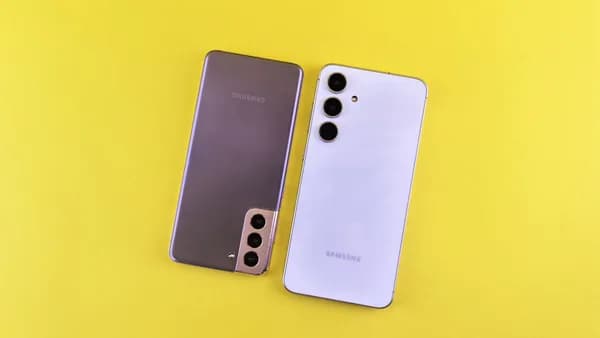

Samsung Connectivity Labs turns a vague home office Wi-Fi complaint into a location test you can finish in minutes: measure the bad spot, compare it with a stronger spot, then move only what the numbers justify. The point is to stop guessing before you pay for a faster plan, buy an extender, or blame the wrong device.
XOOMAR Intelligence
Analyst Take
That is exactly what ZDNet’s Kerry Wan did after years of weak reception at a home office desk, according to ZDNet. His fix was not a new router. It was a hidden Samsung Connectivity Labs test on a modern Galaxy phone, followed by a desk swap.
1. Prove the home office Wi-Fi problem before buying new gear
Your first job is to prove whether the office location is the weak link. Don’t start by changing router settings, moving mesh nodes, or accepting an ISP upsell. Start with a baseline from the exact place where your work breaks down.
ZDNet’s example is useful because it was mundane. The home office had been arranged for light, door position, and comfort, not wireless performance. After lag and disconnects worsened, a Verizon call produced a pitch to upgrade a Fios plan. That was the moment to test the room instead of the bill.
Use this method as a quick validation loop:
- Measure signal strength at the problem desk.
- Measure nearby spots in the same room.
- Compare the numbers.
- Move one major variable.
- Rerun the same test.
Watch out for treating one speed test as proof. A speed test can look fine for a moment. Signal strength across the room tells you whether your desk sits in a weak pocket.
2. Get the right Samsung Connectivity Labs setup ready
The source-backed Samsung tool here is Connectivity Labs, not Samsung Members. You need a modern Samsung Galaxy phone running OneUI 6.0 or newer, access to your home Wi-Fi, and a few notes about where the connection fails.
To unlock the hidden menu:
- Open Wi-Fi settings.
- Tap the three-dot menu for expanded settings.
- Tap Intelligent Wi-Fi.
- Tap the version number 7 times.
- Stop when you see the notification:
"Connectivity Labs enabled."
The new Connectivity Labs menu should appear under the version number. Inside it, use the real-time Wi-Fi strength tool that creates a signal map as you walk around.
Before testing, write down:
- Room: Home office, desk corner, cabinet corner, hallway, or router area.
- Band: 2.4 GHz or 5 GHz, if visible.
- Signal: dBm reading from Connectivity Labs.
- Speed: Download and upload result, if you run a speed test.
- Behavior: Lag, disconnect, stable, or improved.
A simple notes template beats memory. It also keeps the test honest.
3. Run the first test at the exact desk where work fails
Start where the pain happens, not where the Wi-Fi is likely to look good. Sit or stand at the same desk, chair, or corner where calls, downloads, or cloud apps struggle. Open Samsung Connectivity Labs and watch the real-time Wi-Fi strength meter.
ZDNet used this in a roughly 100 sq ft. office and paused in high-use spots for five seconds to get a more accurate reading. That pause matters. Walking too quickly can make the test noisy.
Use these ZDNet signal ranges as your guide:
| Signal reading | Practical read |
|---|---|
| -30 dBm to -50 dBm | Best signal strength |
| -60 dBm to -70 dBm | Good enough for browsing |
| Lower than -70 dBm | Poor signal |
In Wan’s case, the 2.4 GHz signal was mostly excellent, but the 5 GHz signal near the desktop dropped as low as -80 dBm. That is the kind of number that changes the conversation. The issue was no longer “my internet feels bad.” It became “this desk has a weak 5 GHz position.”
Watch out for testing only near the router. That proves the network exists. It does not prove your desk is in a good place.
4. Compare the desk with a stronger corner before moving anything
The strongest test is a same-room comparison. Keep the same phone, same Wi-Fi network, same tool, and same test method. Change only your location.
Walk around the office and pause in the places where you could realistically work or place equipment. ZDNet’s key contrast came from the opposite corner of the room, where a cabinet sat. That spot showed a 5 GHz signal ranging from -40 dBm to -60 dBm, far better than the -80 dBm reading near the desktop.
That comparison tells you more than a generic troubleshooting checklist. If one side of the same room is poor and another side is strong, the home office layout is probably the fixable variable.
Analysis: This is where Samsung Connectivity Labs earns its keep. It does not just say the Wi-Fi is “bad.” It gives you a map-like reason to move your desk, cabinet, router, or work device with intent.
The counterpoint is obvious: if every location is weak, a desk swap won’t solve much. In that case, the problem may sit upstream from the room. But if the readings swing from poor to strong within a few steps, you have evidence for a physical layout fix.
5. Use the Wi-Fi band reading to avoid the wrong fix
The 5 GHz band can be the hidden culprit when a desk looks fine on paper but fails in practice. ZDNet’s test showed a clean split: 2.4 GHz looked mostly excellent, while 5 GHz collapsed near the desktop.
Don’t overcomplicate this step. You’re not rebuilding the network. You’re checking whether the device or work area depends on a weak band.
Use the Connectivity Labs reading this way:
- If 5 GHz is strong at the desk: Your location may not be the problem.
- If 5 GHz is poor but improves elsewhere in the room: Move the work position or relevant gear toward the stronger zone.
- If 2.4 GHz is strong while 5 GHz is weak: Stability may differ by device and band, so keep testing the actual work setup.
Watch out for assuming the faster band is always the better experience. ZDNet’s result showed the faster office fix came from location, not from blindly chasing a band label.
For XOOMAR readers who track Samsung beyond phones, this is a very different kind of consumer lock-in story than our fintech coverage of Samsung Galaxy Card taking aim at Apple’s Wallet grip. Here, the value is simpler: a free diagnostic tool makes a Samsung phone useful as home-network test gear.
6. Move one thing, rerun the same Samsung Connectivity Labs test
Only change one variable per test cycle. ZDNet’s fix was clean: Wan swapped the positions of the desk and cabinet, then reran the same internet speed test.
The result was measurable. After the swap, speeds were roughly 100 Mbps higher for downloads and 50 Mbps higher for uploads, and the numbers were consistent with the Verizon Fios plan.
That is the standard to aim for. Not “it feels better.” Proof.
Try this order:
- Move your work position to the strongest tested spot, if practical.
- Rerun Connectivity Labs at the new desk position.
- Run the same speed test you used before.
- Compare against your notes, not your memory.
- Keep the change only if both signal and real use improve.
Watch out for making three changes at once. If you move the desk, change the router location, and switch networks in one pass, you won’t know which change mattered.
7. Validate the fix with real work, not just a clean test screen
A diagnostic win only counts if your normal work stops breaking. After the layout change, repeat the exact tasks that exposed the problem. Use the same desk. Use the same device. Run the same apps that lagged or dropped.
ZDNet’s validation combined a signal investigation with a before-and-after speed test. That is the right pattern. Signal strength tells you whether the location improved. Workload testing tells you whether the improvement matters.
Use this short validation plan:
- Before work: Run Connectivity Labs at the desk and record the reading.
- During work: Watch for lag, disconnects, or unstable calls.
- After a problem: If one happens, rerun the reading in the same spot.
- End of block: Run one more reading and compare.
If the issue returns even after stronger local readings, the Samsung test has still helped. It narrows the case. The desk may no longer be the obvious suspect.
This same habit, diagnose before committing capital, applies well outside home tech. XOOMAR uses that lens in markets coverage too, including our look at how a GOP plan pulls Federal Home Loan Banks into bank rescue mechanics.
8. The no-new-gear checklist before you pay for faster Wi-Fi
Samsung Connectivity Labs is most useful when it creates before-and-after proof. The tool helped ZDNet identify a weak 5 GHz zone, find a stronger corner, move the office setup, and confirm the improvement with higher download and upload speeds.
Use this checklist:
- Enable Samsung Connectivity Labs on a modern Galaxy phone.
- Test the problem desk and record the dBm reading.
- Walk the room and pause for cleaner measurements.
- Compare 2.4 GHz and 5 GHz behavior where visible.
- Move one thing based on the strongest reading.
- Retest signal and speed using the same method.
- Validate during real work before declaring victory.
The practical next action is simple: don’t buy an extender or upgrade your plan until diagnostics show where the connection breaks. If the room is the problem, a free Samsung tool may save you from paying for the wrong fix.
Key Takeaways
- A free Galaxy phone tool can help diagnose weak Wi-Fi before spending money on upgrades.
- Testing different spots in the same room can reveal whether the problem is location-based.
- The fix may be as simple as moving a desk instead of replacing networking equipment.
Home Office Wi-Fi Fix Options
| Approach | What It Involves | Why It Matters |
|---|---|---|
| ISP upgrade | Accepting a faster Fios plan upsell | May not fix weak reception if the desk location is the problem |
| New gear | Buying a new router or extender | Could be unnecessary without proving the signal issue first |
| Samsung Connectivity Labs test | Measuring Wi-Fi strength at the bad spot and nearby stronger spots | Helps identify whether a simple desk move can solve the issue |
Primary Sources & Disclosures

Written by
XOOMAR Insights Team
Research and Editorial Desk
The XOOMAR Insights Team pairs automated research with human editorial judgment. We track hundreds of sources across technology, fintech, trading, SaaS, and cybersecurity, cross-check the facts, and explain what happened, why it matters, and what to watch next. We do not just rewrite headlines. Every article is fact-checked and scored for reliability before it goes live, and we link back to the original sources so you can verify anything yourself.